


The VMOS Magic Box Quick Guide for Beginners ( 2 )
Only take 4 simple steps to start your journey on VMOS Magic Box:
The VMOS Magic Box Quick Guide for Beginners ( 2 )
PC Client Download and Installation
1. System Requirements
Operating System: Windows 10 (version 1809 or higher) / Windows 11
Other Requirements:
Administrator privileges (required during installation)
Disable antivirus real-time protection (during installation)
2. Download Client
Click to Download: Windows, Mac, Linux (on the planning)
Download Tips
Installation package size is approximately 100-200MB, please ensure stable network connection
It is recommended to use the official download link, avoid downloading from third-party websites
If download speed is slow, you can try using download tools or changing network environment
3. Installation Wizard
💡 For first run, ensure PC and box are on the same local network.
Run Installer After download is complete, double-click the installation package file to begin installation:
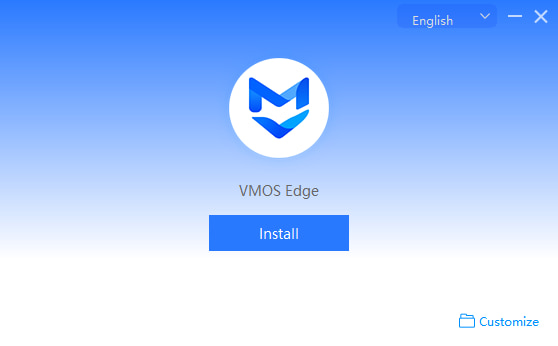
Click Quick Install
4. First Connection to Box
VMOS Magic Box supports two ways to add hosts to the PC client: Automatic Discovery and Manual Addition.
✅ Recommendations
Same subnet recommends using automatic discovery for quick identification and connection to hosts.
Cross-subnet deployment or remote use, manual addition is more flexible, suitable for enterprise environments.
Method 1: Automatic Host Discovery (Recommended)
Applicable Scenario: When PC client and host are on the same local network (same subnet), the system can automatically discover host devices.
Operation Steps:
1. Ensure host and PC are connected to the same router or switch network.
2. Open PC client, enter the "Host" interface.
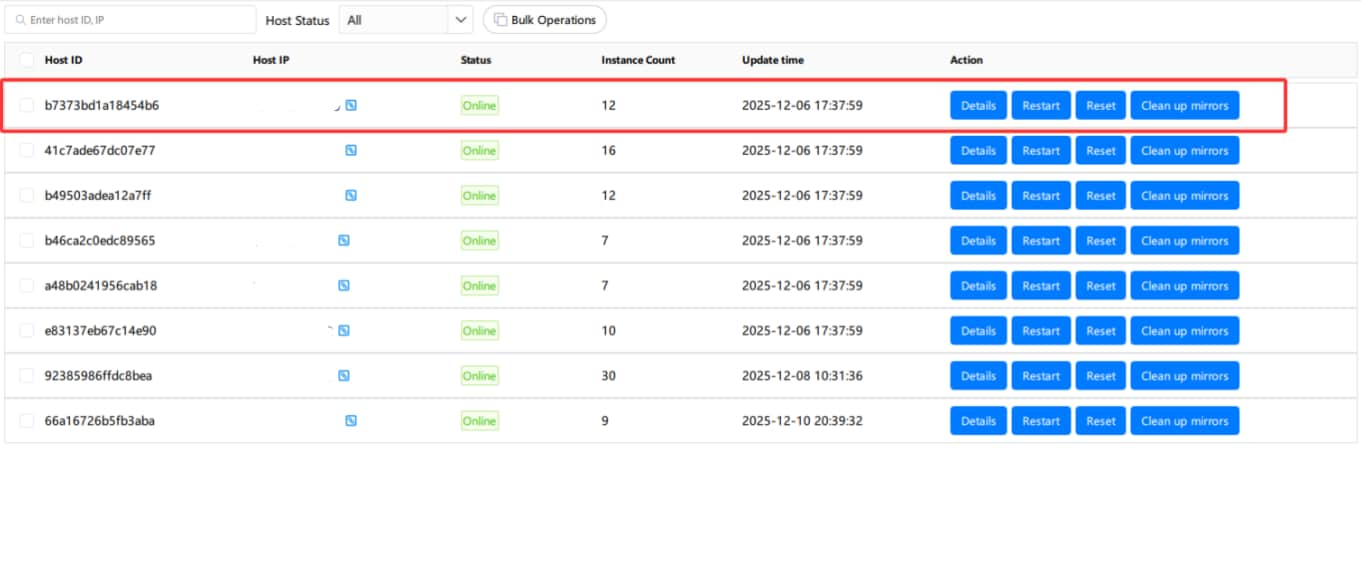
3. The system will automatically scan devices on the same subnet and display online hosts.
4. When host status shows Online, you can perform cloud machine management and connection operations.
Tips: If not automatically displayed, please check:
Whether host and PC are on the same subnet;
Whether host network is normal;
Whether local network discovery service is blocked by firewall.
Method 2: Manual Host Addition
Applicable Scenario: When PC client and host are not on the same subnet (such as cross-subnet, different router environments), you can add manually.
Operation Steps:
1. Ensure PC client can Ping the host IP address.
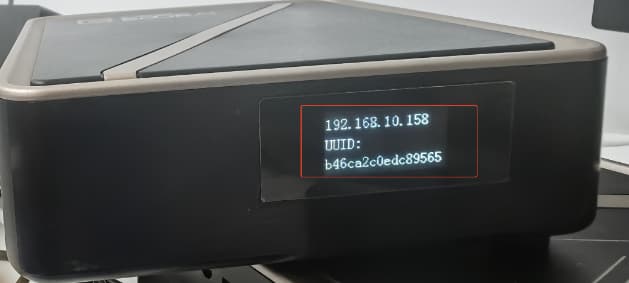
2. On the host device, view the host IP address through the LED display screen.
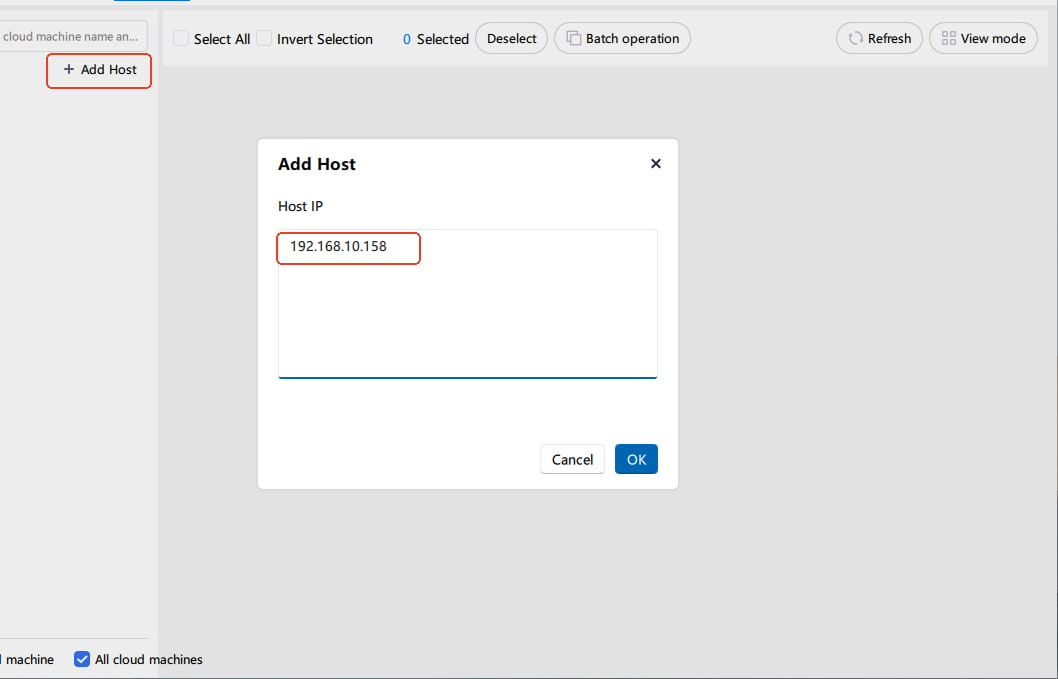
3. Open PC Client → Cloud Machine → Add Host.
4. Enter the host IP address in the input box, click "Confirm" to add
5. After successful addition, the host will appear in the host list with status showing Online.
Tips: If addition fails, please verify network connectivity again (Ping test).