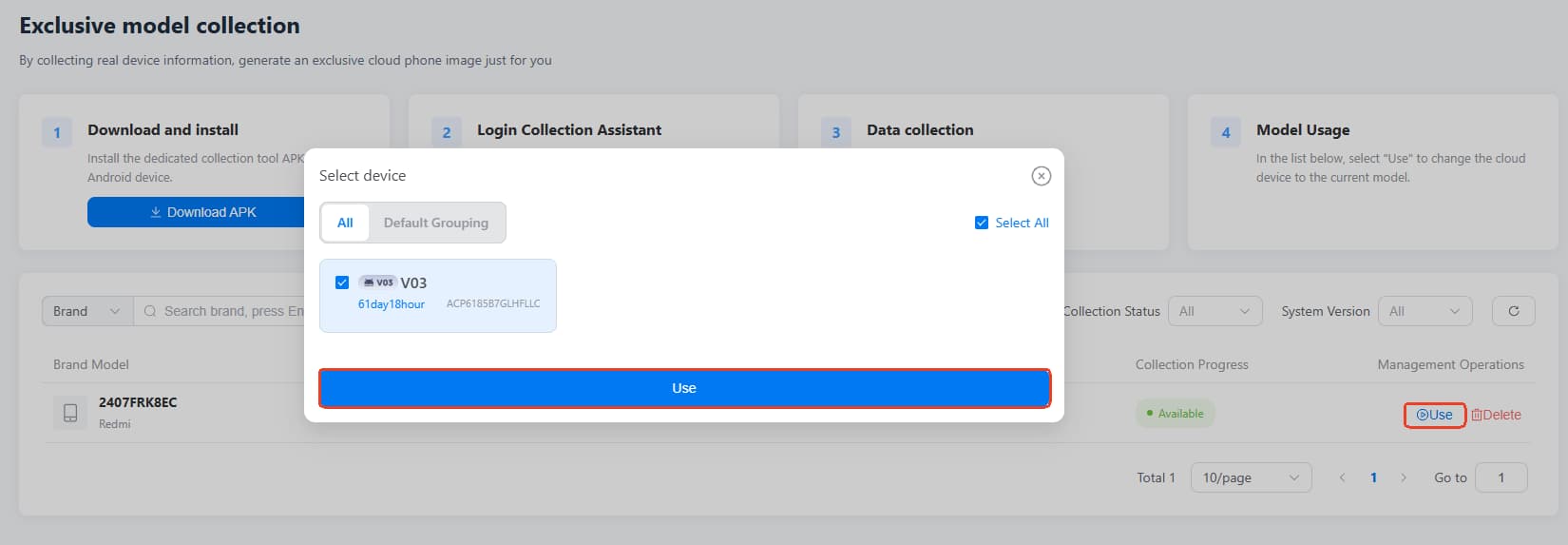
How to customize your device model on VMOSCloud?
1.Install the device collection tool on your Android device
In the left-side panel, find Developer> Model Collection to enter the corresponding page.
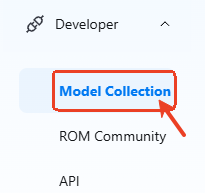
Click Download APK or Scan the QR code to download and install Model Collection Assistant on your mobile phone.

2. Log into the app and report device information
After downloading, using your VMOS Cloud account and password to log in this app.
Once logging in, select 【Report Device Information > Grant Permissions > Allow Only While in Use】 to start uploading the TAR file. You can follow as the picture shows.
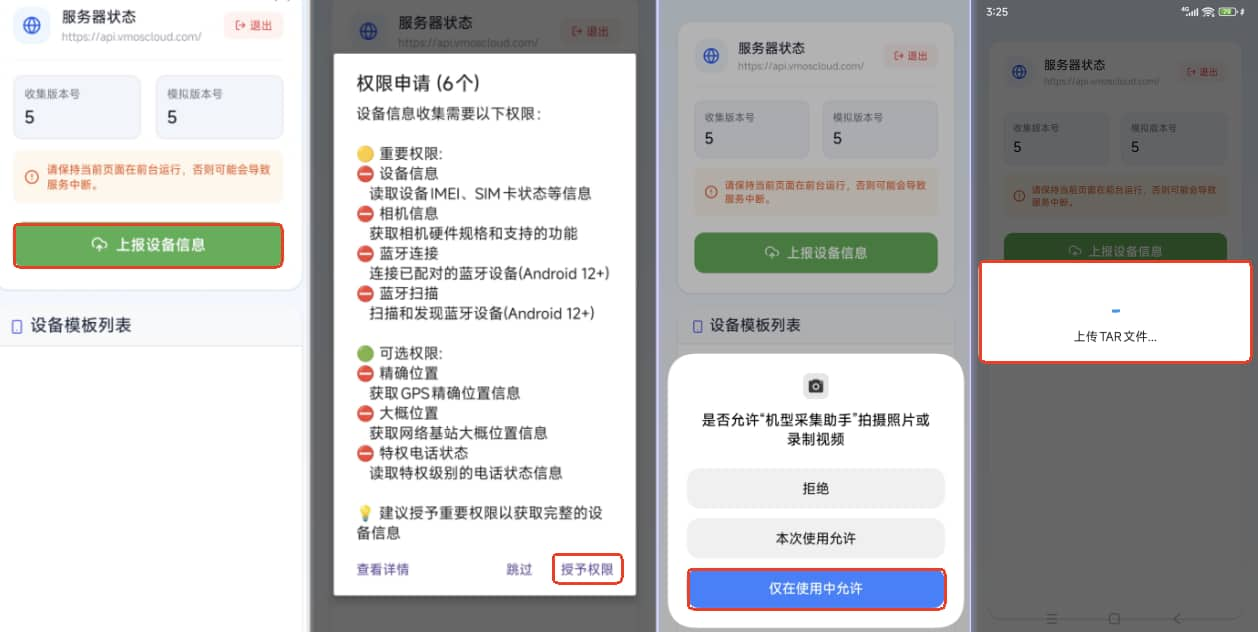
Until the TAR file is successfully uploaded, a device information entry will be automatically recognized in the device template list. Swipe right to enable it.
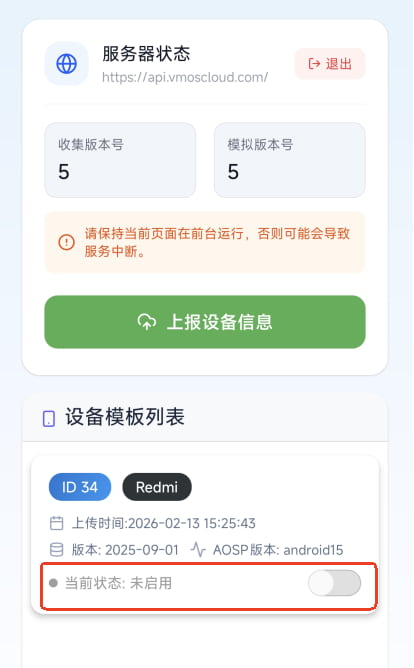
3. Successfully upload device information and use it
Back to VMOSCloud and refresh the page. The device model information that has been collected will be displayed on the page.
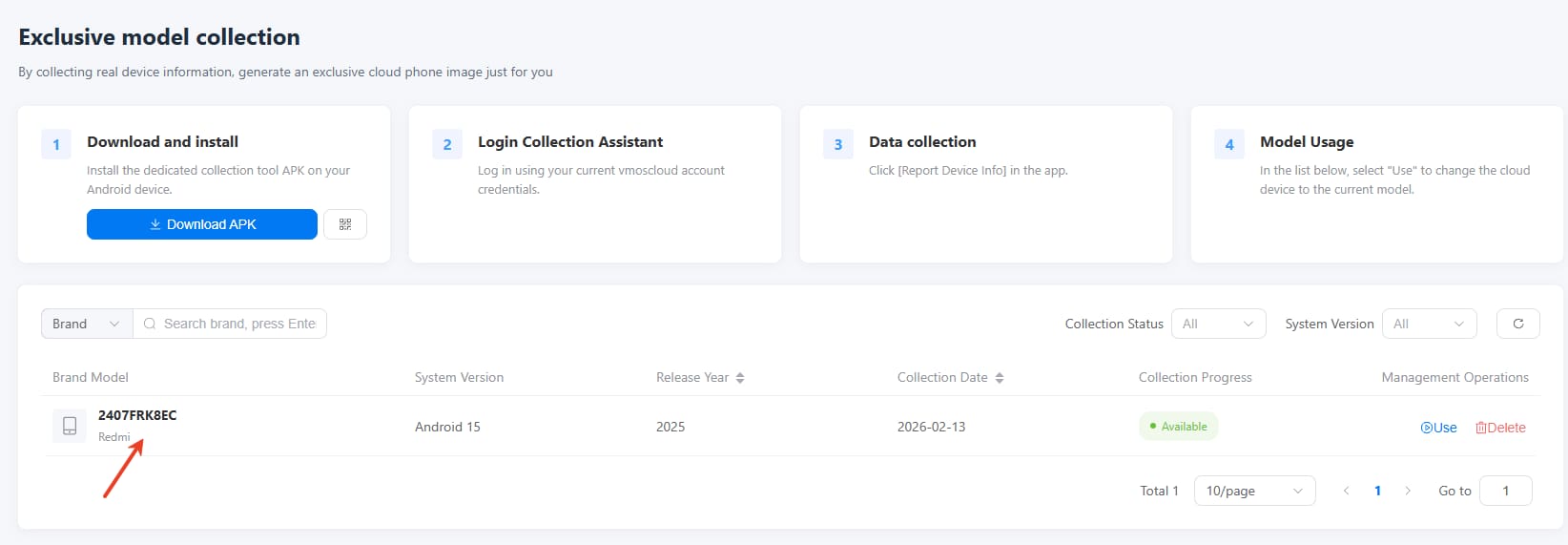
Click Use and select a cloud phone to apply the uploaded device model information on it. Like using your own device on the cloud.