
How to Fix Roblox crash or Back to the home screen every 4-6 hours?
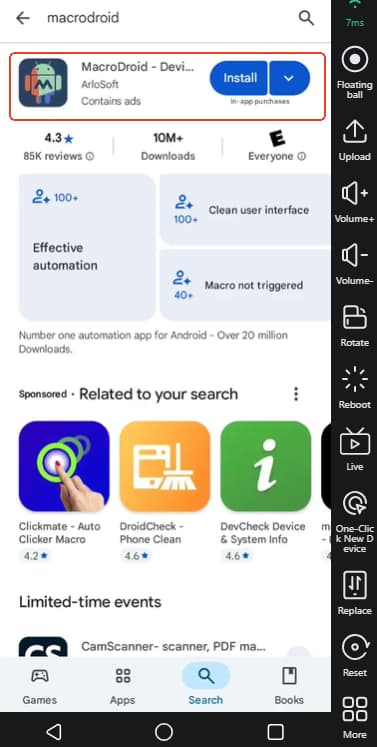
Download MacroDroid from Play Store.
Make sure that your device has been rooted (Toolbox -> Root Management -> enable MacroDroid.) Check to see more details about how to root the app on vmoscloud.
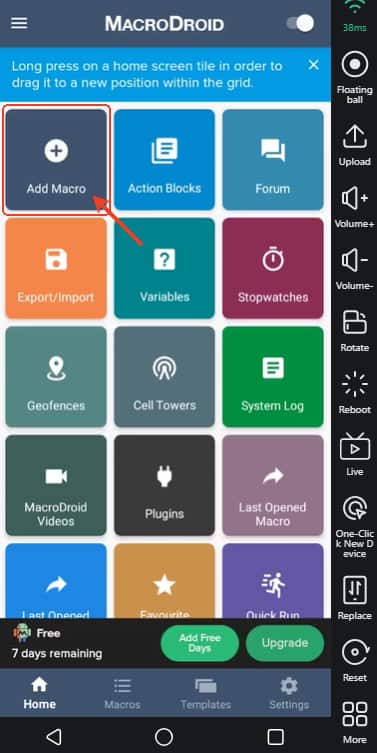
Open MacroDroid and choose Add Macro.
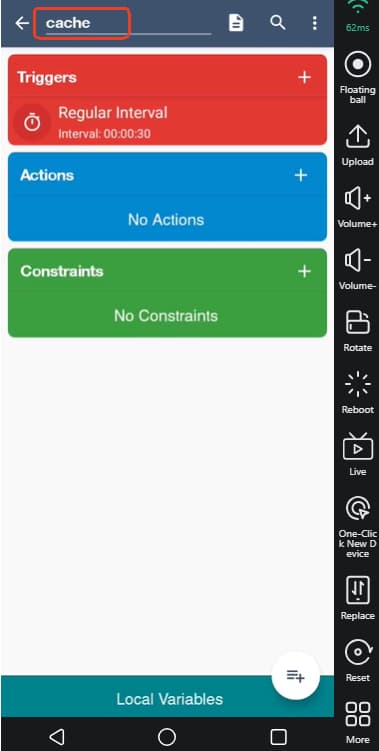
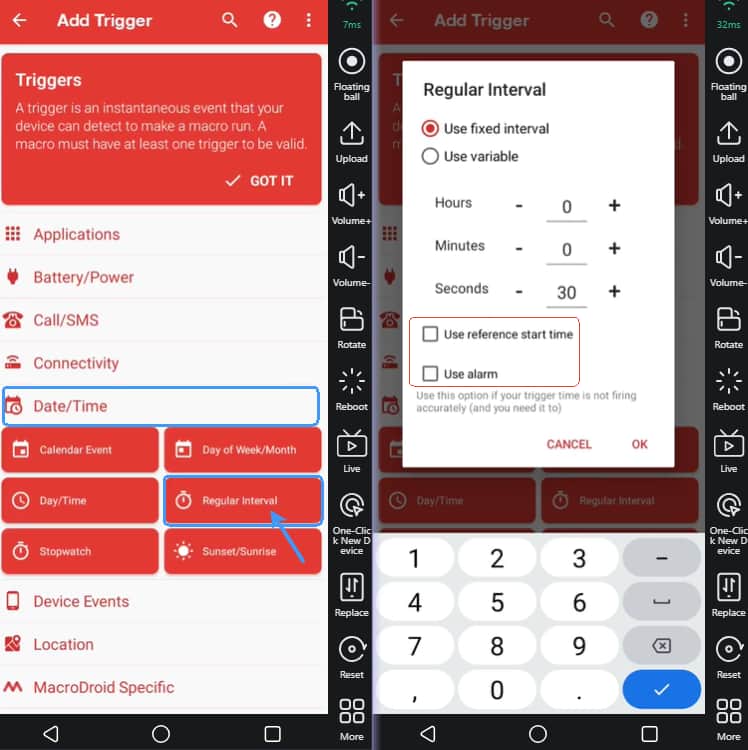
Name the macro as Cache, Add a New Trigger -> Date/Time -> Regular Interval. Uncheck the two boxes and set from 30 secs to 2 mins usually and save it.
Add a new Action -> Applications -> Shell Script.
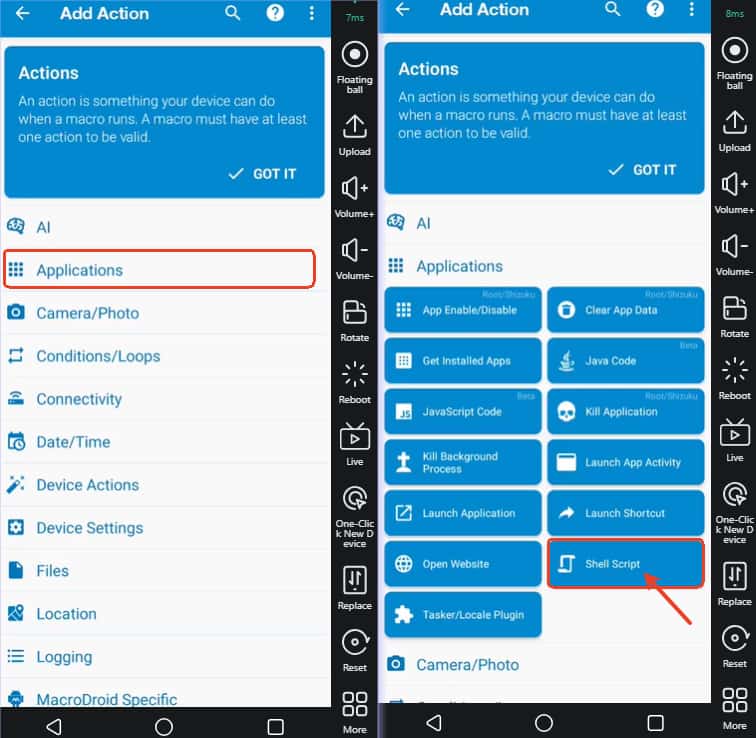
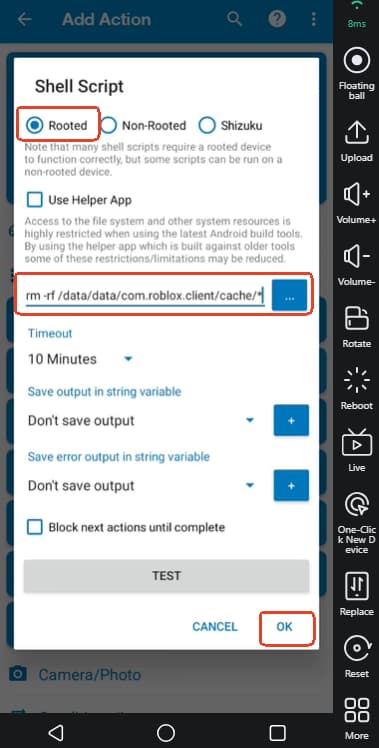
Select Rooted and Add scripts as follows:
If you don't use clones, enter the script below:
rm -rf /data/data/com.roblox.client/cache/*
If you are using clones, enter the script below:
rm -rf /data/data/com.roblox*/cache/*
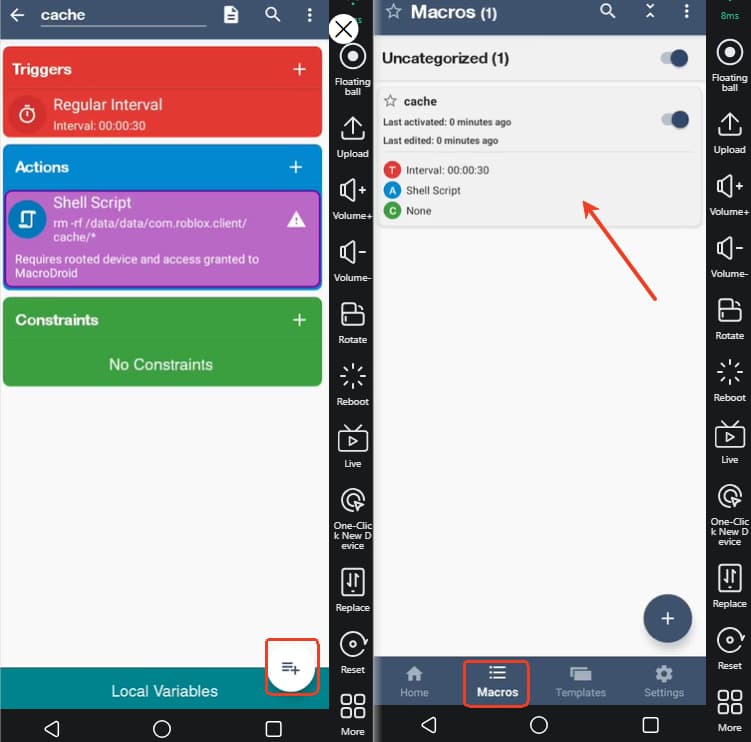
7. Once your macro is set up as shown in the picture below, tap the bottom-right icon, skip the ads to save it. Then you can find it in the Macros list.
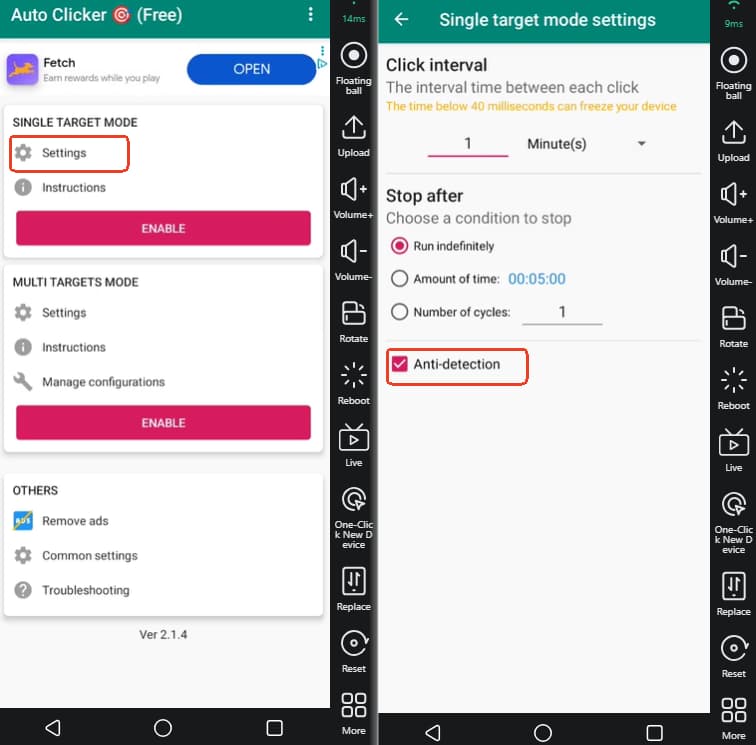
8. Open any one of Autoclicker tools: Go to the Single target mode settings, select the Anti-detection option, and set the interval time to 1 min or as you like. Save this settings and back to enable the Single target mode. (Download Autoclicker from Appstore on the home screen and check to see how to use autoclicker)
9. If still fails, we recommend you use the Roblox Rejoin tool to fix it and find the guide on YouTube.
Remark: Many thanks for reading here, vmoscloud are keep collecting the really helpful guide from our users, and will list the most helpful suggestion on our Help Center. If you have good tutorials, share your advice on VMOSCLOUD's Official Discord -> Suggestion, and tag @Admin, we will reward your suggestion if get listed.