Team Feature 2: How to Assign Cloud Devices to Group Members?
Welcome to the team feature of VMOSCloud. To further ensure team data security and permission control, we have now launched the function of assigning devices based on user groups.
(1) Assign Devices to a User Group
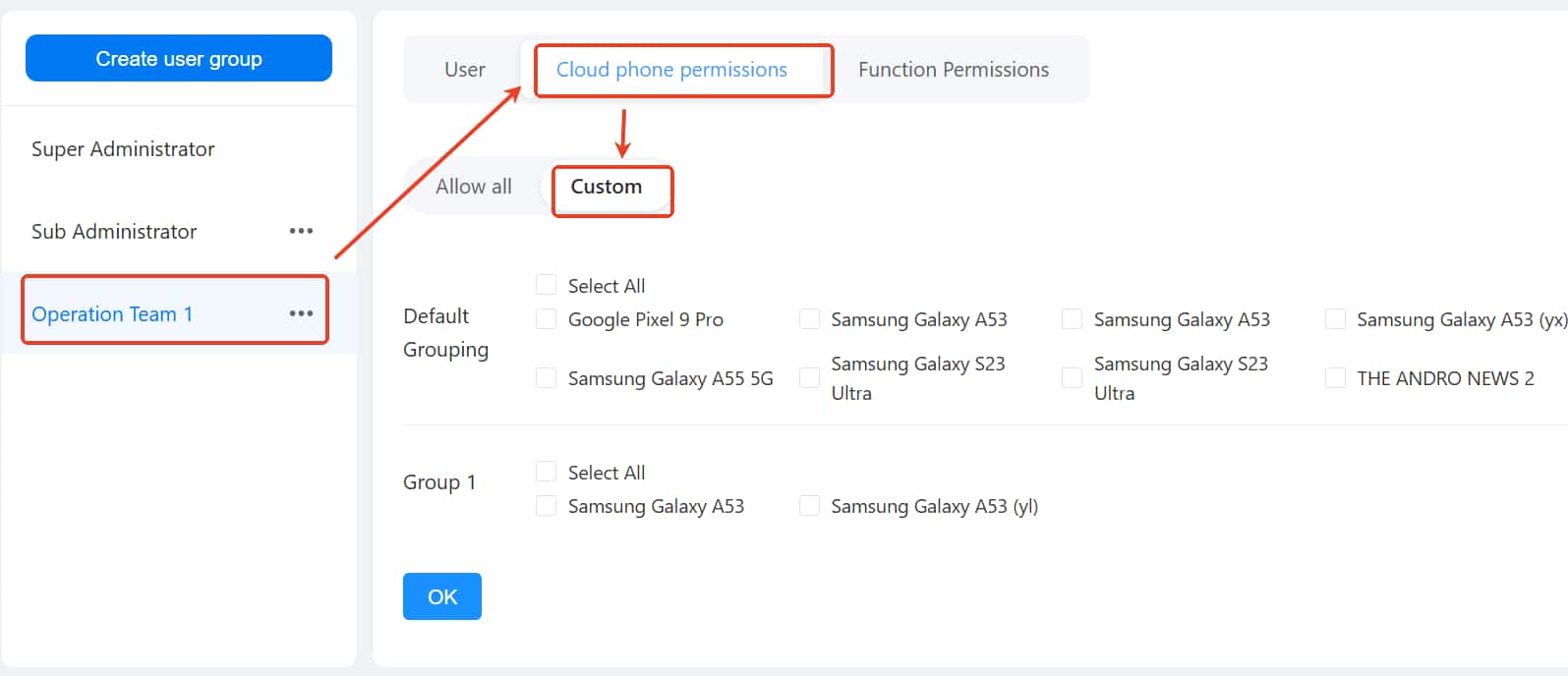
Select an existing user group > Cloud Phone Permissions > Custom: Option the cloud devices you want to assign to this group. Currently, there are two selection modes.
(If you have not created any user groups yet, click to view how to create one.)
Default Grouping: Select some devices from all ungrouped devices and assign them for the group to use.
Assign by Device Group: Device groups such as 'Group 1' shown in the example are pre-categorized groups (see Step 2). You can directly select the entire device group with one click to batch assign devices to members of the Operations user group.
Revoke Device Authorization: Uncheck the device to withdraw it from the group.
Note: Current default assignment logic is as follows: if there are 4 members and 8 devices, all 4 members share access to all 8 devices.
(2) How to Create Device Groups
After purchasing cloud devices, they will undergo initialization in the “My Cloud Devices” interface. Please wait 3–10 minutes and refresh the page before using them or proceeding with group operations.
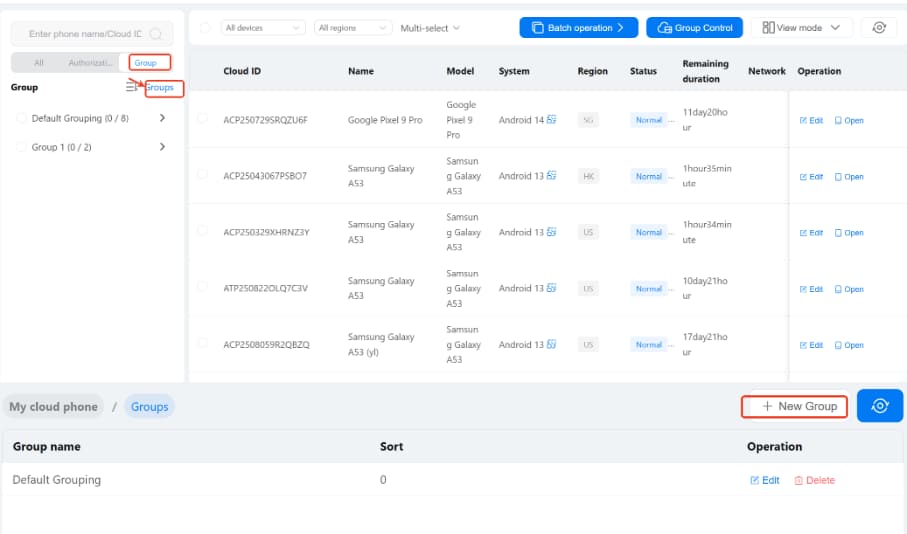
Go to Group > Groups > + New Group, enter a name, and confirm to create a new device group.
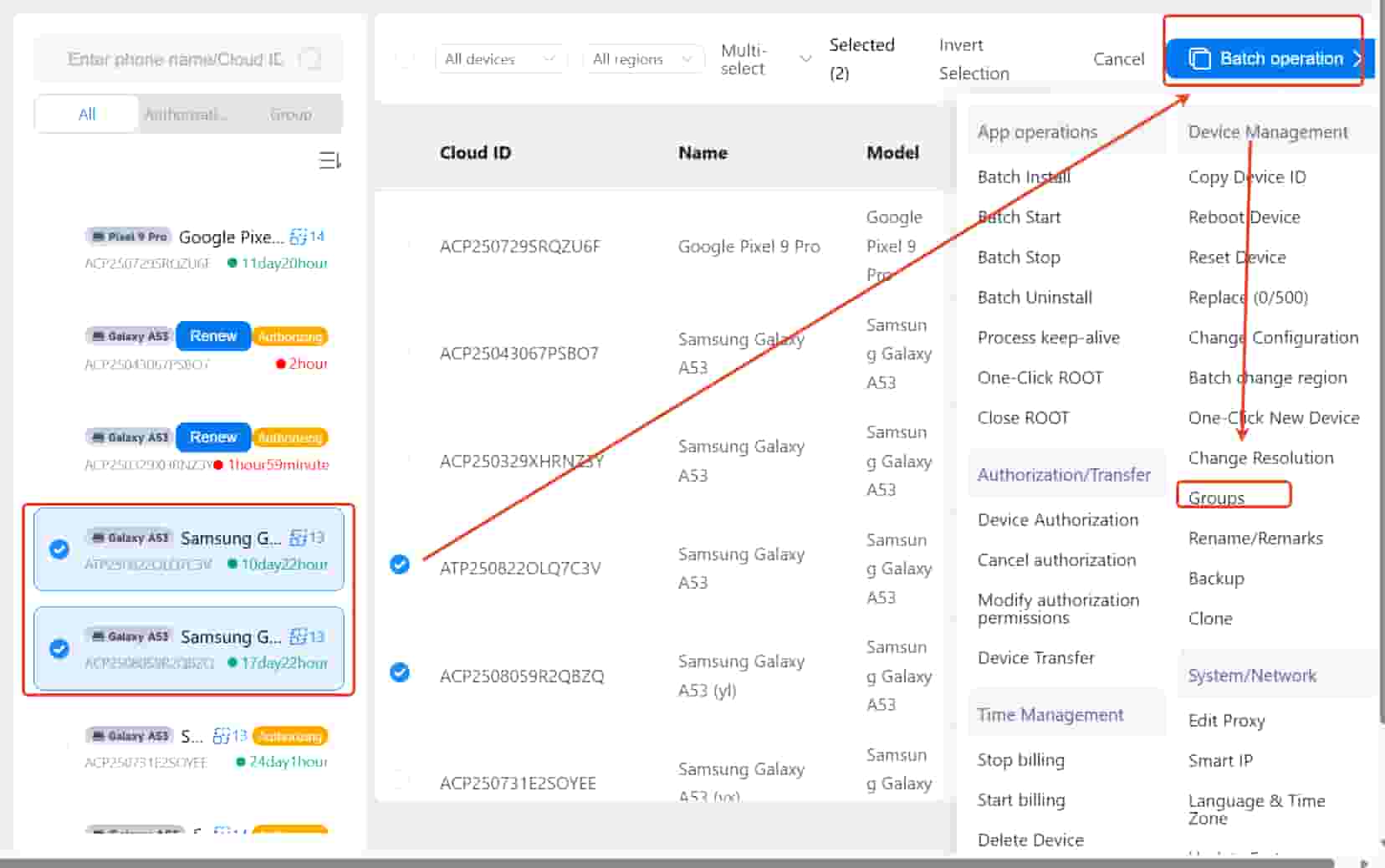
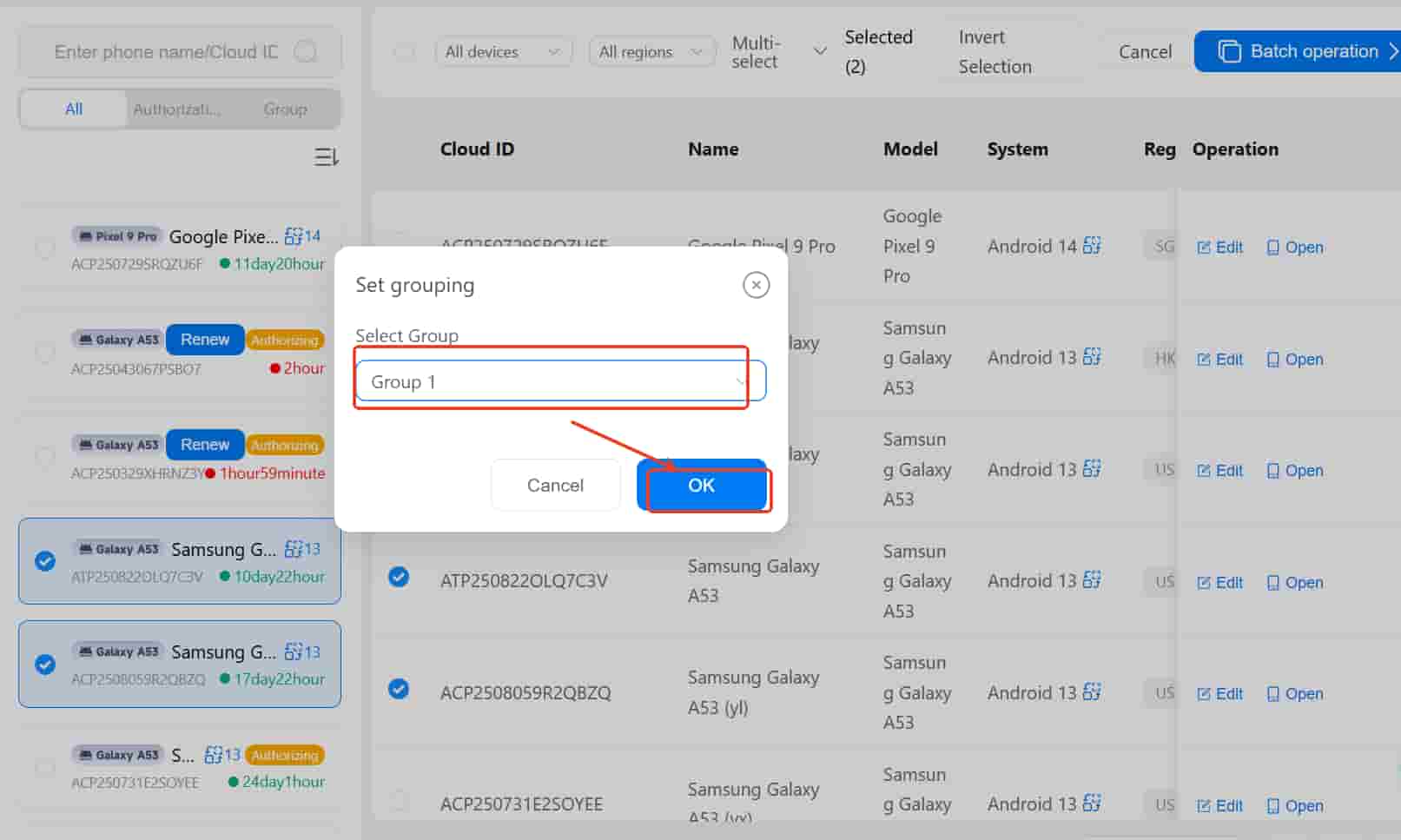
Once the device group name has been created, select the devices you want to categorize, navigate to Batch Operations > Groups > Select Target Device Group (e.g., Group 1), and assign those devices to the desired device group. This enables one-click assignment when using the team device-distribution feature.