Team Feature 1: How to Create Team Accounts and User Groups in VMOSCloud?
Welcome to VMOSCloud’s team features. Continue reading to learn how to efficiently manage cloud devices within a team.
(1) Create a Team Account
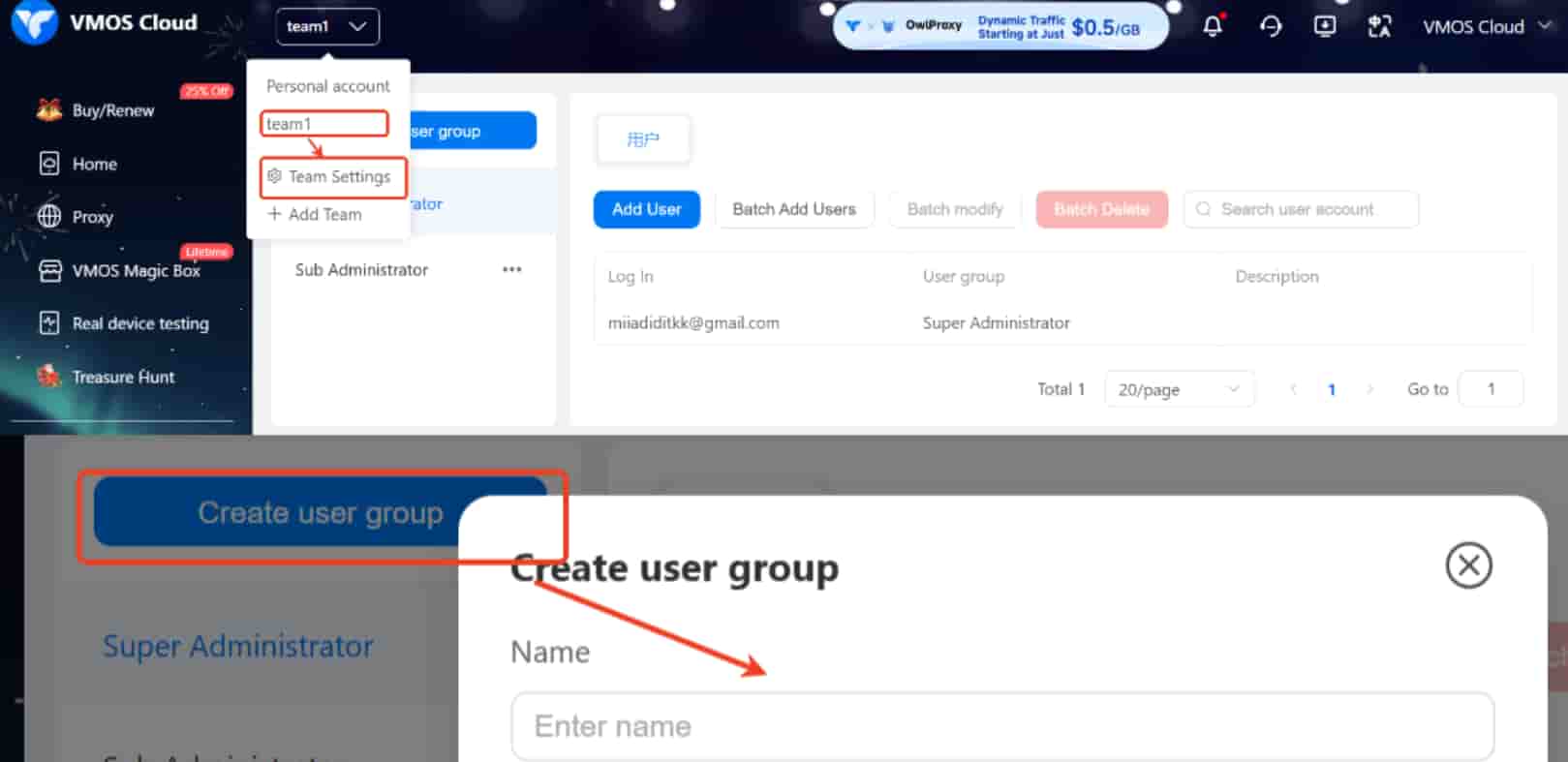
Go to Personal account > Add Team, enter the team name [xxxx], and the team will be created successfully.

Note: The team Super Admin Account is linked to the highest-level permissions. By default, it is associated with your personal account email and cannot be changed. Please carefully confirm your account before creating the team.
(2) Create a Team User Group
Go to Team Settings > Click Create User Group > enter the group name and description, then confirm to complete the creation of the group.
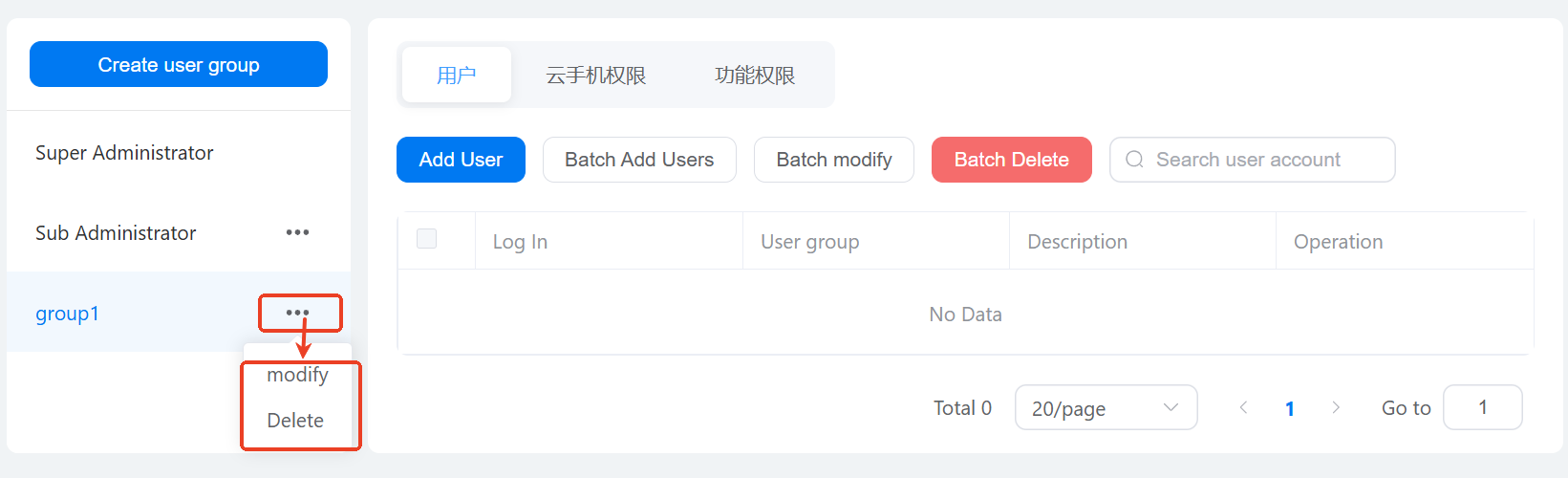
Click the area next to the group name to modify or delete the group. Please note that once confirmed, deleting a group will remove all users within it.
(3) Add Members to a User Group
How to add individual members to a group:
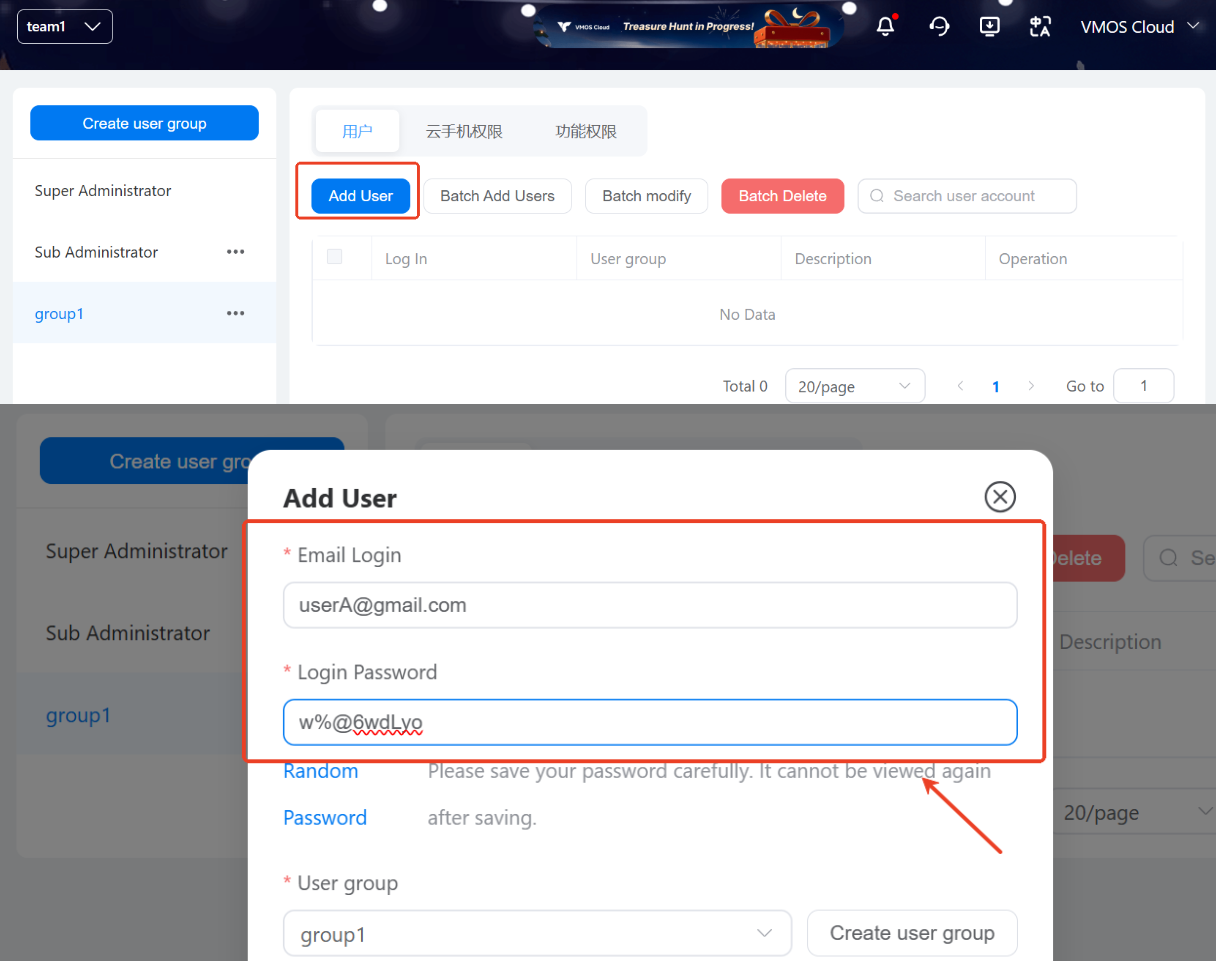
Click any user group > Add User, and a confirmation interface will appear:
- Email Login: Enter the user’s email for the group member.
- Login Password: This is the VMOSCloud account login password. You can enforce a login password for team members or change any member’s password at any time to enhance data security. (The user’s email must not have been previously registered with VMOSCloud to set the password successfully.)
- Click Save to complete the addition.
How to add multiple members at once:
Click any user group > Batch Add, and a confirmation interface will appear:
- Login Email: Copy and paste the team members’ emails in the format shown.
- Login Password:
Account: userA@gmail.com
Password: w%@6wdLyo
Same Password: All members use the same password to log in to VMOSCloud.
Different Passwords: Each email uses a different password to log in. For example, in the image, Group 1's login is set as:
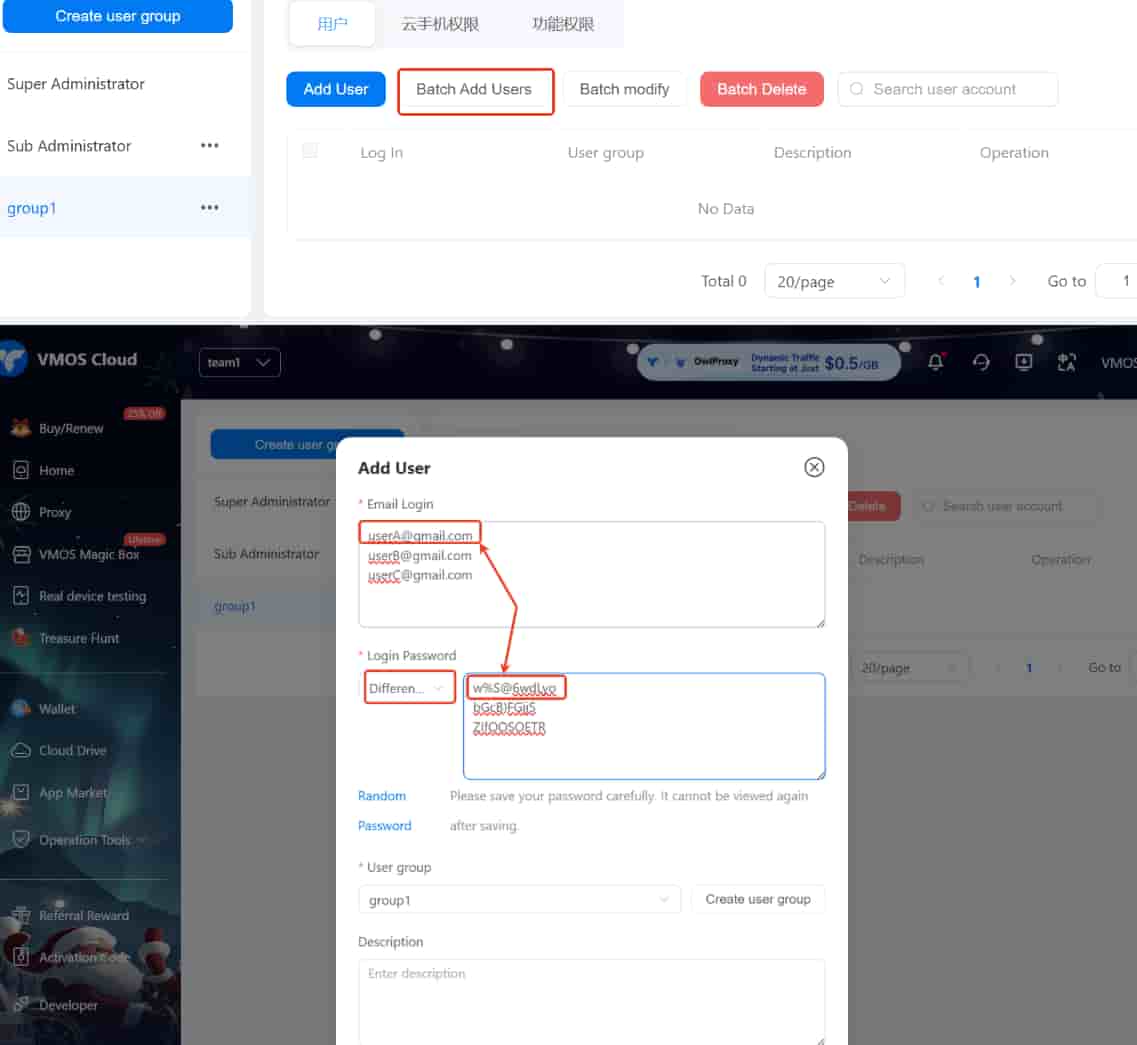
- Click Save to add members successfully.
(4) Set Individual Passwords for Specific Members
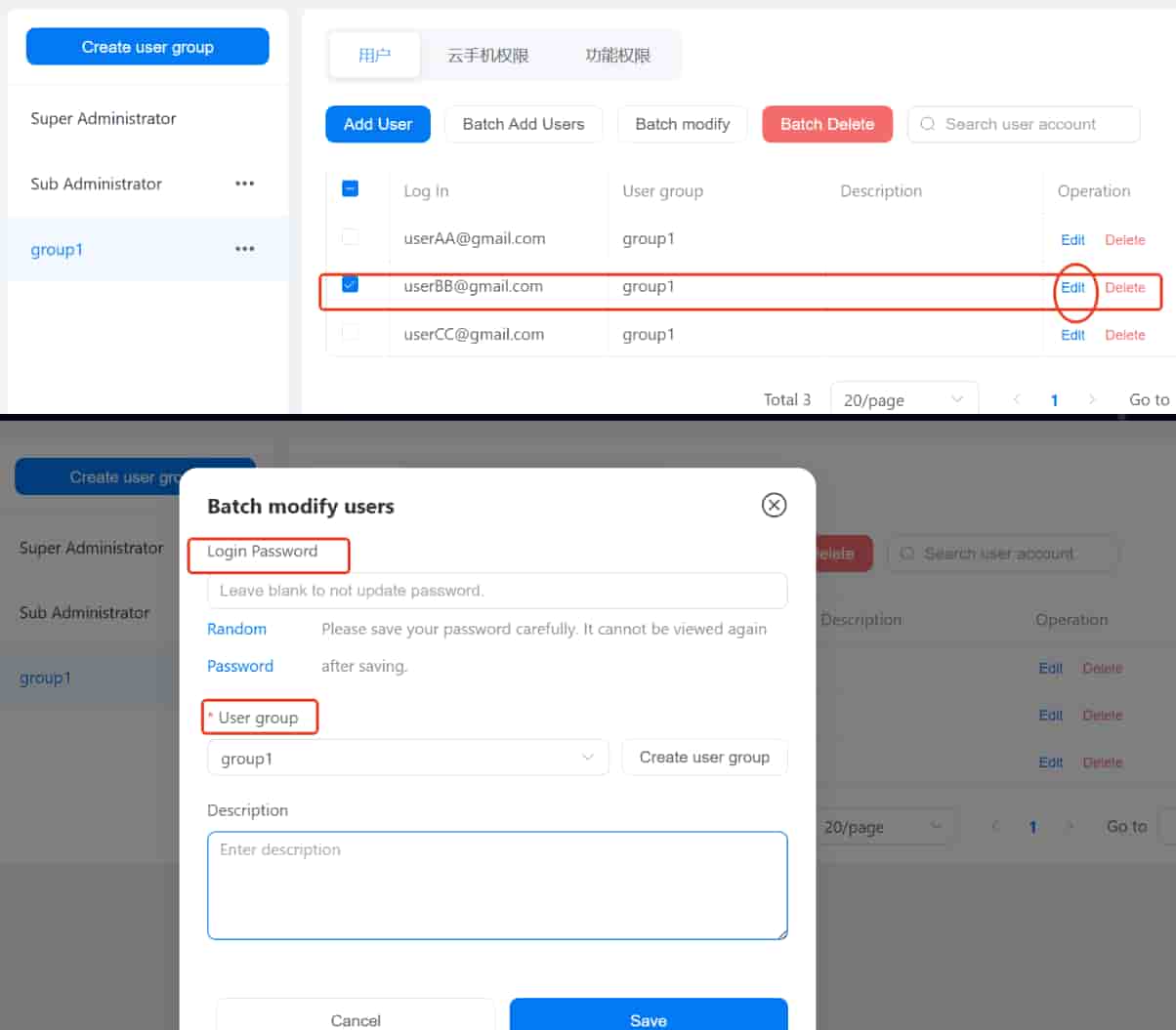
After successfully adding members, you can select a specific user > Edit to set a unique login password or move the member to another user group.