How to Use the Image (Mirror) Market?
Welcome to the VMOSCloud Image Market. This guide provides a detailed introduction to how to update, use, and purchase images.
The image version of a cloud phone refers to the operating system and software environment used by the device. Different image versions include different system and software configurations. Each image is designed to solve specific issues or support particular application requirements.
1. Open the Image Market
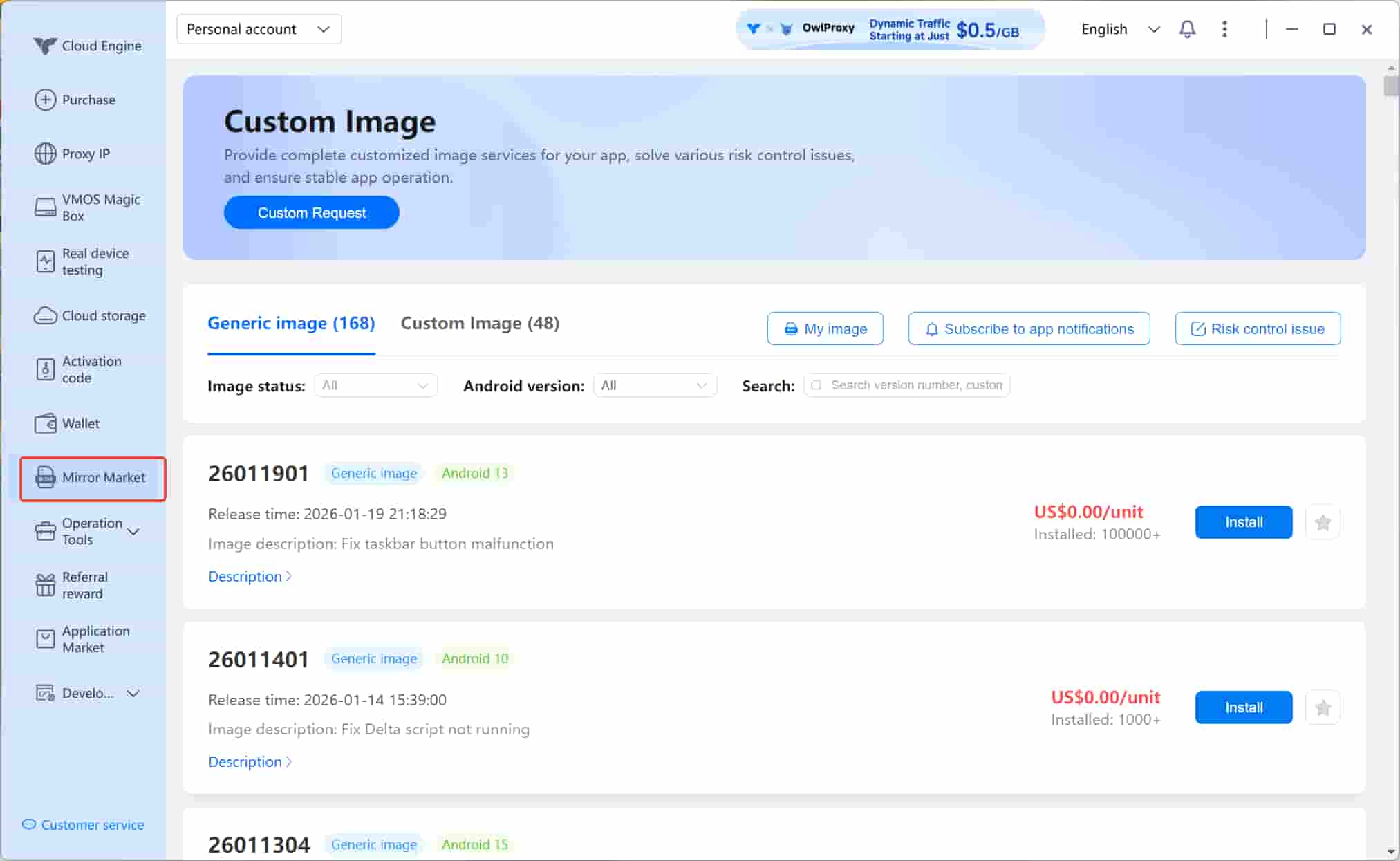
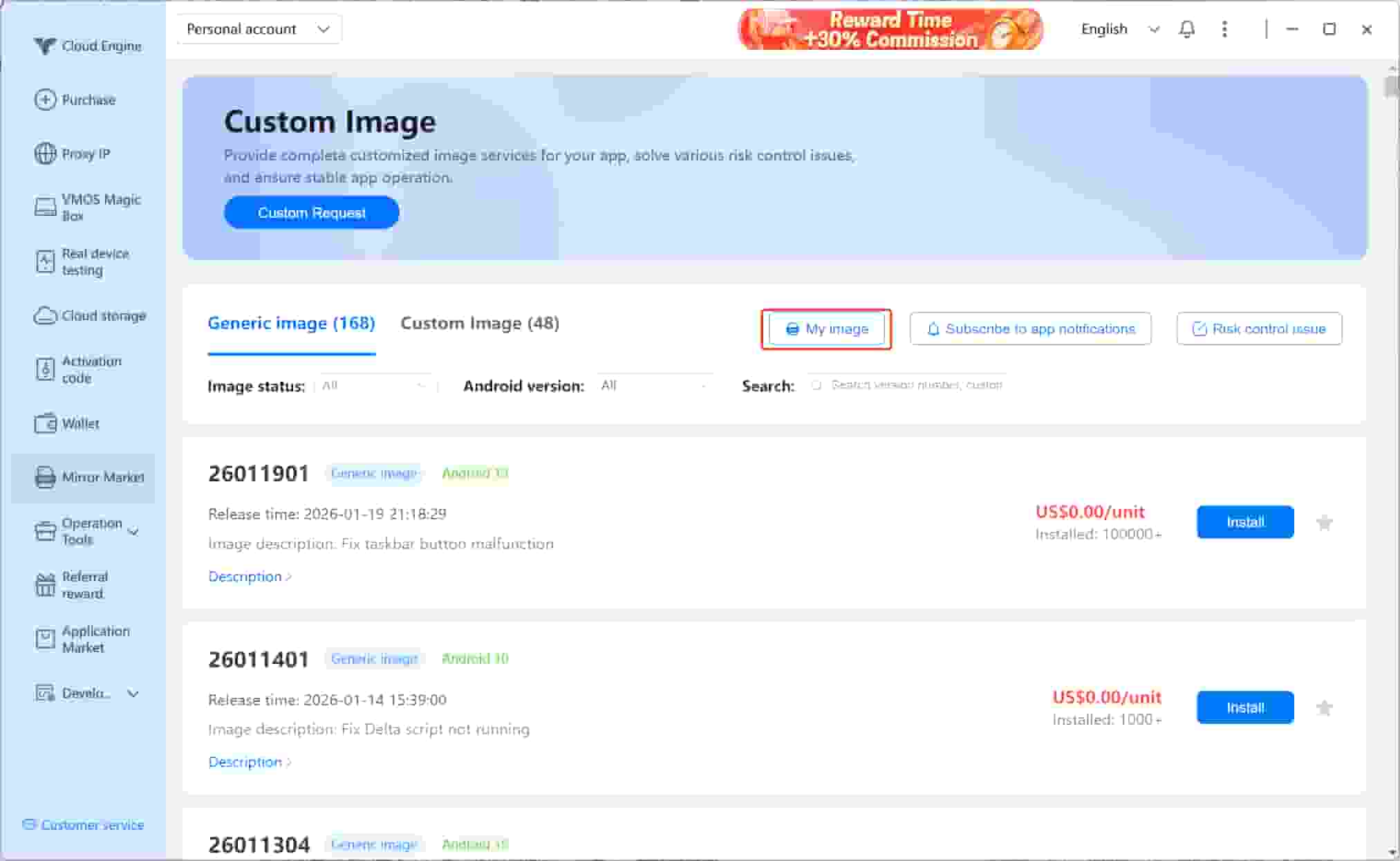
Click VMOSCloud > Image Market (Mirror Market) in the left-side panel to open the Image Market.
2. General Images and Custom Images
2.1 General Images
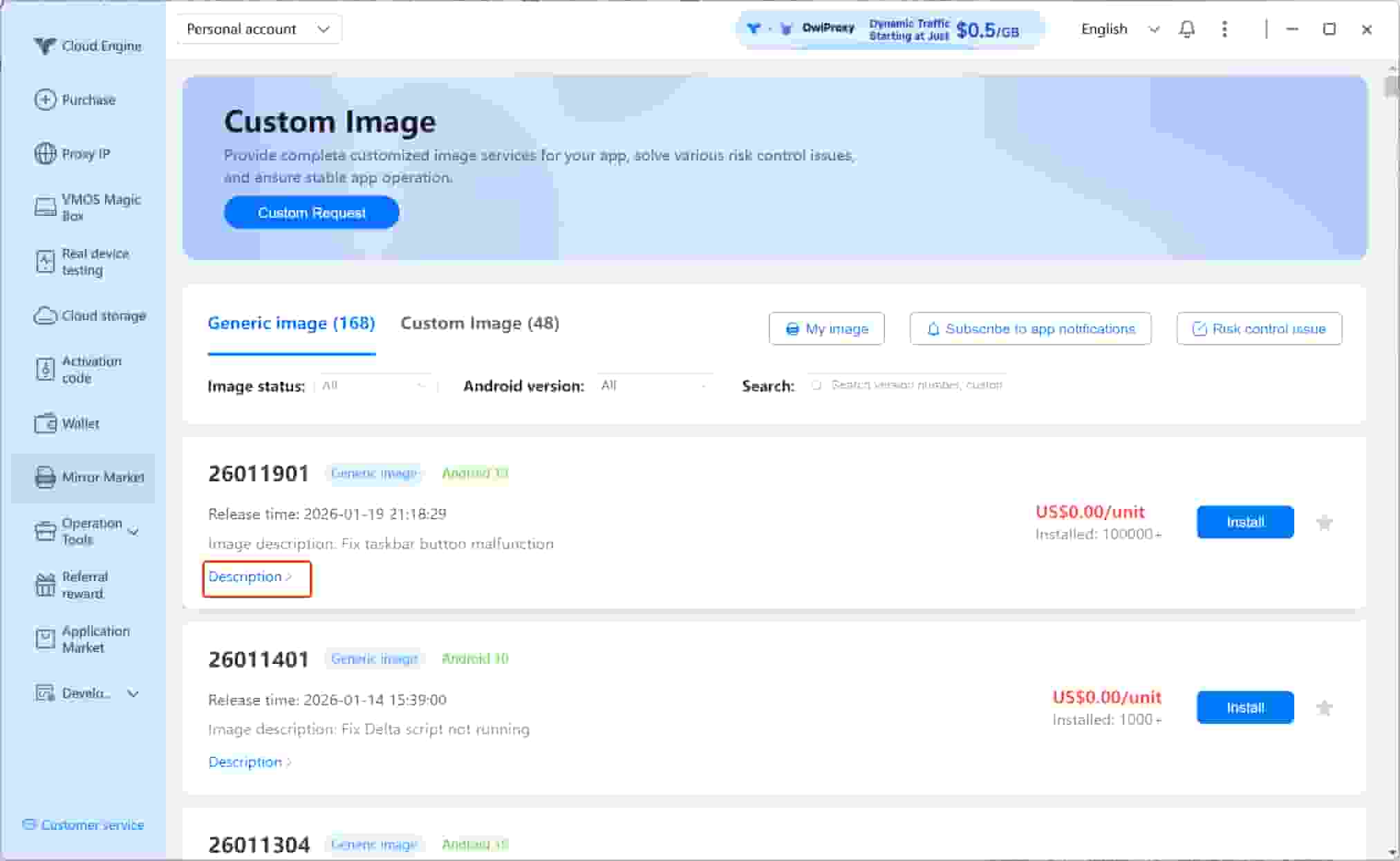
All image versions marked as US $0.00 / device are free images and can be installed and used without any additional cost.
Click General Images to enter the General Images page.
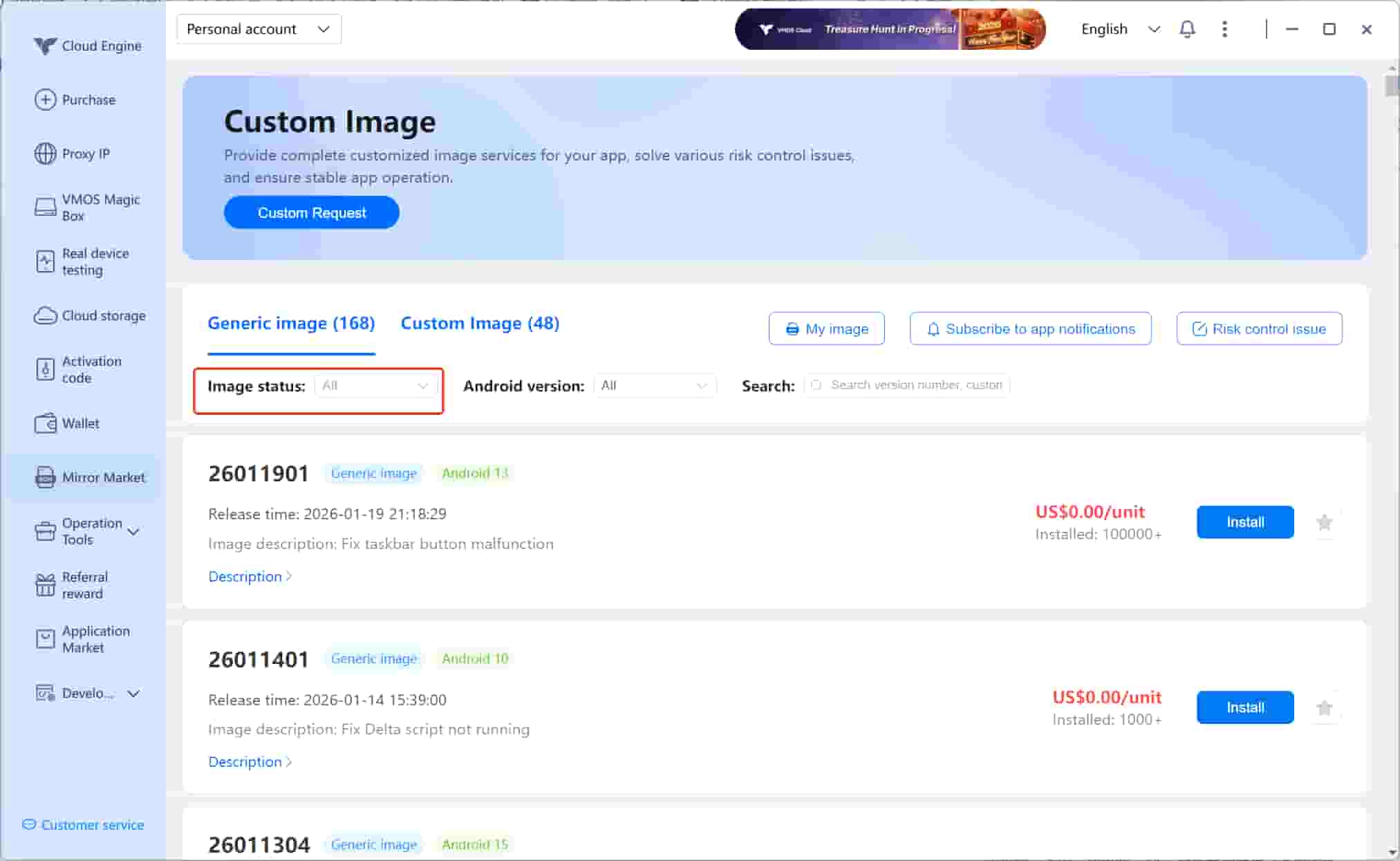
Click Image Status to filter between Stable and Beta image versions.
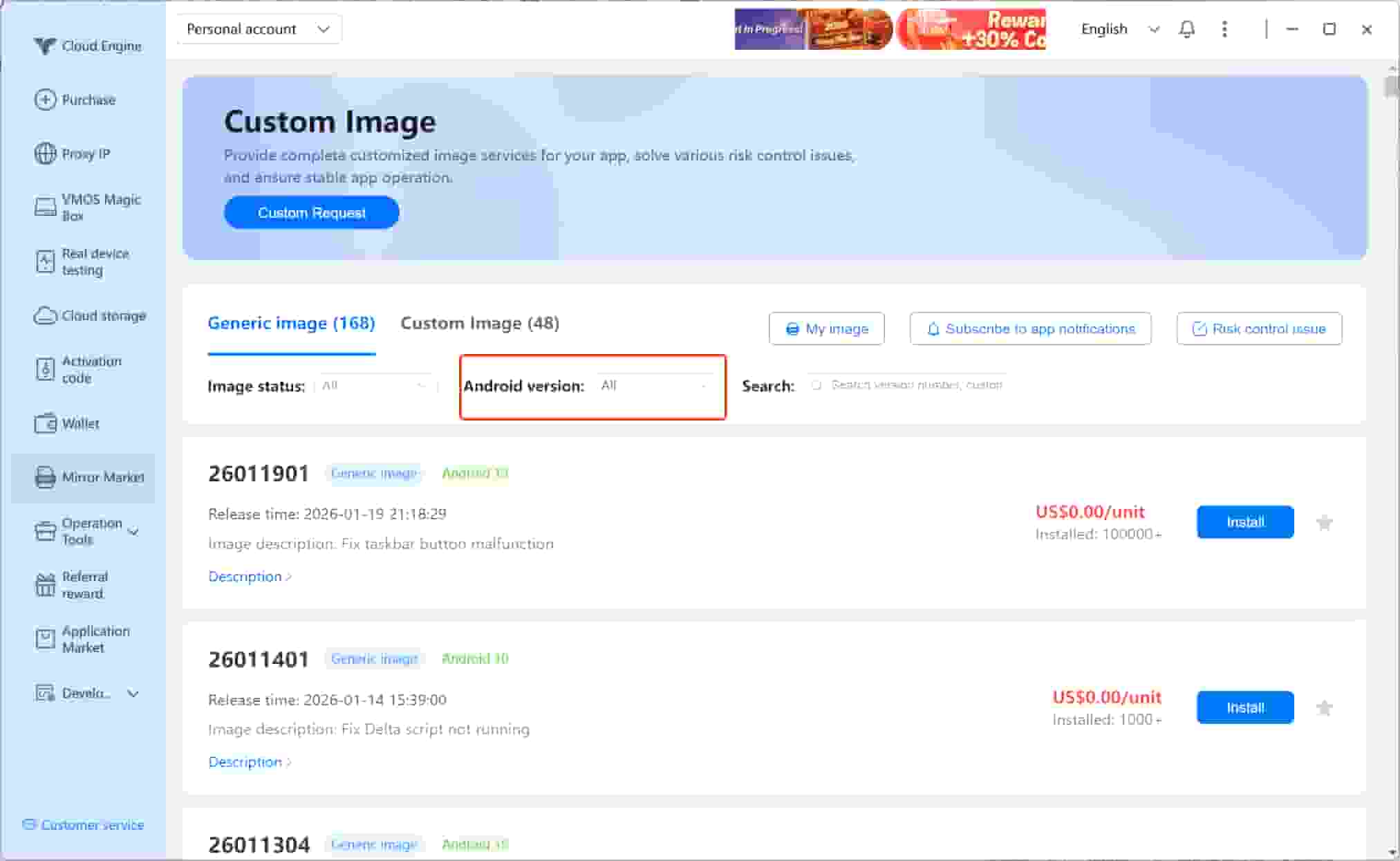
Click Android Version to view image versions supported by specific Android systems.
VMOSCloud currently supports Android 10–15. Please note that upgrading images across major Android versions may result in data loss.
Use Search to quickly find a specific image version.
Click View Version Description to see the main issues addressed by the current image version.
Installed on the right indicates the number of users currently using this image version.
Click the star (★) icon to favorite or unfavorite an image for quick access later.
2.2 Custom Images
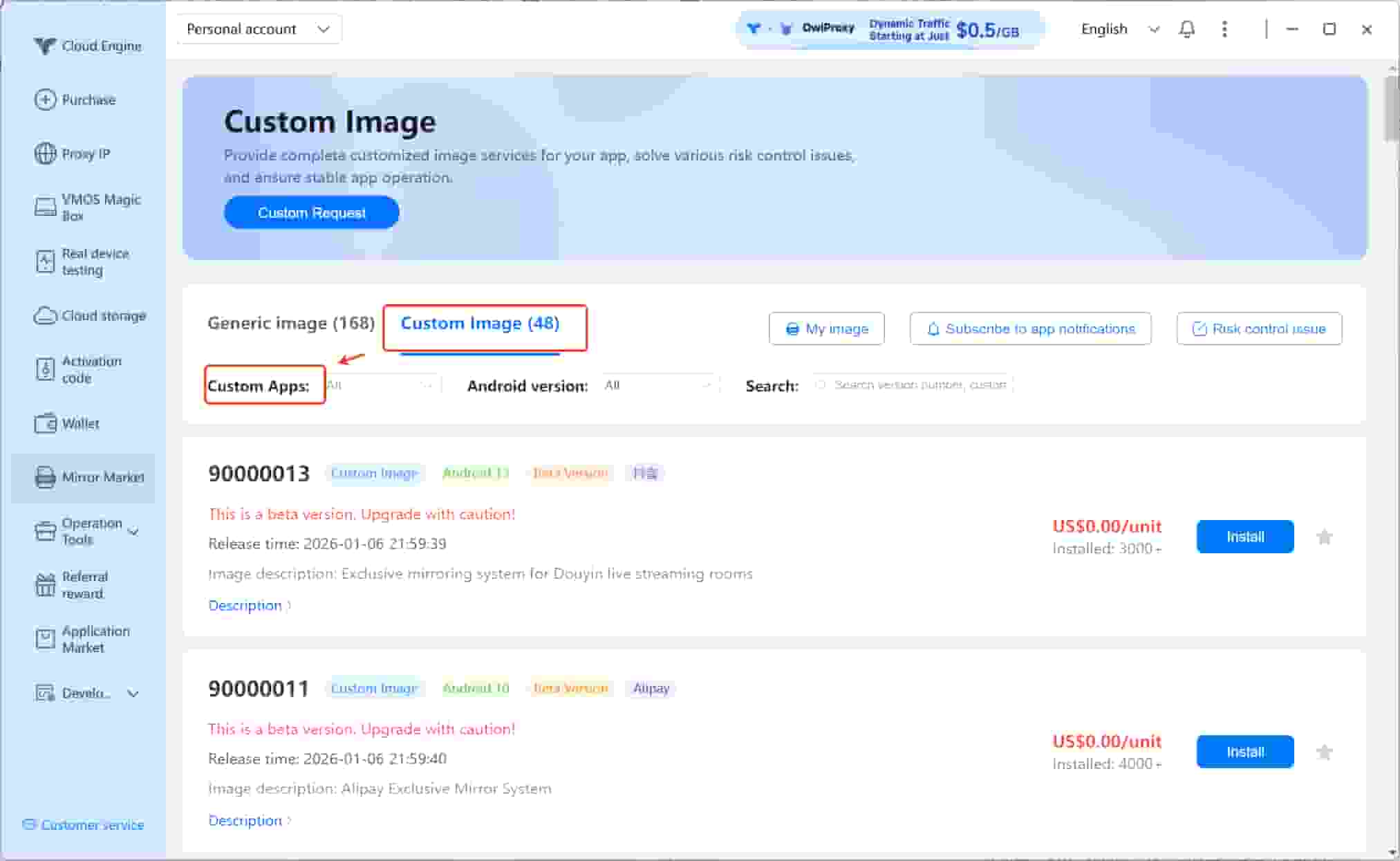
Custom images are developed for specific requirements or specific applications (APPs). Most custom images require payment.
To thank users for their continued support, VMOSCloud has made some custom images for specific apps available for free. Any image marked as US $0.00 / device is free and can be installed without additional charges.
Click Custom Apps to select an APP and view the available image versions.
Custom images can be bought out. Once purchased, the image becomes exclusive to your account and cannot be installed by other users.
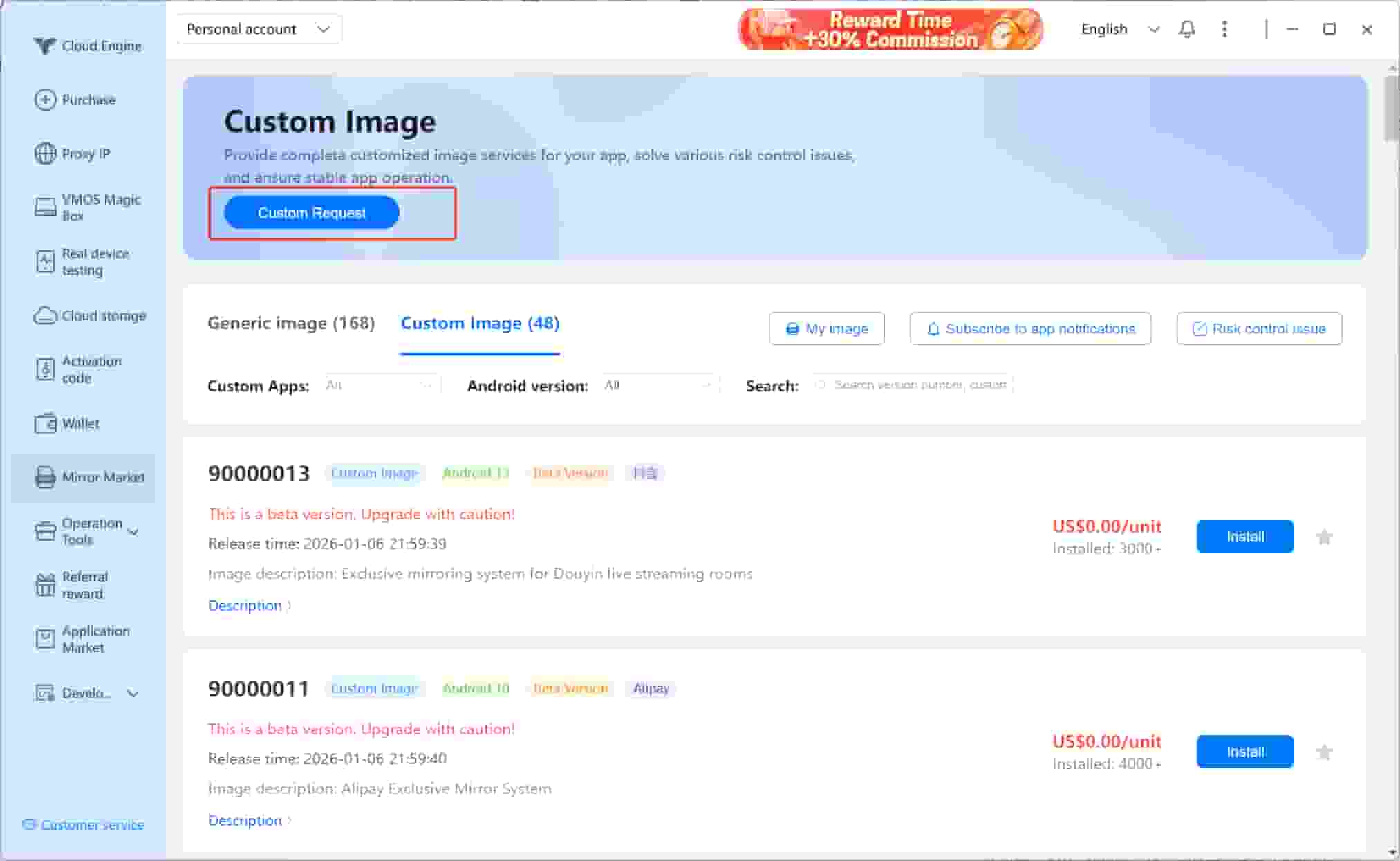
The resolution time for risk control issues is unpredictable. If your usage scenario involves more than 1,000 devices, please go to Custom Request to request a custom image. Our technical team will prioritize the case.
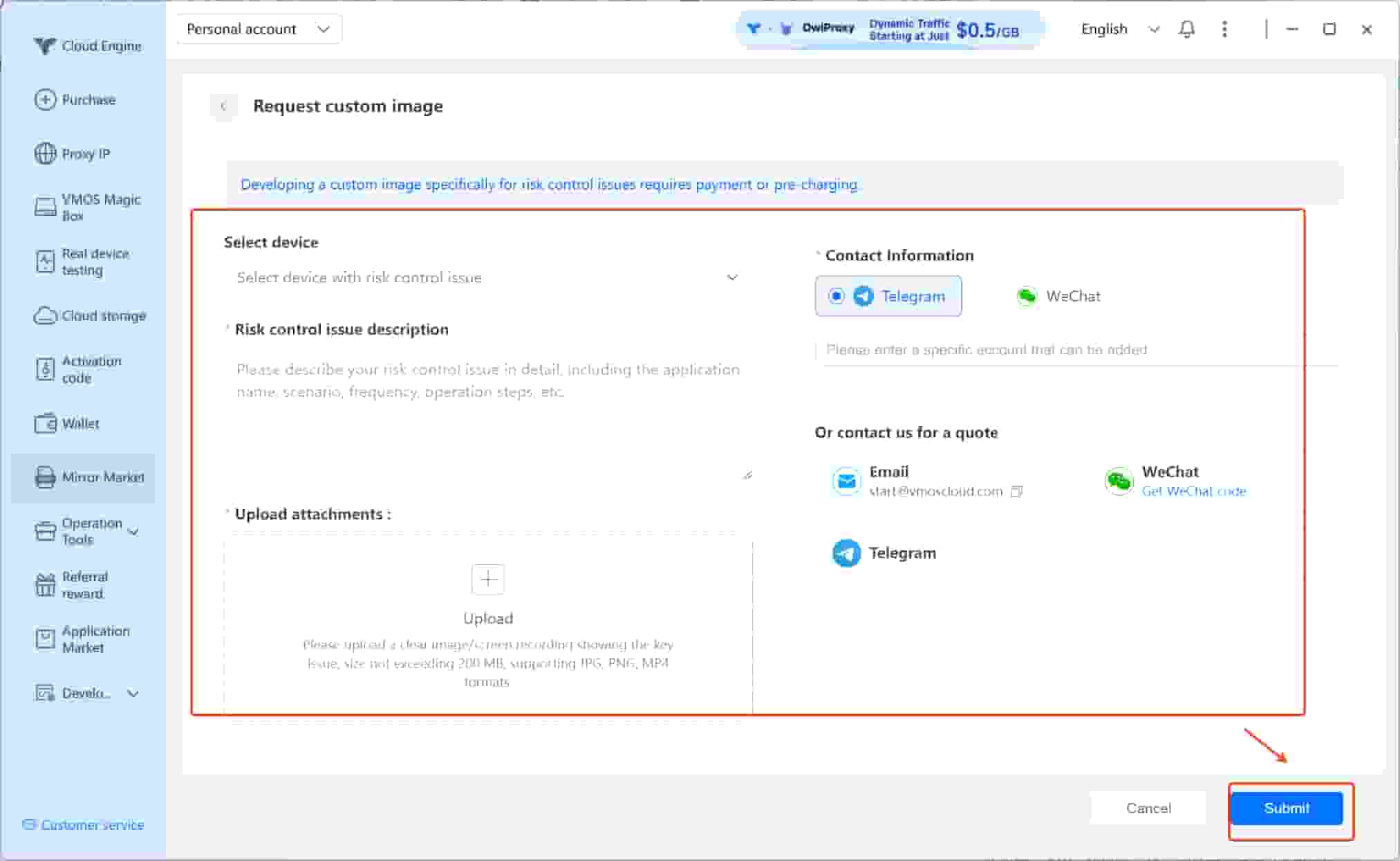
After entering the application page, complete the required information and submit the request.
2.3 My Images and Image Subscriptions
Click My Images to quickly view the general images, custom images, and favorited images currently used under your account.
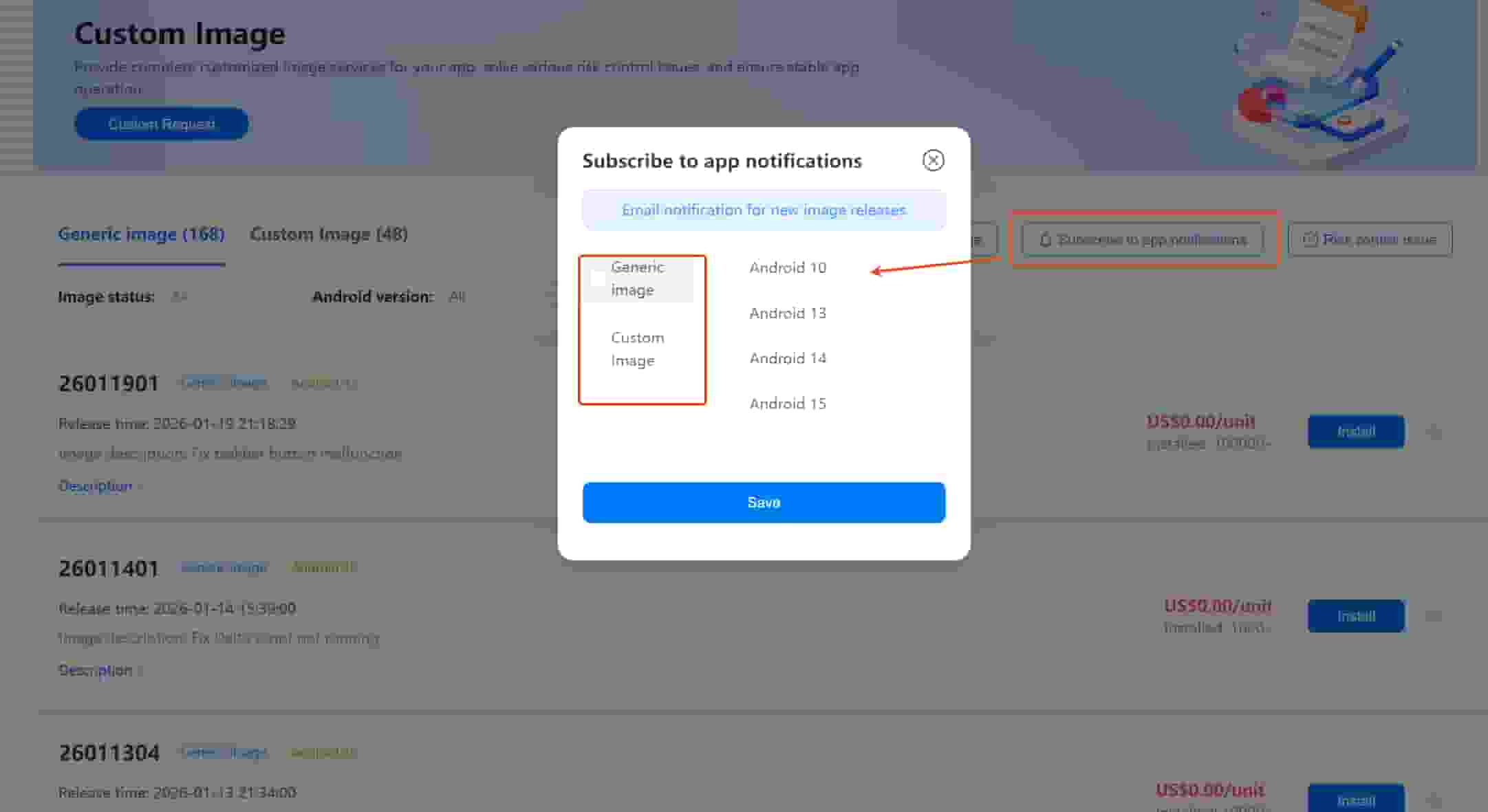
Click Subscribe to app notifications to select image update notifications by category and Android version. After saving, you will receive email notifications whenever a new image version is released.
2.4 Risk Control Issue Feedback
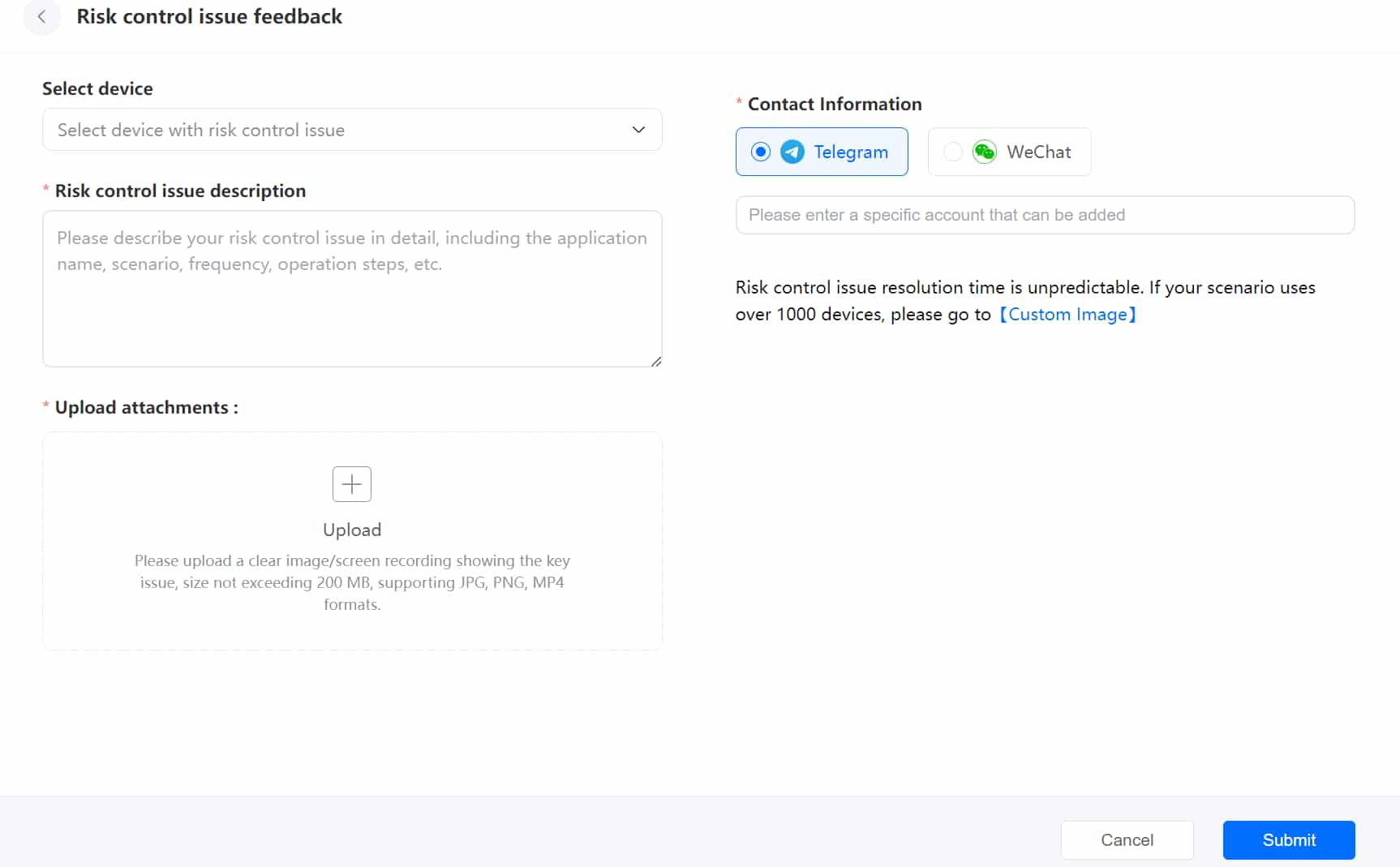
If existing image versions cannot resolve your risk control issue, click Risk Control Issue and complete the form so that VMOSCloud can intervene promptly.
Please provide the following information:
Select Device: Choose the device experiencing the risk control issue (commonly manifested as login failure or verification failure).
Risk Control Issue Description
Upload Attachments: Upload screenshots or screen recordings showing the risk control prompts.
Contact Information: Leave your contact details so we can notify you once the issue is resolved.
3. Install an Image
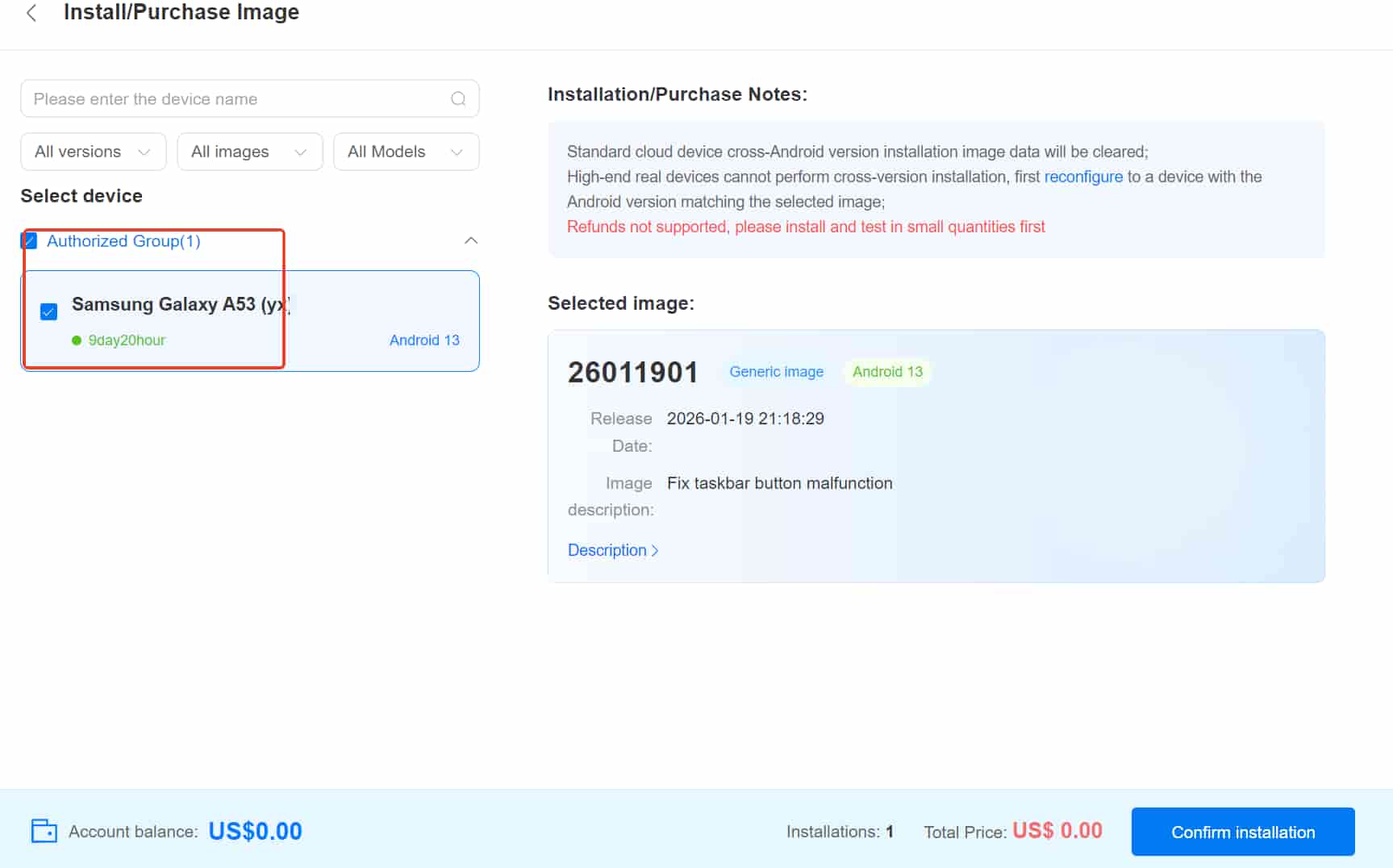
After selecting the desired image version from the image list, click Install, choose the target devices, and confirm to complete the installation.
Alternatively, go to My Images > Install on More Devices to access the image installation page.
You can use the following filters during installation:
All Versions: Filter devices by Android system version.
All Images: Filter devices using a specific image version.
All Models: Filter devices by model.
You can install images by default groups or custom groups, enabling efficient batch installation.