Host Management
This chapter introduces the host management functions of VMOS L1 edge computing box, helping users complete tasks such as host access, group management, information viewing, and batch operations, thereby efficiently maintaining and managing host resources.
1. Add Host
- After entering the Vmos Edge application, click "Add Host".
- In the popup, enter the host IP (such as
192.168.10.95), click confirm, and the host will be successfully added.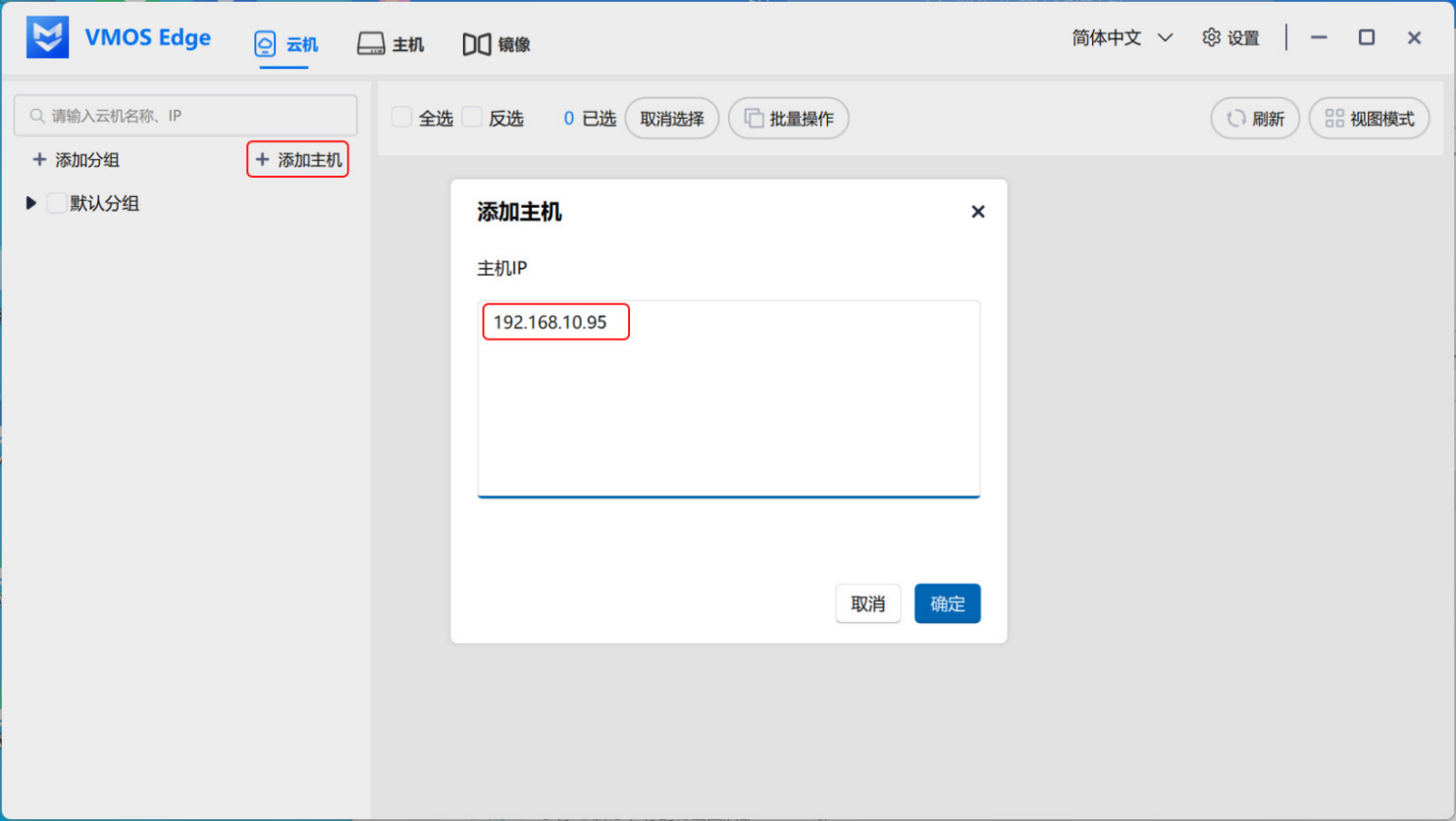
2. Host Group Management
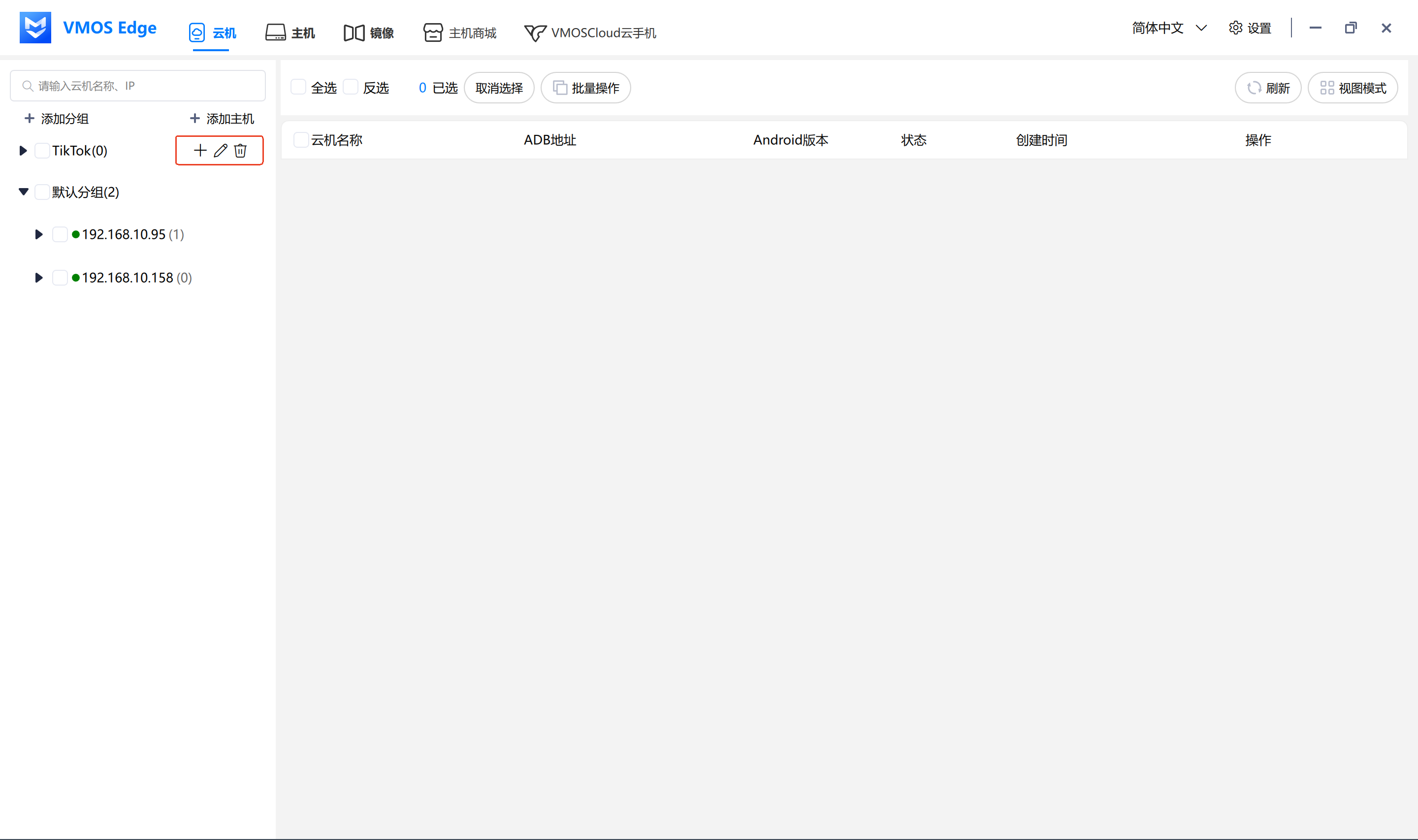
- After successful host addition, it is stored in Default Group by default, and this group cannot be deleted.
- Hosts can be moved to custom groups.
- When deleting a group, hosts are not deleted but moved to the default group.
3. Host Information Viewing
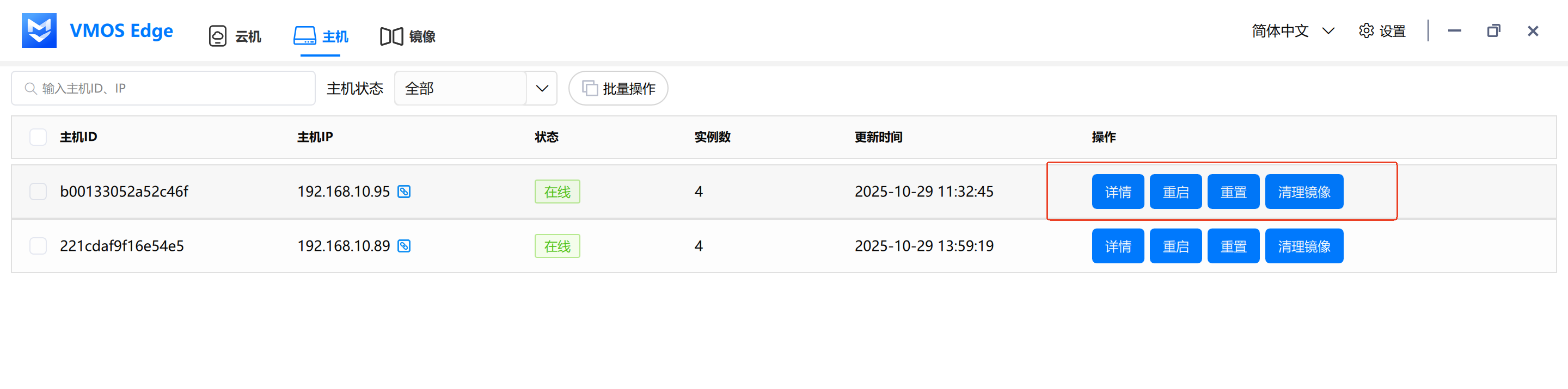
Click the "Host" button in the top navigation bar to view all currently added hosts:
- Host ID
- Host IP
- Status (Online/Offline)
- Instance Count (Number of cloud machines)
- Update Time
After cloud machines are added under a host, the "Instance Count" will display the corresponding number of cloud machines.
4. Host Operation Buttons
- Search Bar: Supports searching hosts by host ID or IP.
- Host Status Filter: Can filter hosts by "Online" or "Offline", default shows all.
- Batch Operations: Supports batch operations on multiple hosts:
- Batch Restart
- Batch Reset
- Batch Clean Images
- Details: View current host detailed parameters.
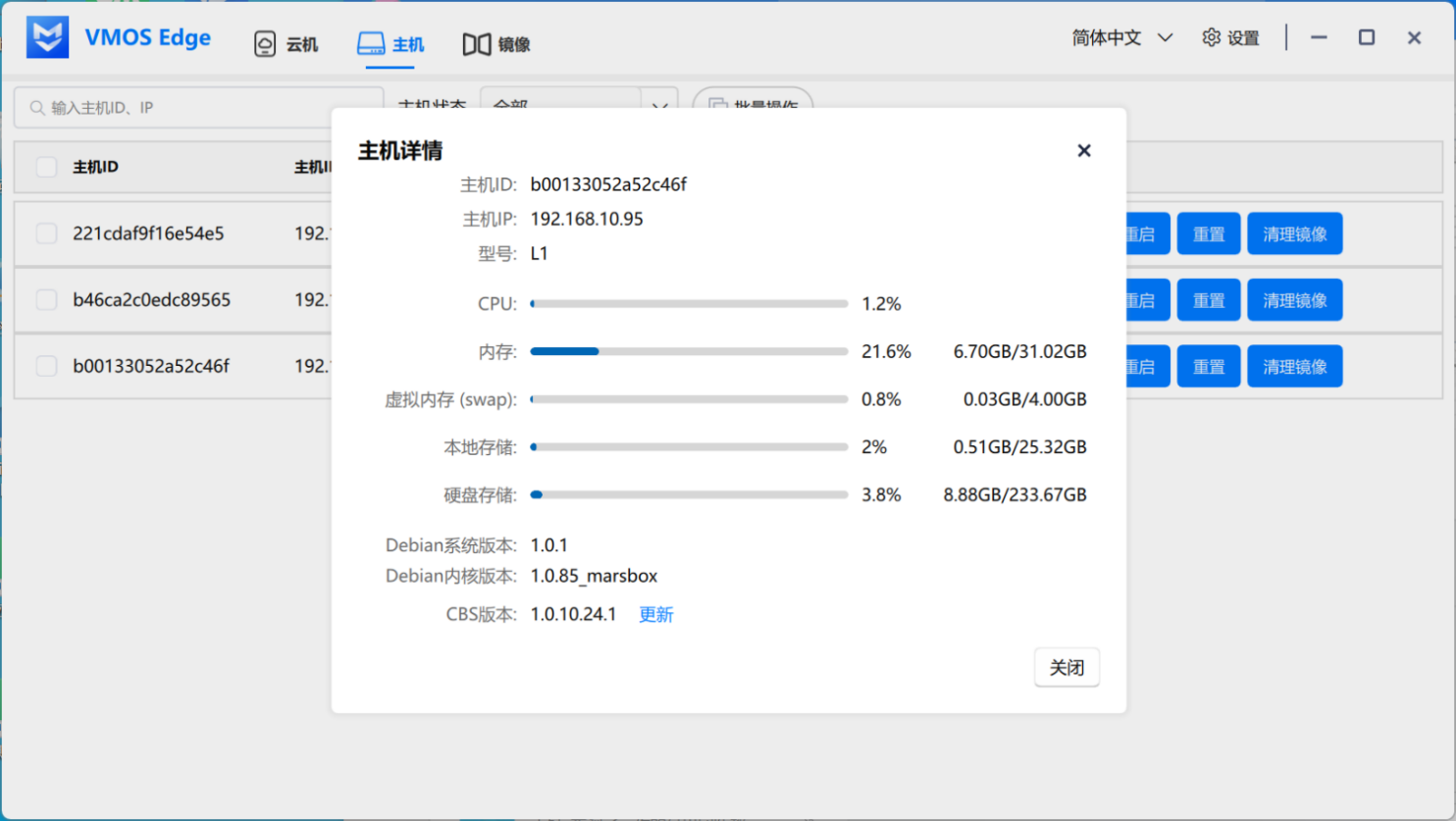
- Restart: Restart the host without affecting data on the host.
- Reset: Clear all cloud machines, images, and data on this host (irreversible operation).
- Clean Images: Clean unused image packages to free storage space.