
Firmware Flashing Tutorial
This document aims to provide step-by-step guidance for users who wish to flash [firmware] into [Magic Box]. Before operation, please read and understand all content completely.
Part 1: Preparation
| Preparation Tools | Notes |
|---|---|
| VMOS Edge Host | Comes with usable power cable |
| PC Computer | Windows computer for installing flashing tools |
| Data Cable | Original or high-quality Type-C USB data cable, ensure stable connection |
| SIM Ejector Pin | For booting and identifying device |
| Driver | Driver Download |
| Flashing Tool | Flashing Tool Download |
| Firmware Download | Firmware Download Link |
Part 2: Operation Steps
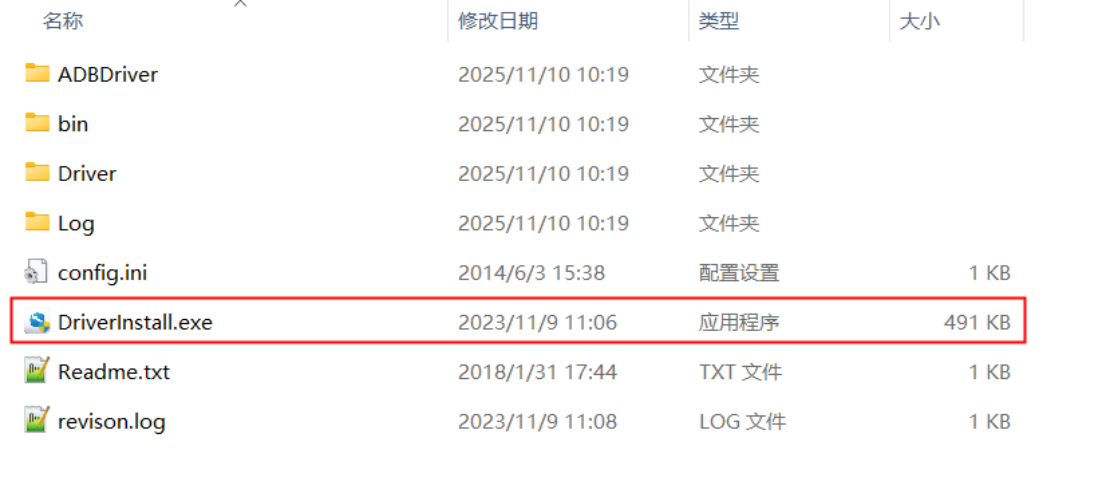
1. Install Driver (Required for first time)
- Extract and install driver package: DriverAssitant_v5.13.zip
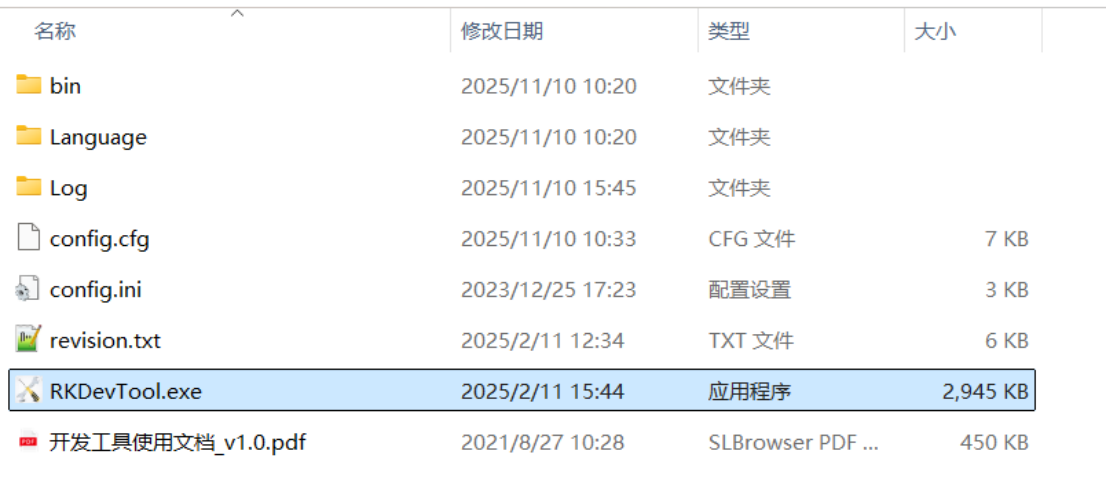
2. Start Flashing Tool
- Extract flashing tool package: RKDevTool_Release_v3.37.zip, start flashing tool
3. Connect Host with Type-C Data Cable
- USB port connects to computer, Type-C port connects to the first port near the network card on the host.
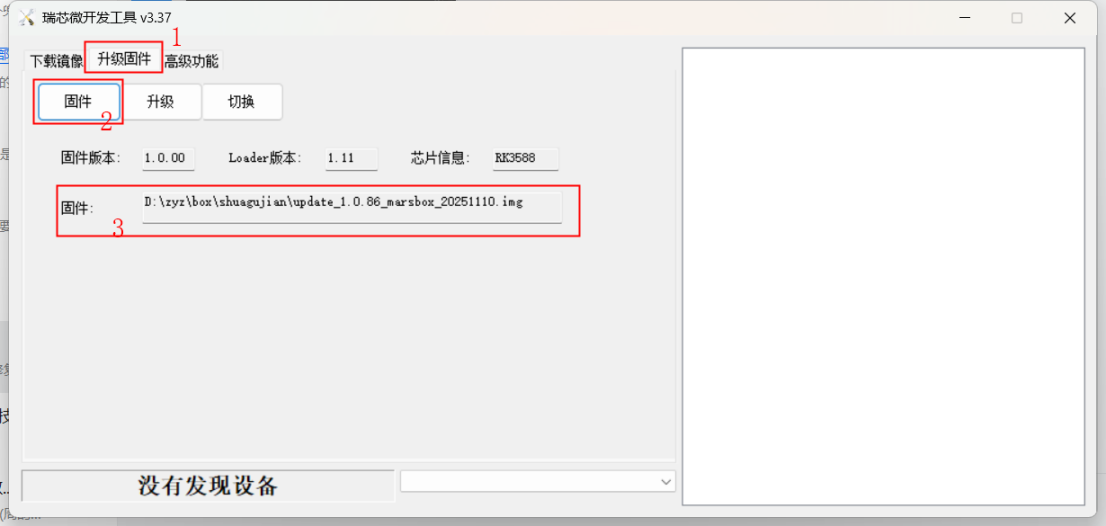
4. Select Downloaded Firmware
5. Use SIM Ejector Pin and Power to Identify Device
- Ensure box power is unplugged, use SIM ejector pin to insert maskrom key, simultaneously plug in power, identify this device.
6. After Device is Discovered, Click Upgrade
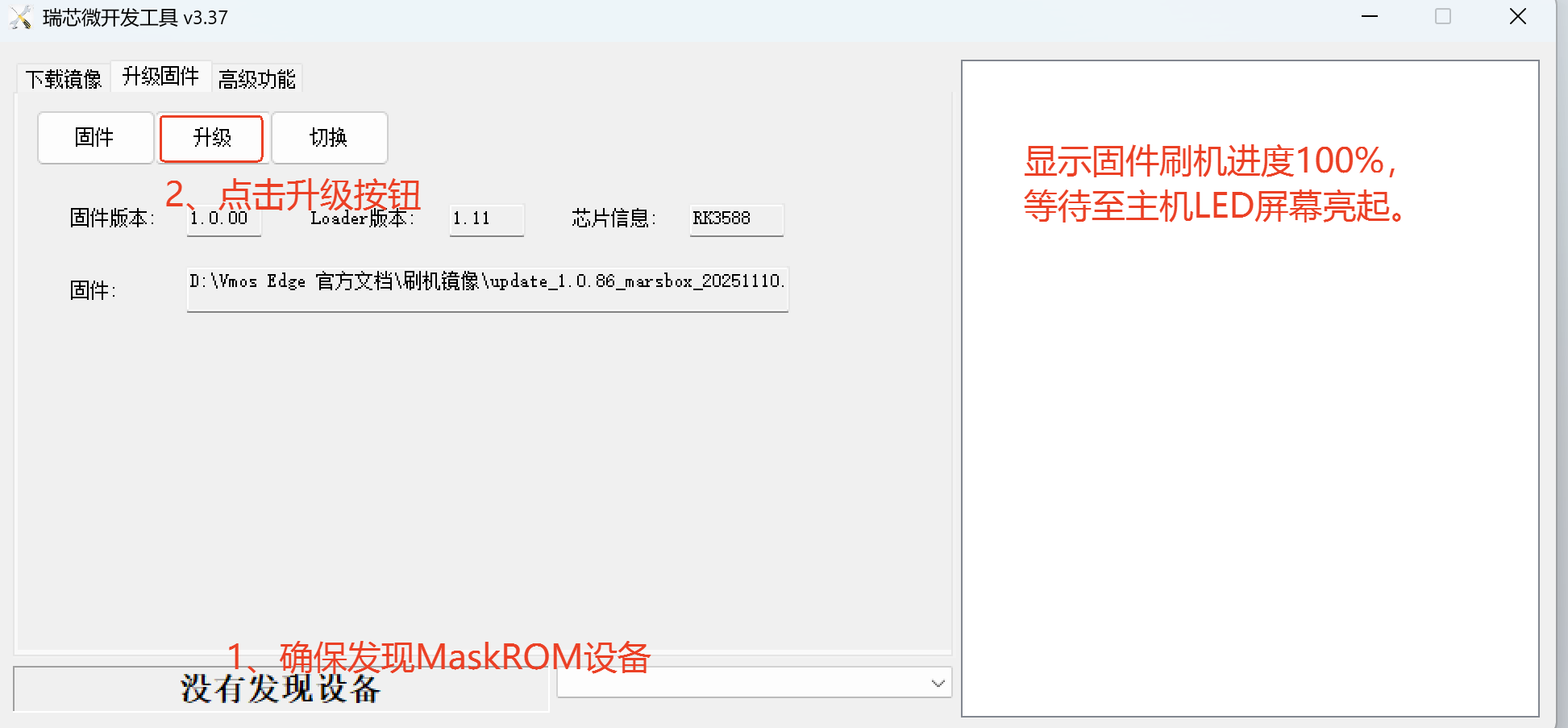
7. Wait for LED Flashing Success
- After flashing progress reaches 100%, please wait 1-3 minutes to ensure host LED screen lights up.