Image Management
This chapter introduces the image management functions of VMOS L1 edge computing box, helping users understand the storage, download, import, and maintenance operation processes of images, ensuring the system can successfully create and run cloud machine instances.
1. Image Storage Path
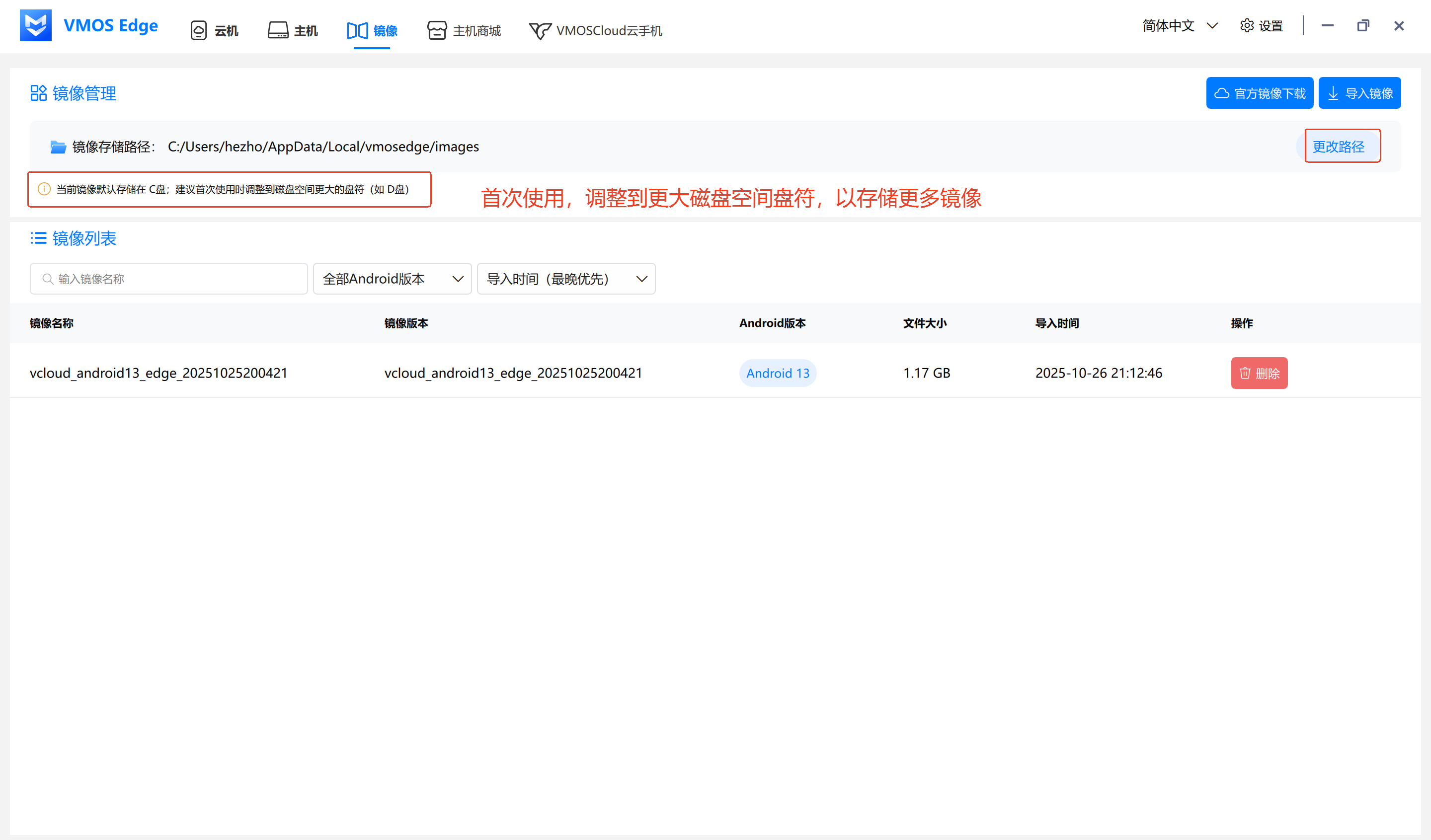
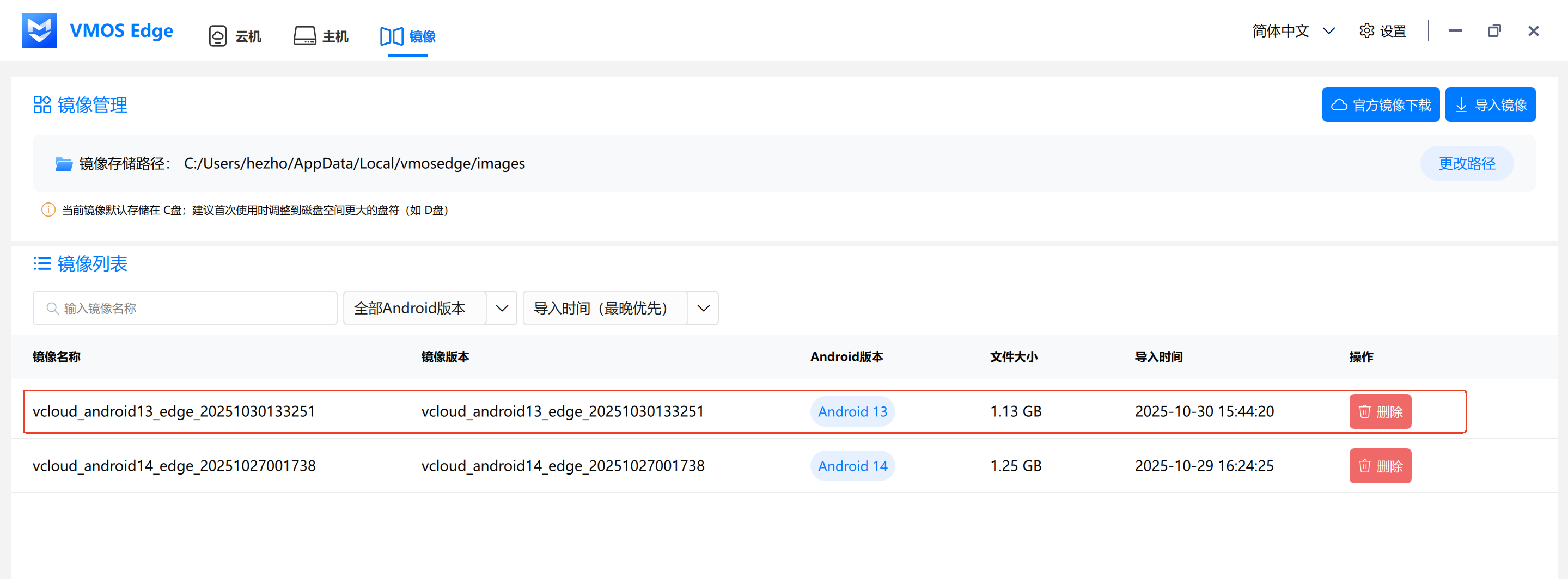
Before importing images for the first time, click the "Change Path" button to select the disk location.
The default storage path is C drive, it is recommended to adjust to a drive with more space (such as D drive).
2. Official Image Download
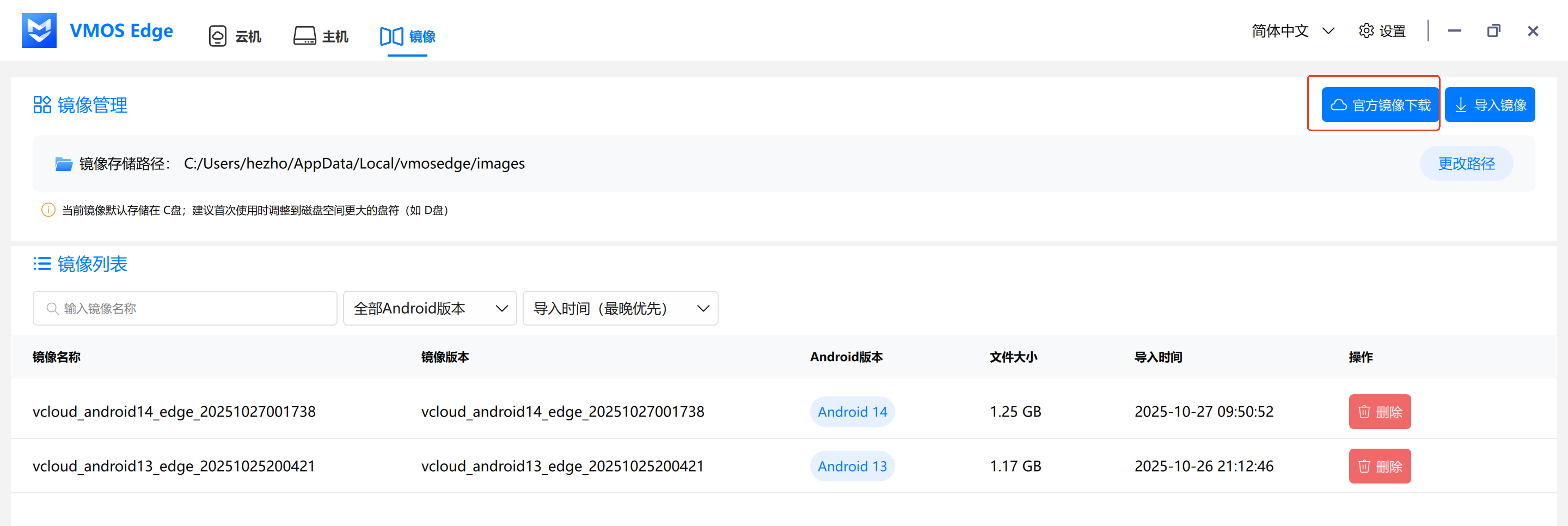
Click "Official Image Download" to jump to the image download page.
3. Import Image
- Click "Import Image", you can upload images by dragging or clicking "Browse Files".
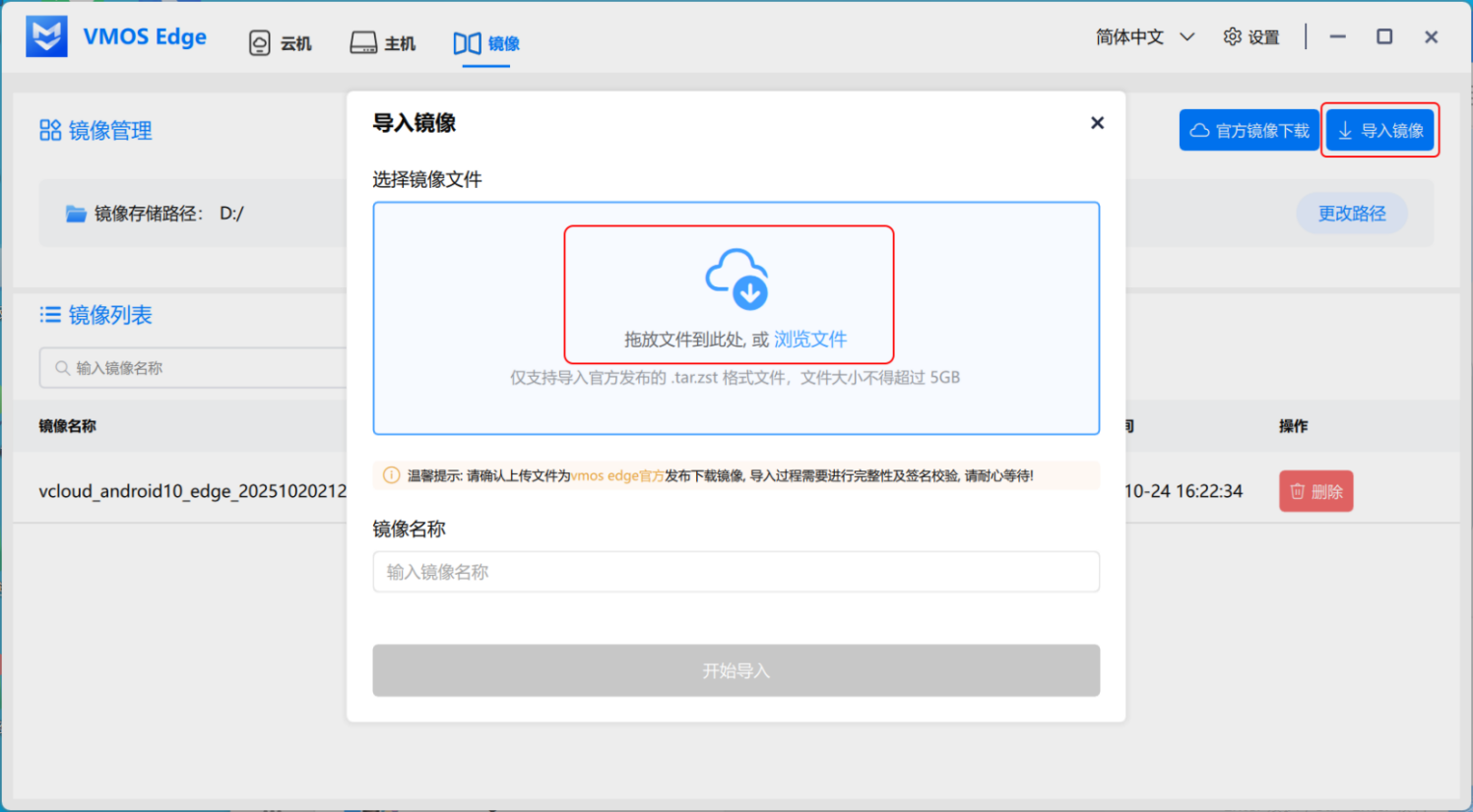
- After successful upload, the system automatically recognizes the image name, which can be clicked to modify.
⚠️ Note:
Please ensure the uploaded image is a VMOS Edge officially released download image.
The system will perform integrity and signature verification. Non-official images will fail to import.
After successful image import, the following information will be displayed:
- Image Name
- Image Version
- Android Version
- File Size
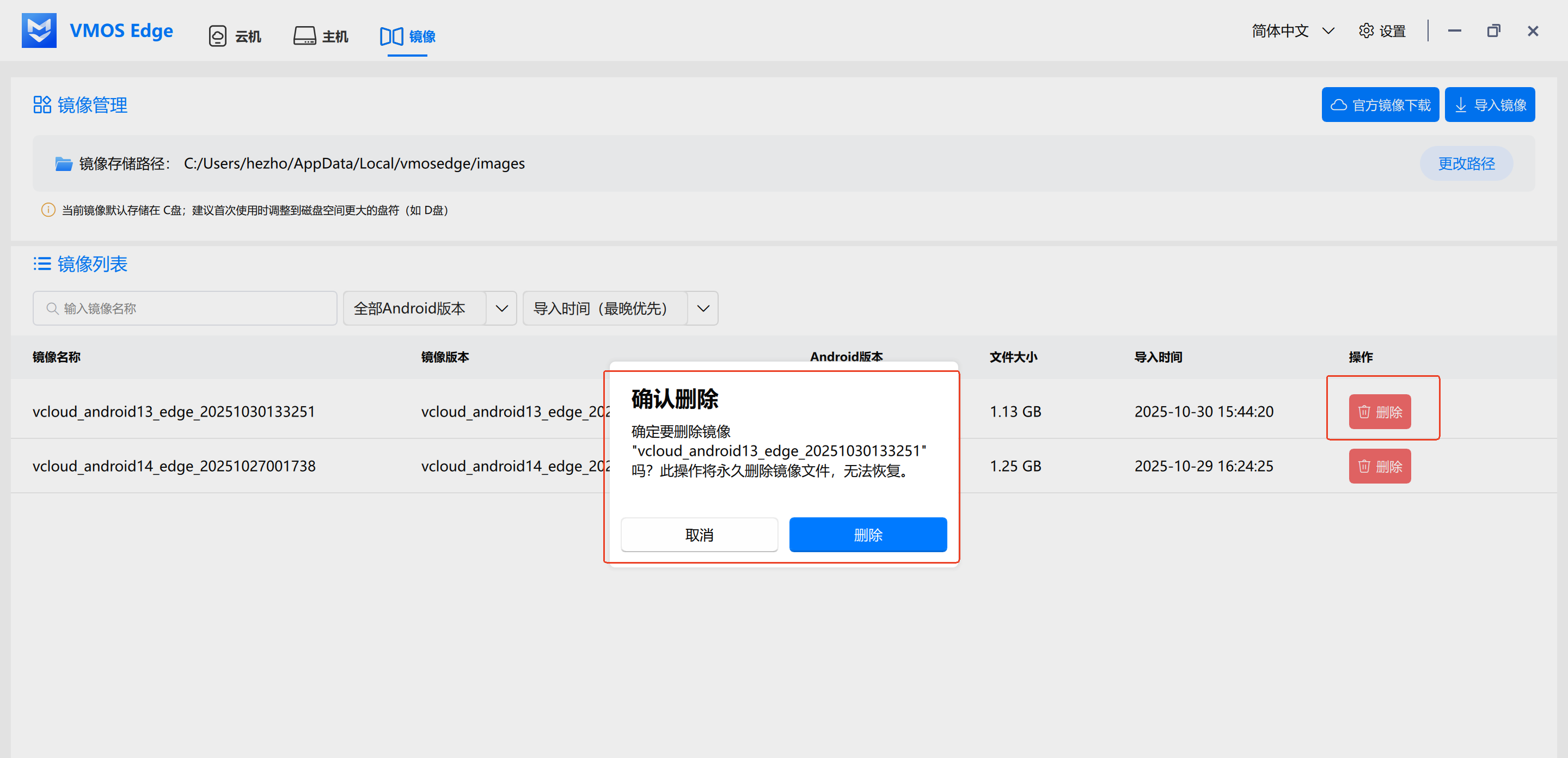
4. Delete Image
On the image list page, click "Delete" to permanently delete the image (irreversible).