
Settings
The Settings function is located on the right side of the top navigation bar, providing system-level function entries. Users can view version information, manage device model configuration, access help documentation, etc., for overall system maintenance and support.
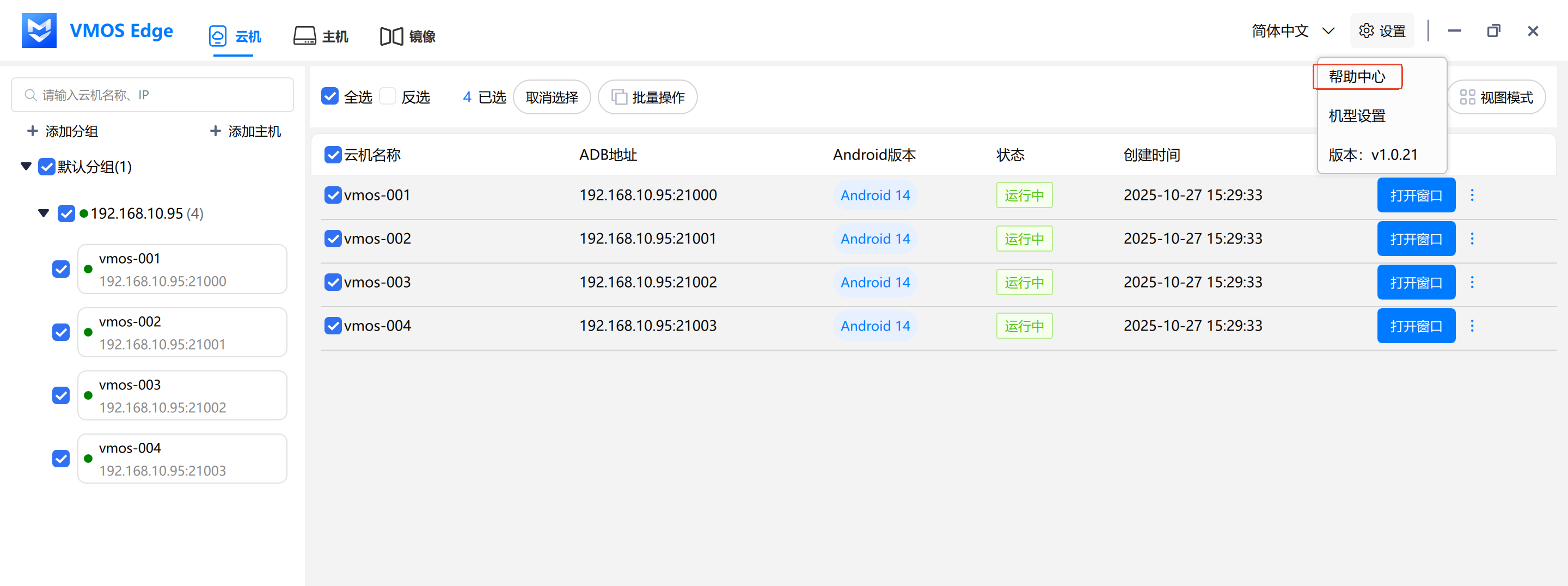
Click the "Settings" dropdown menu on the right side of the top navigation bar to view the following:
1. Help Center
- Help Center: Jump to online help documentation to get usage guides and FAQ answers.
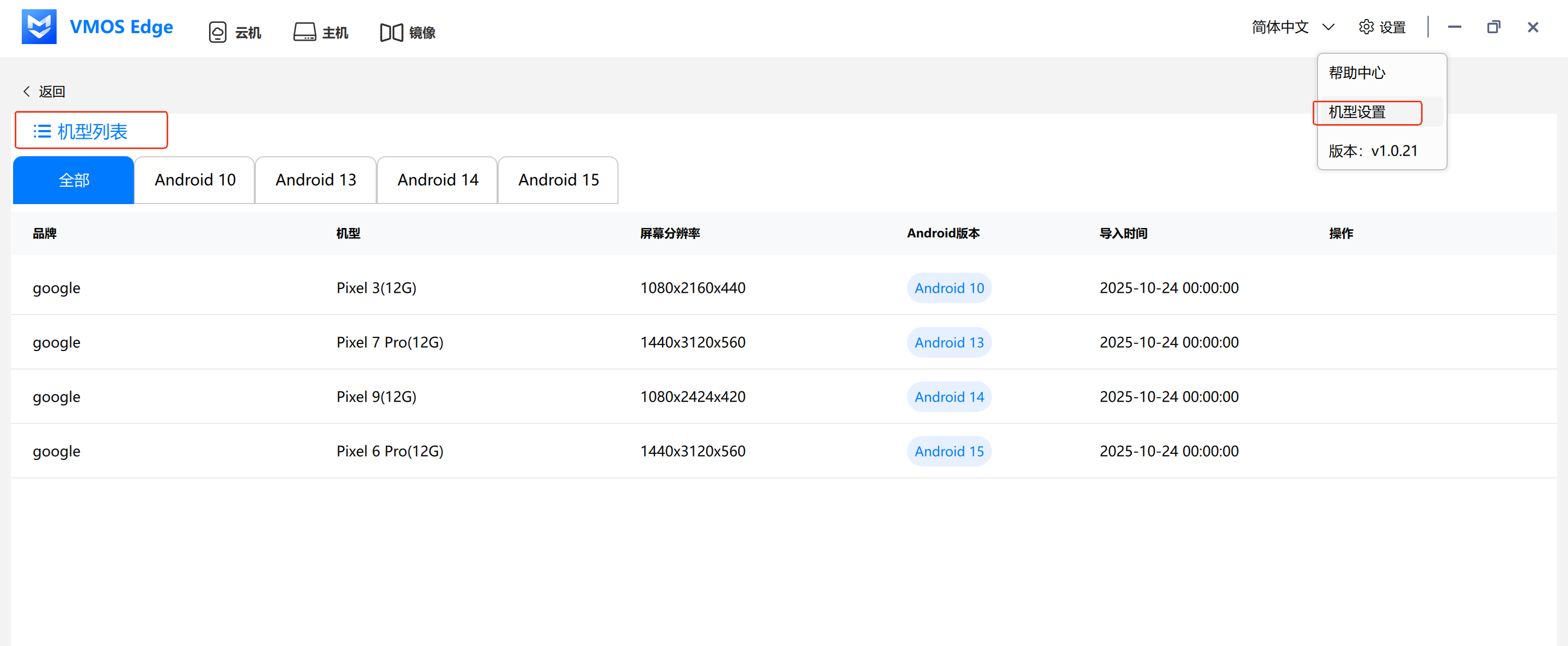
2. Device Model Settings
- Device Model Settings: Display available device model list (supports Android 10, 13, 14, 15), continuously updated real device versions.
3. General Settings
Streaming Settings: In the Streaming Type area, you can select the media type to push
- Audio and Video (default option): Push both audio and video.
- Video Only: Only push video, no audio.
- Audio Only: Only push audio, no video.
Camera Settings:
- In the Camera dropdown, select an available camera device. For example:
XiaoMi USB 2.0 Webcam.
- In the Camera dropdown, select an available camera device. For example:
- If no camera device is detected, you can click the "Refresh" button on the right to re-detect.
⚠️ Tip: Please ensure the camera is correctly connected to the computer and recognized by the system.
- Microphone Settings:
- In the Microphone dropdown, select an available microphone input device. For example:
Microphone Array (Intel® for Digital Microphones).
- In the Microphone dropdown, select an available microphone input device. For example:
- If no microphone device is detected, you can click the "Refresh" button on the right to re-detect.
🎧 It is recommended to select external microphone or high-quality array microphone for clearer sound.
- Start Streaming:
- After completing the above settings, find the "Enable Streaming" switch at the bottom.
- Click the toggle button to start streaming. After starting, the system will automatically begin audio and video pushing.
🔄 Click this switch again to disable streaming.