Step 4: Connect & Control
Welcome to VMOS Edge Local Cloud Machine Box!
This guide will take you from unboxing to successfully creating and experiencing your first cloud machine in just a few steps.
Connect and Control Cloud Machine
- Select the created cloud machine;
- Click [Open Window];
- The client will automatically open the screen mirroring window;
- Use mouse and keyboard to directly operate the Android system.
💡 Supports copy-paste, file drag-and-drop, ADB connection, proxy settings and other functions.
First Experience Recommendations
✅ Modify Default Storage Path
It is recommended to modify the image data path to a large-capacity disk to prevent insufficient system disk space.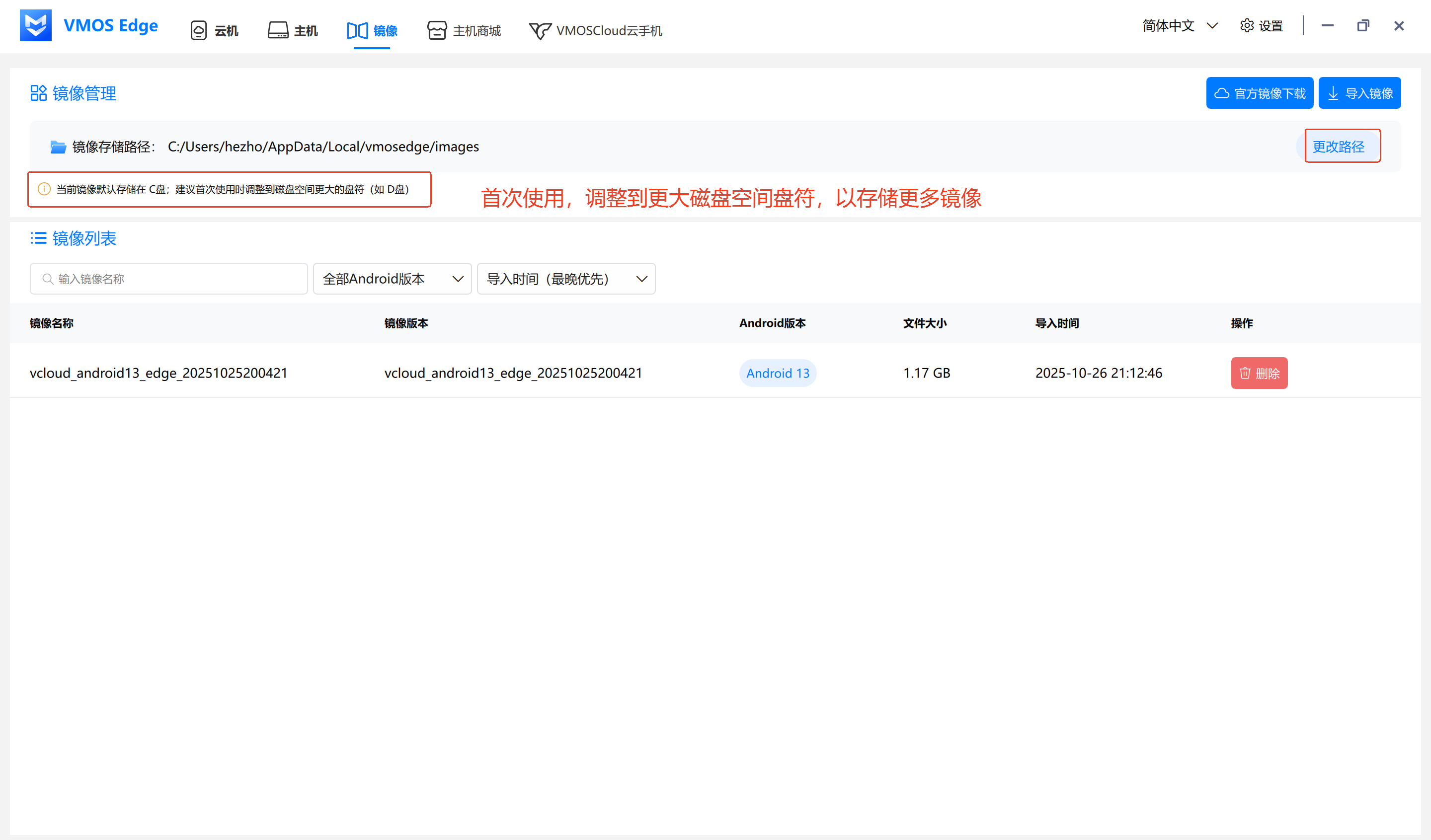
☁️ Try Multiple Cloud Machines in Parallel
Supports multiple cloud machines running simultaneously, suitable for testing, development, or multi-account scenarios.
Common Issues
| Issue | Solution |
|---|---|
| Box not discovered by client | Ensure box and PC are on the same local network, or disable firewall and retry |
| Cloud machine creation failed | Check if hard drive free space is sufficient |
| Unable to screen mirror | Update client version or check network stability |
Technical Support
For technical support or to get the latest version, please visit:
🔗 https://help.vmosedge.com
Thank you for using VMOS Edge, enjoy your experience!