DLDR: Instagram login issues are a common challenge for users, especially for social media marketers and agencies handling multiple accounts. Frequent login errors can disrupt access and even lead to account restrictions, resulting in big losses. This article covers the most common Instagram login errors and provides practical fixes for each. In addition, there will be an insight of preventing future login problems using cloud phone solution, which provides isolated, secure, and anti-detection virtual environments for safer account login and management.
Quick takeaway for common Instagram login errors and fixes:
1. Incorrect Username or Password.
Double check the credentials
Reset the password by clicking “Forgot password”
Tap “Create new account” and input the phone number/email address linked to an existing account to regain access with that account.
2. Sorry, we couldn't connect to our login server: Try restarting the router or device, switch between Wi-Fi or mobile data and disable VPNs or proxies.
3. Sorry, we couldn't log you in.
Ensure stable network connection
Retry from a familiar device and network
Update or reinstall the Instagram app:
Android — clear the data and cache in the setting and update the app in Google Play Store
IOS — Uninstall and reinstall Instagram
4. Sorry, there was a problem with your request.
Check Instagram's server status on sites like Downdetector
Wait 24-48 hours before retrying login
Update the version of Instagram app and keep stable network connection
Log in through Facebook by tapping the “Log in with Facebook” button on the login page.
Go to Instagram Settings > Security > Apps and Websites to disable third-party applications that have the access to your Instagram account.
5. Sorry, we couldn't complete your request. Please try again in a moment: This may be caused by account restrictions. You can check the “account status” in "Settings and activity" and submit an appeal.
Common Instagram login errors and how to fix them
Incorrect username or password
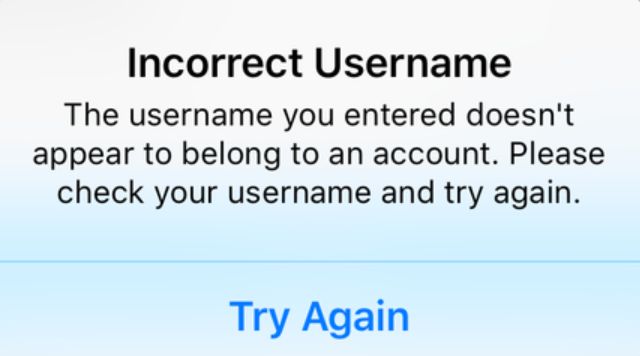
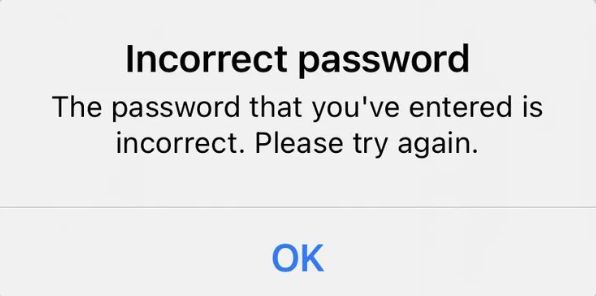
One of the most common reasons for Instagram login failure is entering the wrong username or password. This often happens when you forget your username/password and input incorrect credentials. Keep in mind that Instagram passwords are case-sensitive, so even a single uppercase or lowercase letter entered incorrectly will prevent login.
Fixes:
1. Double-check your credentials: Ensure your username and password are correct, paying attention to case sensitivity and extra spaces.
2. Reset your password:
Open the Instagram login page and click “Forgot password?”
Enter your registered email, phone number, or username
Follow the instructions sent via email or SMS to reset your password
Or you can simply click this link to receive a link to get back into your account.
If you enter the correct username and password but still can not log in, try the 2 workarounds:
Tap “Create new account” → enter the mobile number/email address linked to the account you want to log into → Instagram will verify whether you want to log into an existing account → confirm and input the credentials again to get back the access of your account
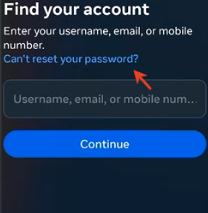
Click “Can't reset your password” after tapping “Forgot password?” → enter your email address or number → input the received code → you will see a pop-up to change your password → you can log into the account after confirming the changing
Sorry, we couldn't connect to our login server. Please confirm you have an internet connection and try again in a moment.
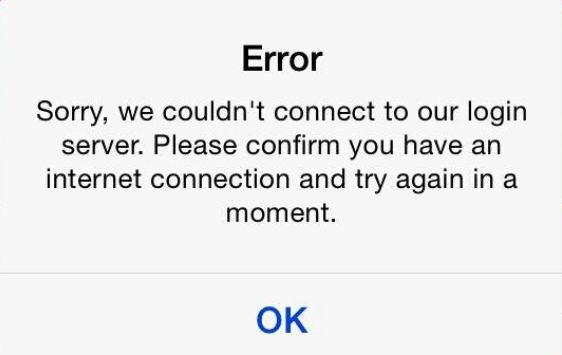
The "Sorry, we couldn't connect to our login server." error appears primarily due to network issues. Instagram is unable to reach its login servers when your device has a poor or unstable internet connection, or if network settings prevent communication with Instagram’s servers.
Fixes:
Check your internet connection: Ensure you are connected to a stable Wi-Fi or cellular network.
Restart the router or device
Switch between Wi-Fi or mobile data network to rule out connectivity issues.
Disable VPNs or proxies that might trigger security flags
Sorry, we couldn't log you in.
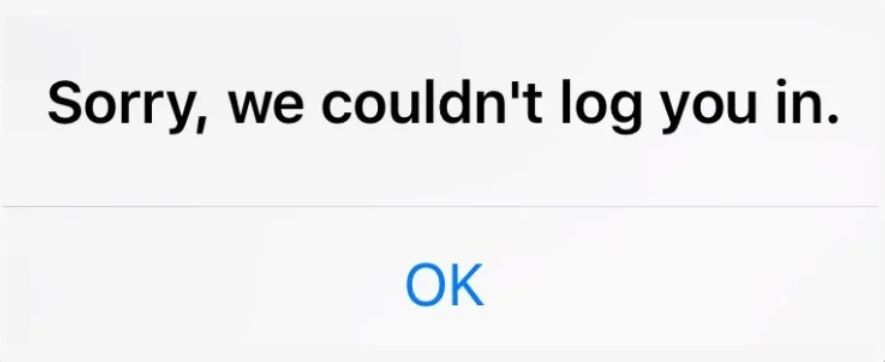
This issue usually occurs when Instagram detects unusual activity or potential security risks on your account. This can happen if you try to log in from a new device, an unfamiliar location, or a network that Instagram flags as suspicious. Additionally, using an outdated version of the Instagram app may cause login failures due to compatibility or security issues.
Fixes:
1. Retry from a familiar device and network: Logging in from a device and location you've previously used can help bypass this error.
2. Make sure your network is stable.
3. Update or reinstall the Instagram app: Make sure you're using the latest version to avoid compatibility issues.
Android: clear the data and cache in the setting and update the application in Google Play Store
IOS: Uninstall and reinstall the application
Sorry, there was a problem with your request.
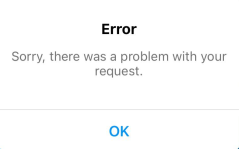
This is another common login error. Common triggers include using an outdated Instagram app, multiple failed login attempts, unstable internet connections or server-side downtime/technical glitches.
Fixes:
1. Check Instagram's server status: Before attempting any fixes, determine whether the issue is on your side or with Instagram. You can check it on sites like Downdetector. If the issue is on the server side, you may need to wait it out.
2. Wait 24-48 hours before retrying login: According to communication between Reddit user and official support there is a cool-down period before the system allows new attempts.
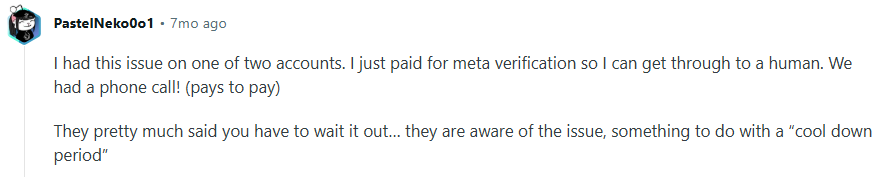
3. Update the version of Instagram app and ensure stable network connection
4. Log in through Facebook: On the login page, tap the blue “Log in with Facebook” button. This may sometimes bypass Instagram's standard authentication and validate your login directly.
5. Disable or uninstall third-party apps: Third-party apps that interact with Instagram can sometimes cause conflicts and subsequently login error. Go to Instagram Settings > Security > Apps and Websites, find the applications and disable the access to your Instagram account or uninstall them to see if it works.
Sorry, we couldn't complete your request. Please try again in a moment.
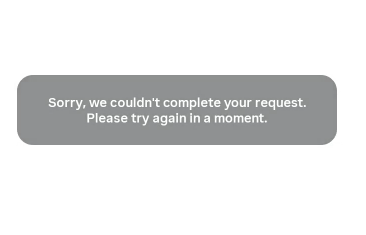
When Instagram is temporarily unable to process your login attempt or account activity, this error may pop up. The common cause is a temporary account block. Instagram employs advanced detection systems to track device information, IP addresses, and login patterns etc.
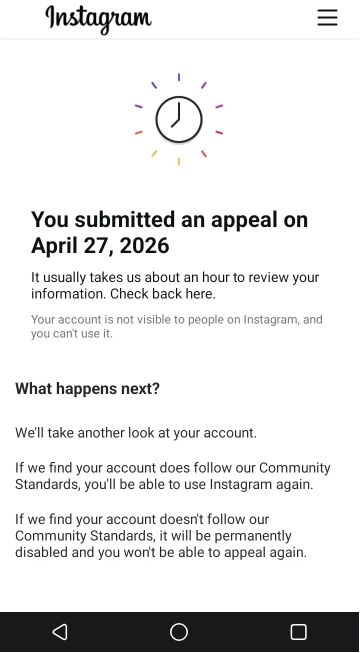
Fixes: Seek official support from Instagram
If you are confident your account complies with community standards, you can submit an appeal through Instagram's Help Center. Provide all necessary information and wait for Instagram's response. The review process may take 1 hour, depending on the nature of the issue.
How to prevent future Instagram login problems with cloud phone
Preventing Instagram login issues is essential for maintaining account security, ensuring uninterrupted access, and safeguarding your account growth. This is particularly important for social media marketers or agencies handling multiple accounts, since frequent login errors can lead to account suspensions or even permanent bans, resulting in significant financial losses. A clean, secure, and isolated device environment is key to addressing these challenges. Cloud phones provide the perfect solution. You can use it to run each Instagram account in a fully independent virtual Android environment. In addition, its advanced anti-detection capability benefits preventing accounts from being flagged due to unusual login patterns, suspicious IP addresses, or abnormal account activity, ensuring safer and more reliable Instagram account management.
Independent login environment for Instagram
A common trigger for login restrictions or security flags is account associated. By separating accounts into a fully independent virtual device with unique device parameters, users can safely manage multiple Instagram profiles. This isolation reduces the risk of being detected as cross-account association or flagged by Instagram's systems.
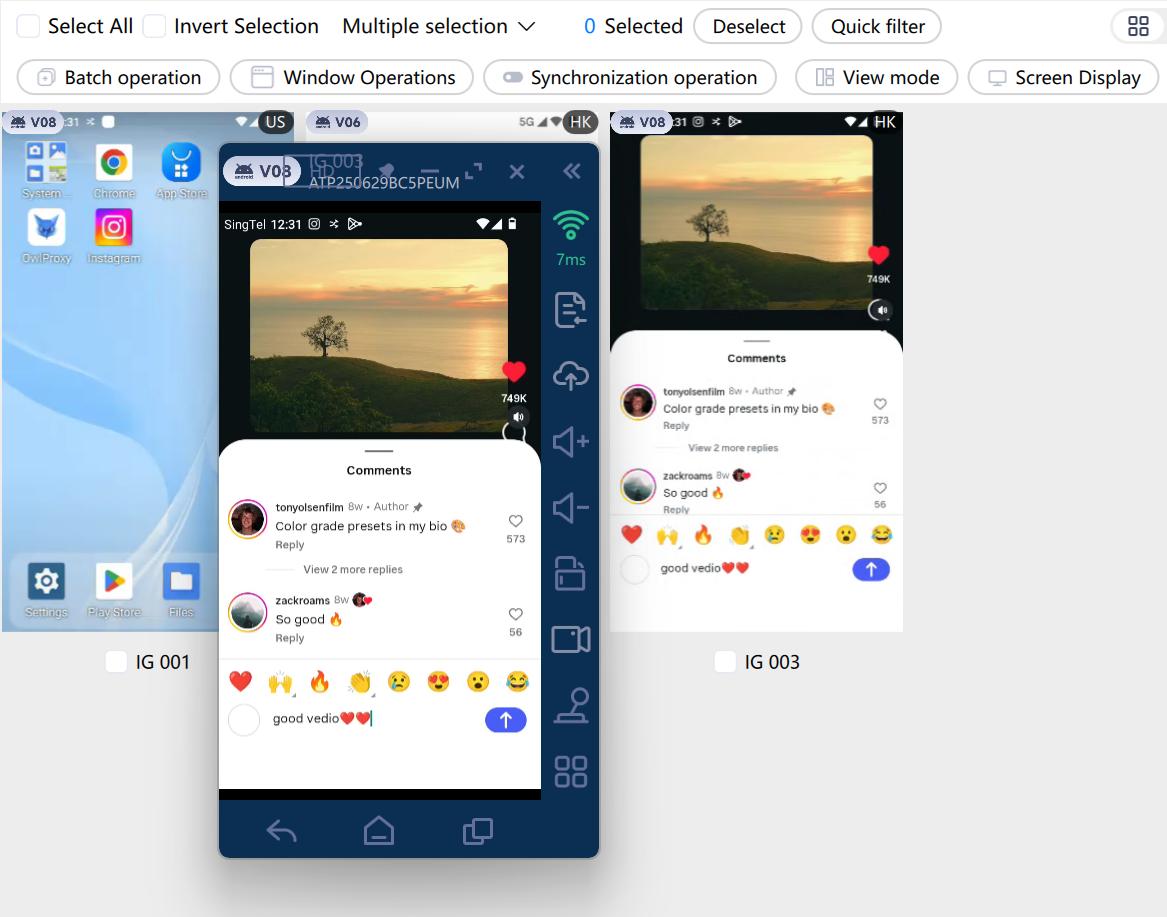
Multi-account management reduces frequent log in and out
With cloud phone, each Instagram account can run on an independent virtual device, while all devices can be accessed through a centralized dashboard. This eliminates the need to frequently switch devices or repeatedly log in and out, reducing the risk of login errors or account flags.SMS service makes creating Instagram account simple
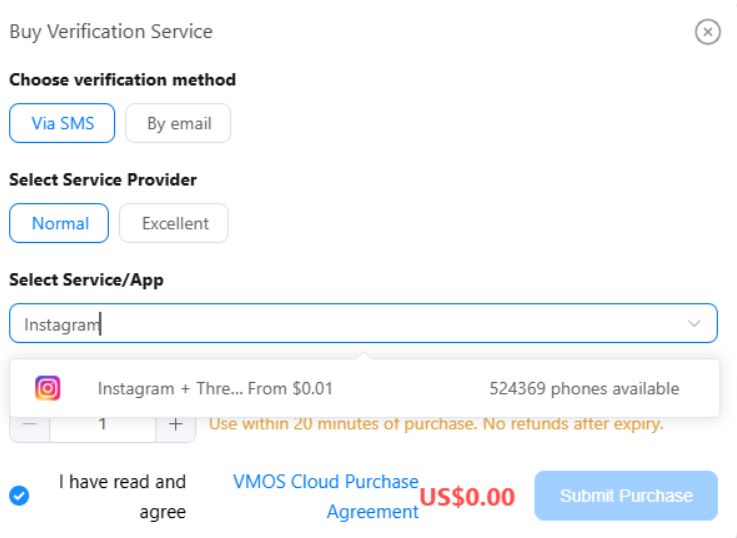
VMOS Cloud provides an integrated SMS service, allowing users to purchase temporary phone numbers or email addresses directly on the platform for account registration. This feature makes creating and logging into Instagram accounts more convenient. Users can create, log in and manage Instagram accounts seamlessly by combining SMS service with the isolated virtual environment.
FAQs
Why is Instagram not letting me log in?
Instagram may prevent you from logging in for several reasons, including incorrect username or password, network issues, outdated app versions, or account blocks.
How can I regain access to my Instagram accounts?
You can start by troubleshooting the possible cause. After that, take actions accordingly: you may try to switch networks, reset your password, update the app version and so on. For a complete guide, please scroll up and check the common login errors and fixes.
How do I know if I am banned from Instagram?
If your account was banned, you may receive an official notification. Then you won't be able to log into this account and no one else will be able to see it. You can submit an appeal if ensuring that you are fully complied with the community standards.
How can I prevent Instagram login issues in the future?
Run an account in a clean and secure environment, such as cloud phone to reduce the risk of restrictions. Stable network connections, updated app version, account behavior patterns that comply with community standards can help to minimize login problems as well.