Tap“Skip”to avoid phone verification: Select“Skip”when creating a Google account on web browsers or mobile devices.
Free Virtual phone numbers: Use temporary numbers from service providers like TextNow or SMSToMe.
Use a VPN: Change the real IP address to regions where the registration environment is more lenient, such as the United States, Canada, and Japan.
But the fact is that in most cases, phone number verification will be triggered when creating a Google account (from Reddit r/Gmail). Skipping phone number verification is free and simple but the success rate is not stable —“ Skip” option may disappear if Google detects an abnormal device/browser environment or IP addresses. Free Virtual numbers are useful for temporary or bulk accounts but less secure and sometimes blocked. The real solution is cloud phone service with SMS verification and logins. VMOS Cloud provides an isolated, clean device environment and comes with built-in SMS service (price varies according to regions, ranging from $0.11 to $6.5) for Google accounts' phone verification. This allows users to create localized Google accounts without the additional cost of purchasing real phone numbers.
Why does Google ask you to add a phone number?
Anti-Spam: Phone verification helps Google ensure the account is being created by a real user, preventing bots, spam, and fraudulent accounts..
Account Recovery: A phone number can help recover an account if you forget your password.
Two-factor authentication (2FA): Phone number is used for two-factor authentication (2FA) to protect your account from unauthorized access, adding a layer of security.
Workarounds to Create Google Accounts without Phone Number
1. Tap “Skip” to avoid phone verification
Web Browser:
Clear browser cache and cookies to reduce the possibility of Google detecting unusual devices. Optionally, use Incognito/Private mode.
↓
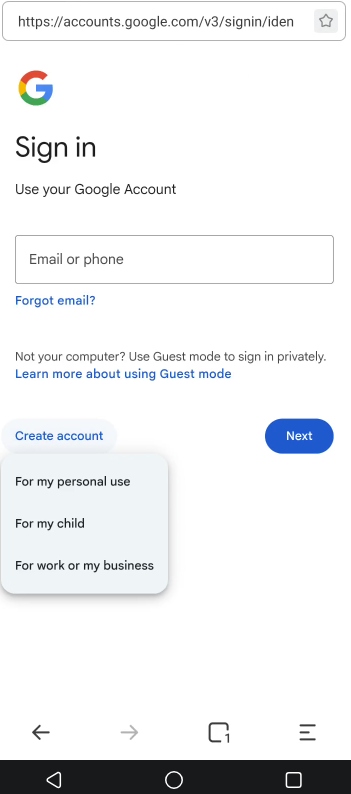
Go to Google account sign-up page and click “Create account”
↓
Fill in basic information: first and last name, date of birth, gender, the desired email address and password
↓
Select “Skip” when Google asks you to enter your mobile number.
Android & IOS:
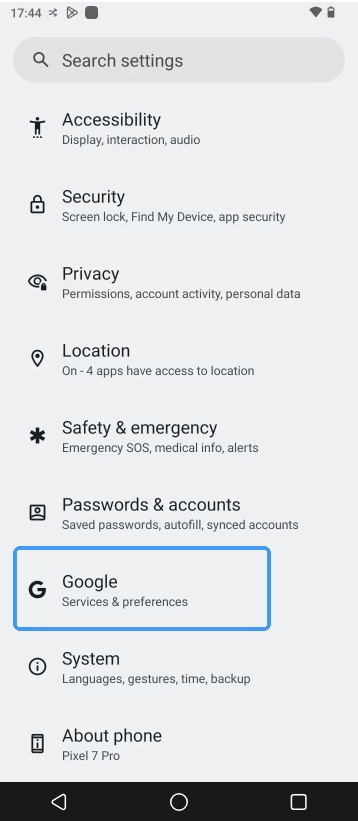
Launch the “Settings”
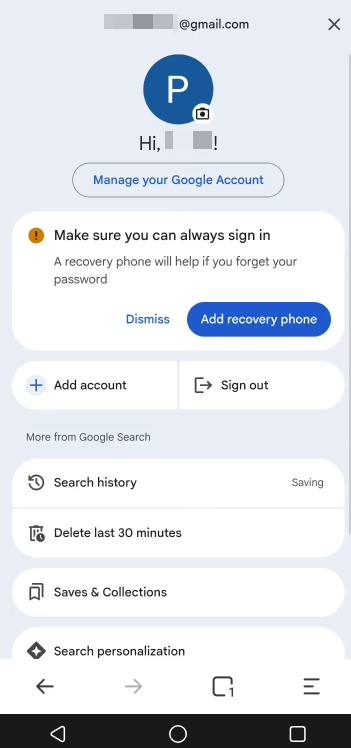
(Or open Gmail/Google App → Tap profile → Add account)
↓
Android: Select Google on Accounts session, tap the Manage your Google Account button to add another account
IOS: Find the Mail session, tap Add Account and choose Google to add
↓
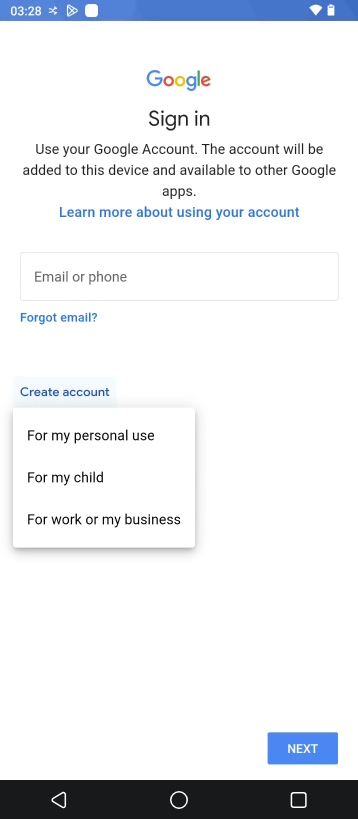
Tap the “Create account” in the bottom-left corner
↓
Input required information and tap “skip” when there is need for phone verification
Pros:
Ease of use: Can be done on any device (mobile or desktop) without extra tools.
Low cost: No paid services, virtual or pre-paid numbers are needed.
Cons:
Inconsistent success rate: Google may sometimes require phone verification, especially if the device, IP, or browser environment is abnormal.
Not suitable for bulk account creation: Multiple accounts created from the same IP or device may trigger mandatory phone verification.
2. Virtual phone number service
You can register a Google account without using your personal phone by a virtual phone number or temporary SMS service. First, select a service provider such as TextNow, Sakari or SMSToMe that offers temporary phone numbers capable of receiving SMS messages. During the Google registration process, enter the virtual phone number when prompted for a phone verification. Then, go to the service platform to retrieve the verification code sent by Google, and input it to complete the account verification.
Pros:
No need for real phone numbers: You can register Google accounts without using a personal phone.
Useful for temporary or bulk accounts: Ideal for testing, marketing, or multiple account scenarios.
Cons:
Short-term usability and low security: Google may detect and block abused temporary numbers.
Delayed verification codes: SMS messages may be received slowly, affecting registration timing.
Risk of account ban: Accounts created with temporary numbers are more likely to be flagged or disabled if Google detects abuse or suspicious activity.
3. Use a VPN
Google's security system evaluates factors such as IP address, geolocation, and regional risk levels during account registration. In regions with higher abuse rates (such as mainland China, Vietnam, or India), users are more likely to be required to verify with a phone number. In contrast, registering from regions like the United States, Canada, or Japan with an English interface—may result in a more lenient registration without phone number verification. A VPN allows you to change real IP addresses to these lower-risk environments. Additionally, selecting regions with limited SMS support(such as Colombia or Mongolia) may further reduce the chance of phone verification being enforced.
Pros:
Flexible and easy to use: VPNs are widely available and simple to set up.
No need for additional devices/phone numbers: Can be used directly on browser or mobile devices.
Cons:
Shared IP risk (especially free VPNs): Free VPNs often use limited IP pools, increasing the chance of detection.
Inconsistent environment signals: Mismatch between IP location, device language, and behavior may trigger verification.
What's really going on when Google asks for your number?
When Google requests a phone number during account registration, it is not arbitrary. Several key factors can trigger the verification process:
Device environment
Google analyzes whether the device is recognized or new, if it is virtualized, or if browser data such as cookies and cache have been cleared. Unusual or “fresh” device environments are more likely to trigger phone verification.Account behavior
High-frequency account creation, rapid navigation, or abnormal activity patterns can make Google suspect automated or abusive behavior, prompting a phone number check.
IP addresses
Shared or high-risk IPs increase the possibility of phone number verification. Users registering from countries、regions with higher abuse rates are more frequently asked for phone numbers.Language
Mismatches between the device language, account interface, and selected region can raise suspicion.
Cloud phone with SMS services come as a safe solution to address this issue. A cloud phone is a real Android environment hosted in the cloud, accessible remotely, and operates just like a physical device. VMOS Cloud offers device-level isolation and advanced anti-detection features, making it ideal for creating Google accounts without a phone number. It passed Google Play Integrity verification, IPhey detection check and PixelScan unique identify check. With a stable, authentic mobile environment, Google recognizes each cloud phone as a real device. In addition, VMOS Cloud provides SMS Receiver service, offering global numbers that are easily registered on Google. This makes VMOS Cloud a reliable, scalable, and secure method for registering Google accounts, even in high-risk or restricted environments.
The real solution from VMOS Cloud: Create a Google account in cloud phone with SMS service
Creating Google accounts without a phone number can be challenging due to Google’s verification and detection mechanisms. VMOS Cloud provides a practical solution by offering SMS services and a stable, cloud-based Android environment that mimics a real device. Users can create multiple Google accounts, each running in a secure, independent environment. It serves as a secure multi-account management solution for global teams, enabling safe management of multiple accounts across different devices and locations without being flagged by platform.
How VMOS Cloud helps:
Authentic & isolated device environment
Each device runs as a fully functional Android environment in the cloud, completely isolated from each other. This isolation ensures that each Google account operates independently, preventing device fingerprinting conflicts and reducing the risk of detection or account suspension. Users can safely create and manage multiple accounts without interference from other accounts or shared IPs.
Advanced anti-detection feature
Each device has unique parameters like device brand, model, Android version(Android 10-16), storage, IMEI, phone number, bluetooth address, network settings etc. This keeps Google accounts fully separate to prevent Google from detecting associated accounts or flagging accounts' behaviors as abnormal. VMOS Cloud passed IPhey detection check, PixelScan unique identify check, Google Play Integrity verification and provides real Android systems that mimic genuine user behavior on Google apps, helping accounts appear natural and stay safe from detection. The clean environment and robust anti-detection ability supports users to bypass phone verification in many cases while keeping accounts secure.
Built-in SMS Service
The SMS service works seamlessly within VMOS Cloud, combining an authentic Android environment with stable verification. Users can complete registration entirely within VMOS Cloud, reducing dependency on external tools. Compared to free virtual phone numbers, VMOS Cloud's SMS service stands out for lower delay in receiving codes. Verification codes are delivered more quickly, minimizing registration interruptions caused by delayed codes. In addition, phone numbers from paid SMS service are less likely to be abused, reducing the possibility of accounts being flagged as suspicious or suspended.
Step-by-step guide to create a Google account on VMOS Cloud
Step 1: Get start with VMOS Cloud
Select and get your device on the “Purchase” interface. New users can start with basic configuration at $3.74/month. VMOS Cloud offers a free trial for newly registered users as well.
Step 2: Choose your preferred method to create a Google account
Launch Google app to add an account or find Google in “Settings” , click Sign in then tap create account for a new one. You can also go to the Google account sign-up page and click “Create account”. A common registration path starts with choosing to create an account “For my personal use.”
Step 3: Fill in required information
Input basic information like first name, last name(optional), birthday and gender.
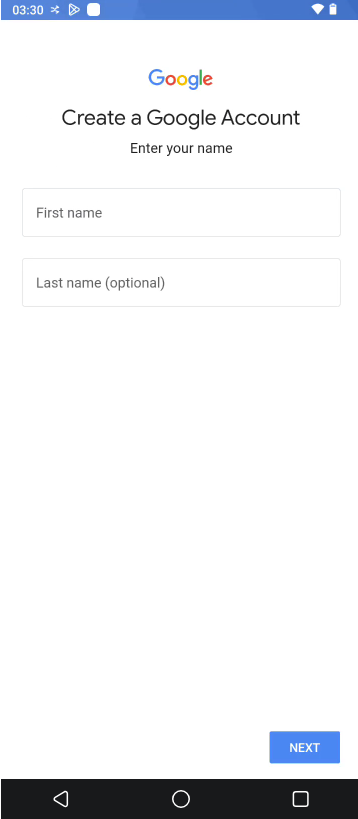
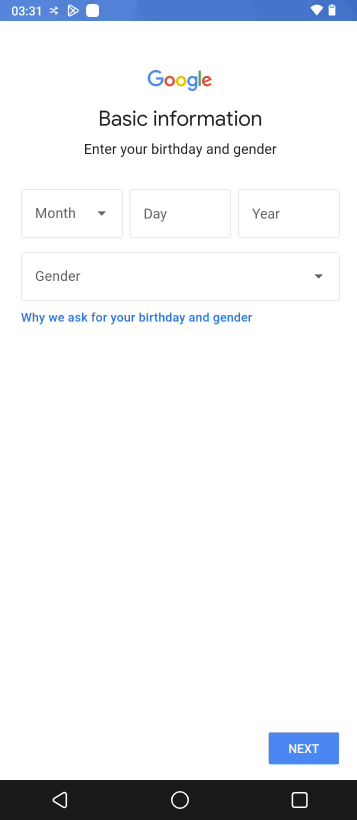
After that, create your Gmail address and password.
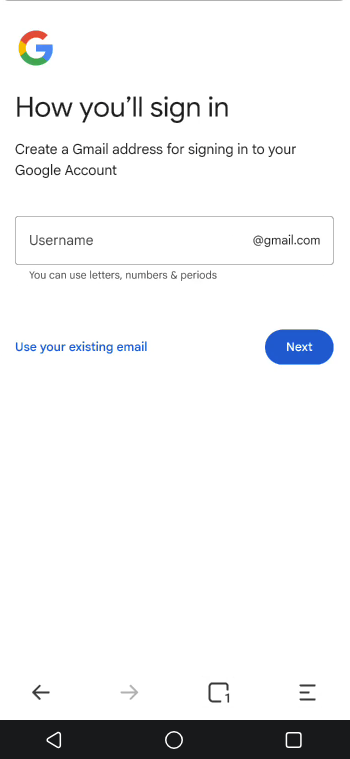
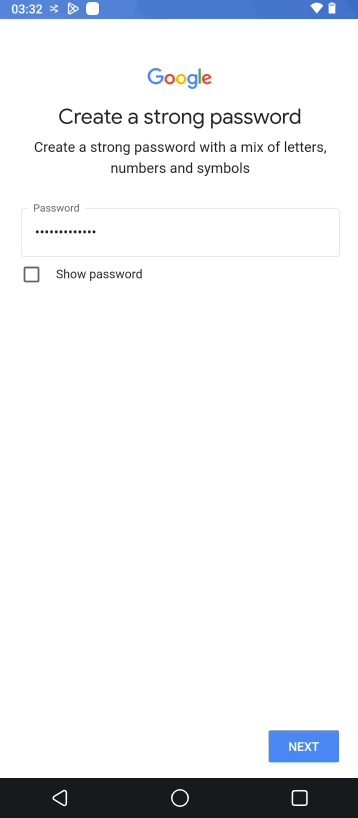
Step 4: Solve the phone verification with SMS service
Find “Verification Code” below the “Operation Tools” session, purchase the required service and select the country/region as per need to get a phone number.
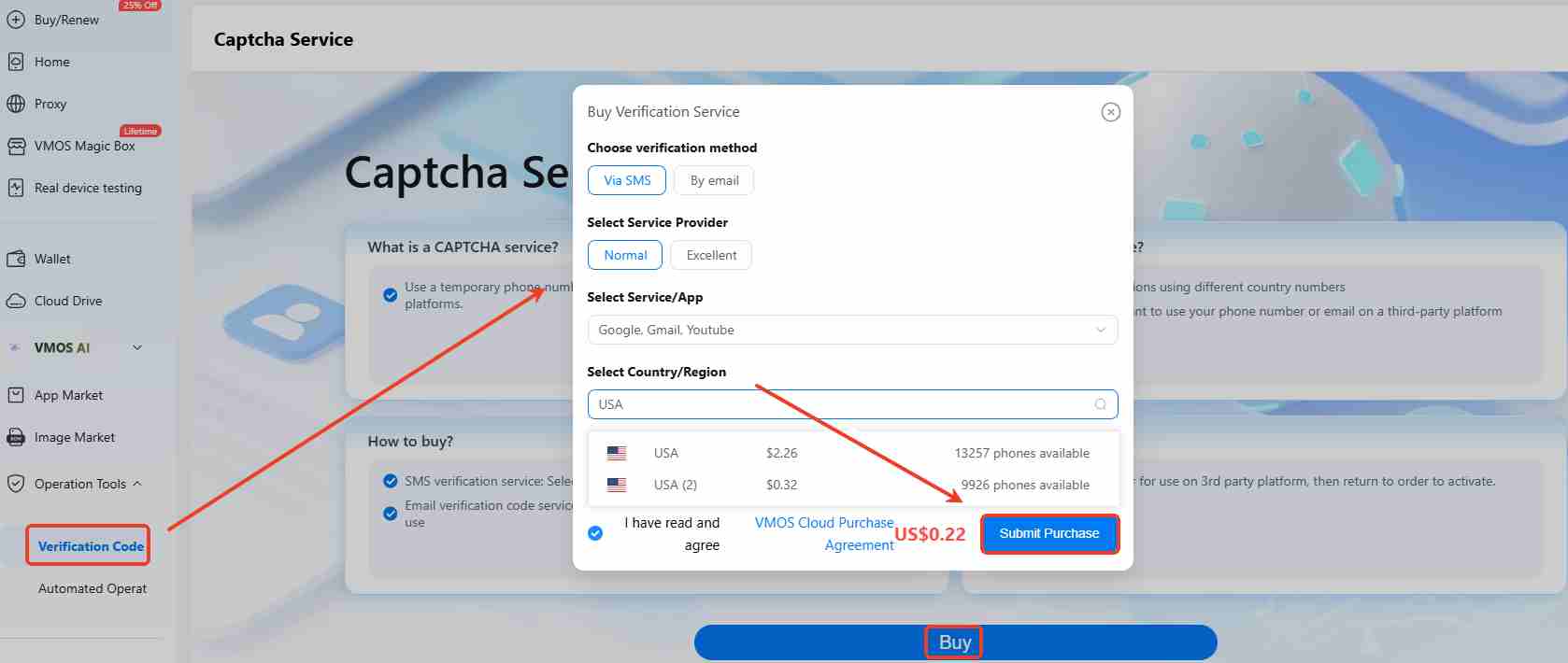
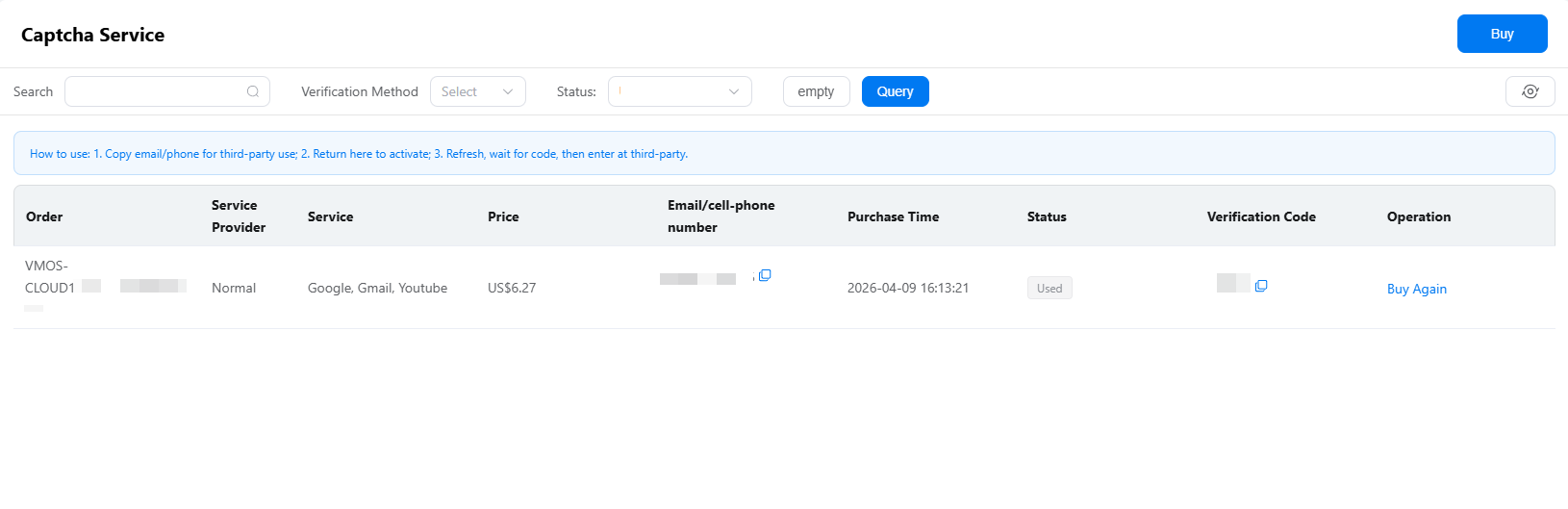
Copy the phone number and paste on the phone verification interface, go back to the captcha service interface to receive the code (usually takes around 30s)
Step 5: Add a recovery email
A Google account was created successfully! Last but not least, add a recovery email in case you forget the password or trigger the review of account security. Click “Manage your Google Account”, tap the Personal info and find the “Email” to add the recovery email.