How to Use TikTok Comments Template on VMOSCloud?
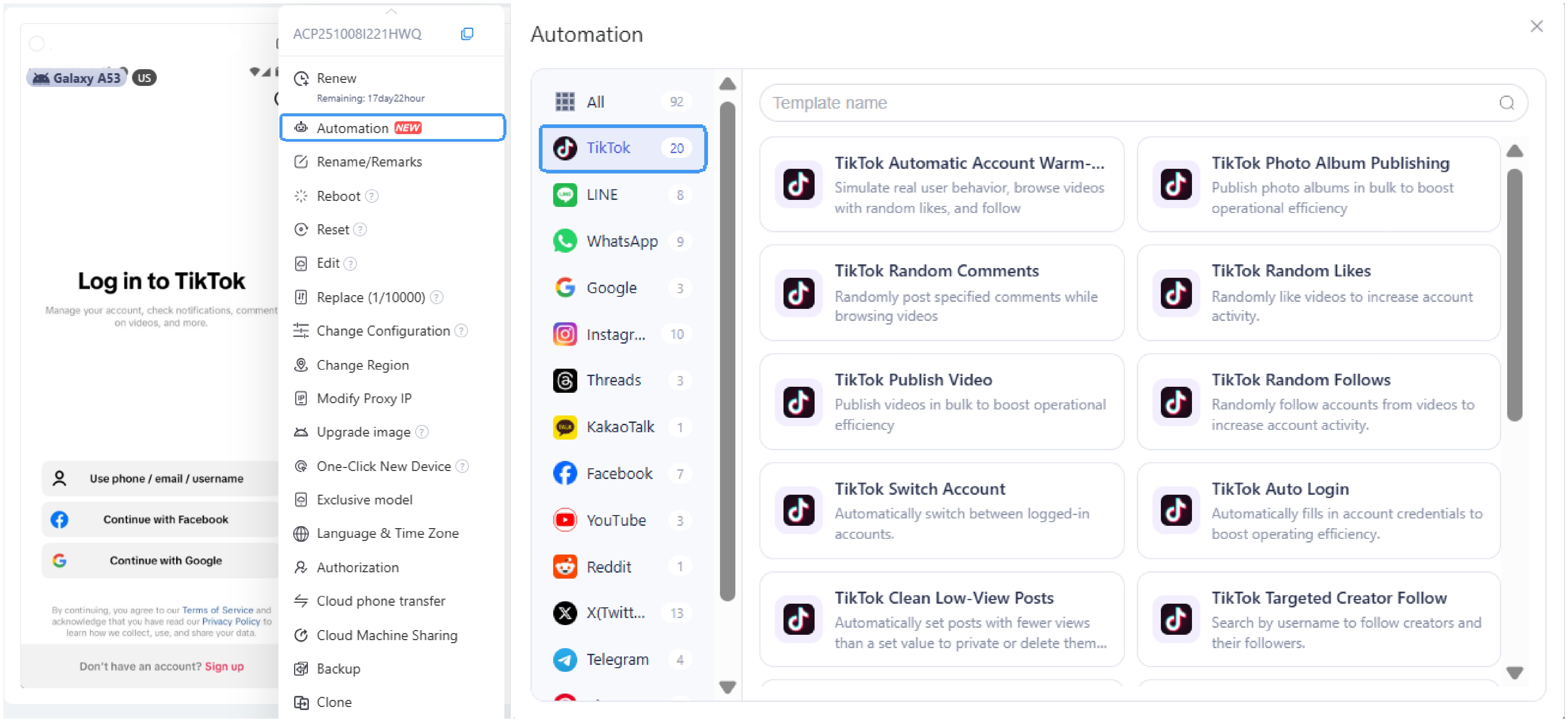
1. Go Automation→ Template store→ TikTok Random Comments template.
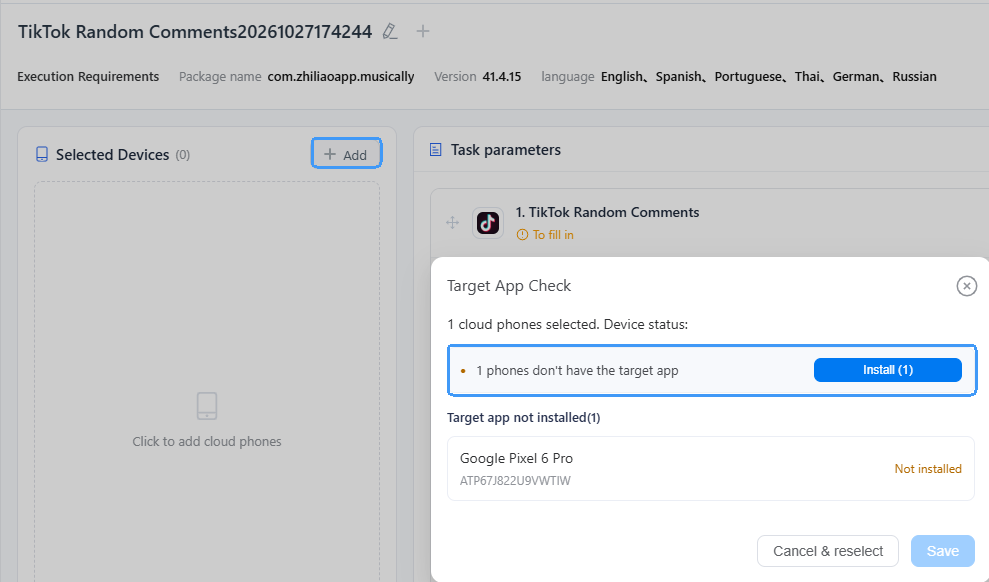
2. Download TikTok into the selected cloud devices.
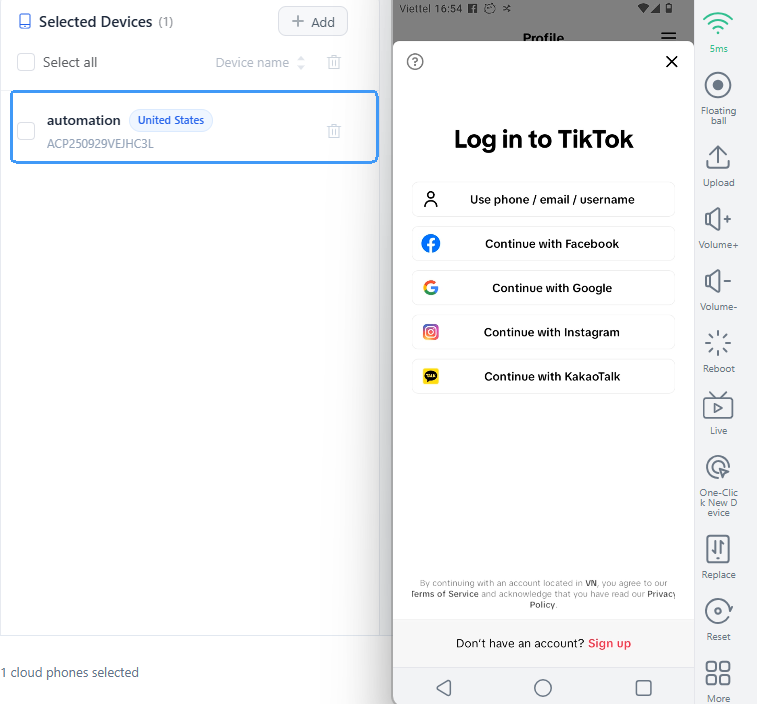
3. Click selected device(s) in the left panel to open it and finish account login.
4. Set Random Probability to control the chance of commenting on videos (e.g., 25 = 25%). Video Count specifies how many short videos to watch. Enter the desired comment in Comment Text.
Target Links and Search keywords are optional; fill them in to comment only on relevant videos, or leave them blank to browse the feed without filtering.
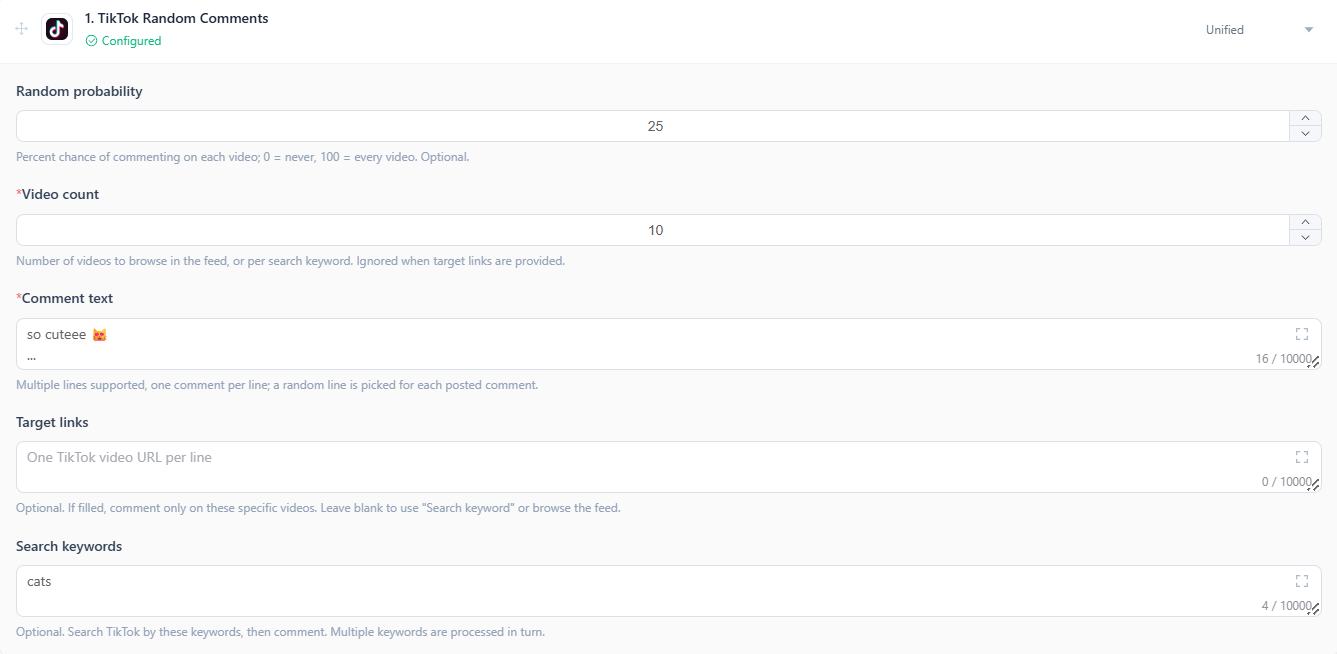
5. Steps to run multiple workflows:
Stay unified to run the same workflow on multiple devices.
Switch to per-device to configure different tasks on different devices. Use the Bulk feature to enter comment texts at once and distribute them to devices with a single click.
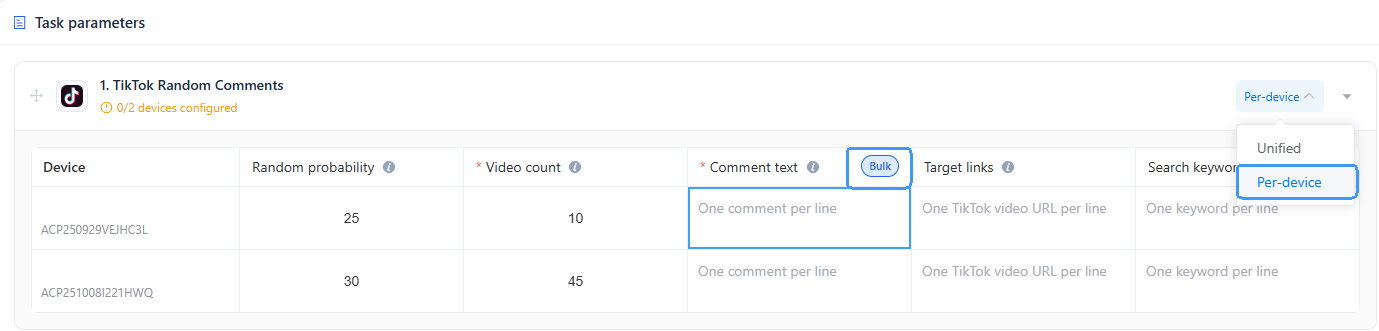
6. Schedule task execution time:
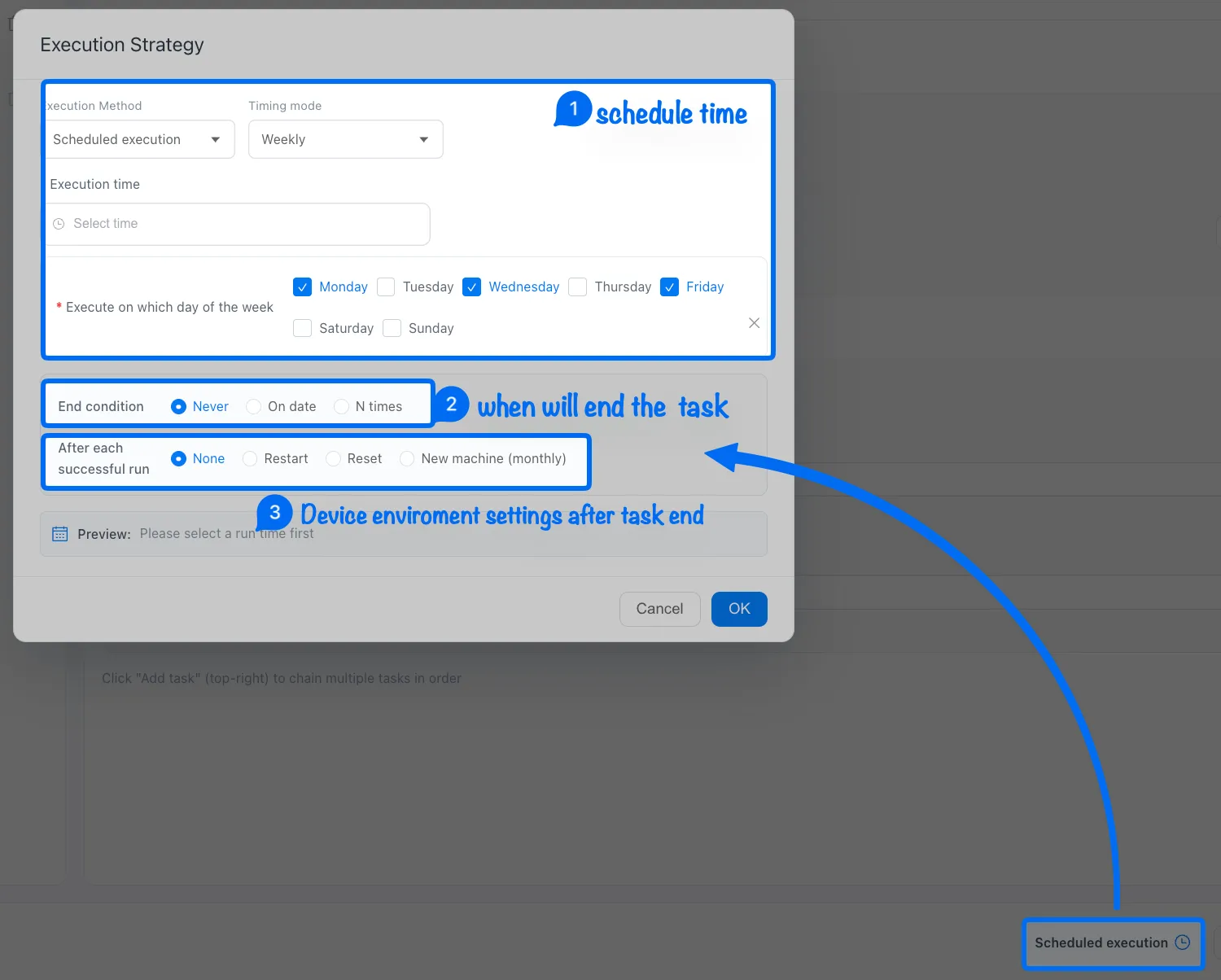
Note: ➌ None means keep the current device environment, restart the device after a task finished, or use Reset to clear the device environment data.
7. Once you've completed all the settings, just publish and track the running status in the Task Center.