
How to Post TikTok Videos on VMOSCloud?
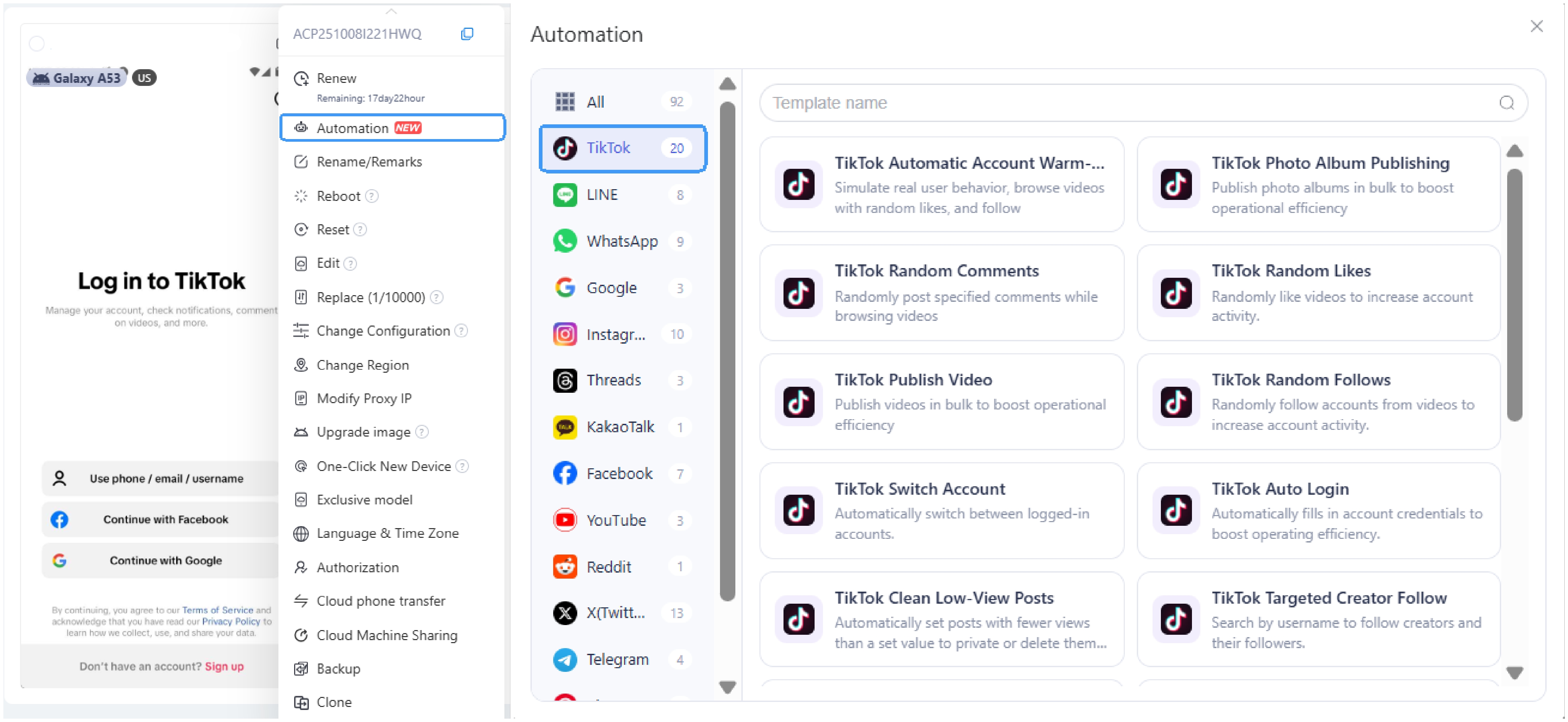
1. Head to Automation Template store and find TikTok Publish Videos template.
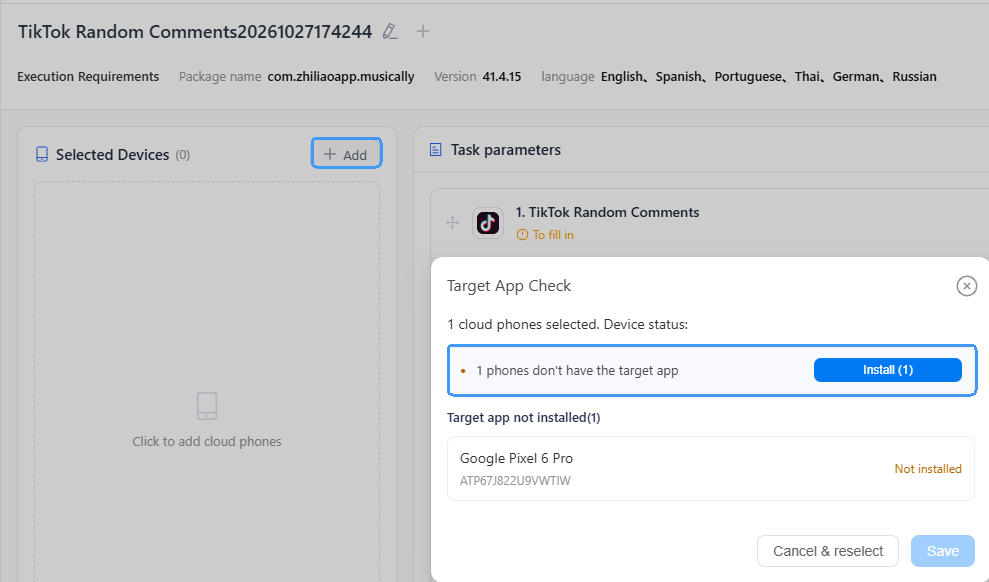
2. Add the cloud devices where you want to run the workflow and Install TikTok on them.
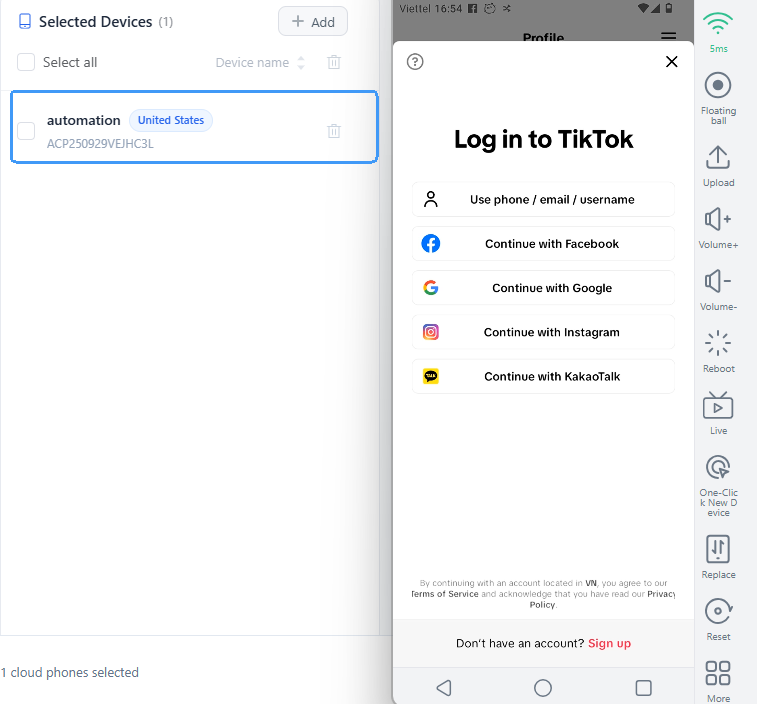
3. Click to launch the selected cloud phone, then log into your TikTok account.
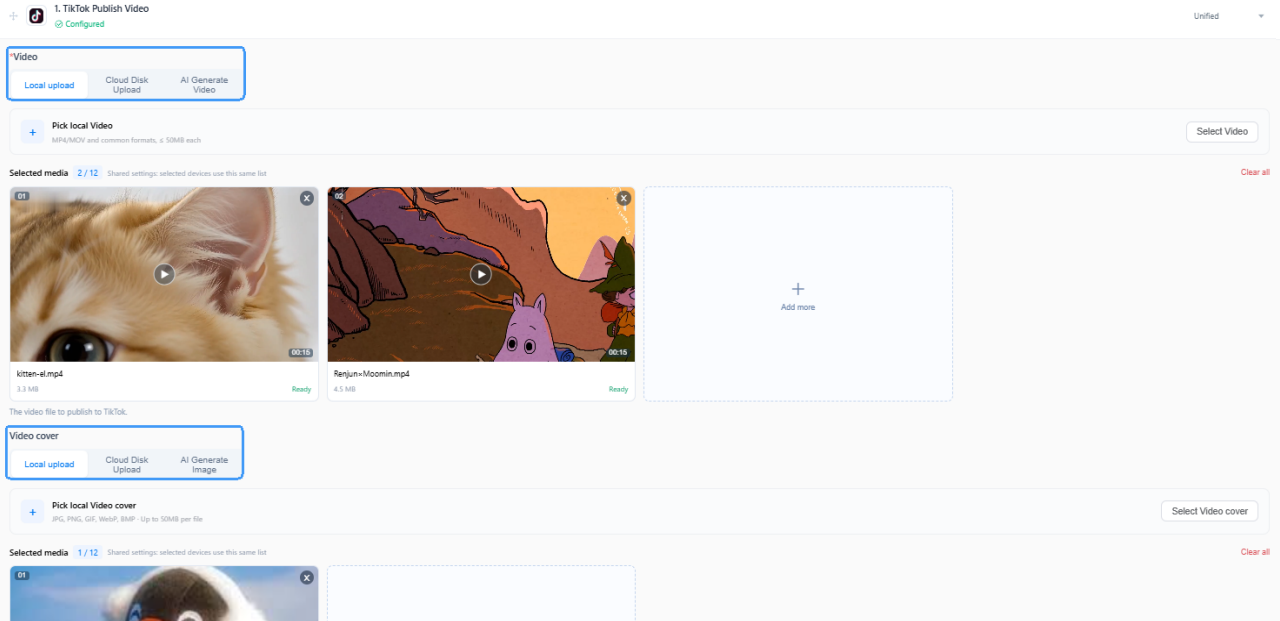
4. Choose how to upload your videos: Local Upload, Cloud Disk Upload (cloud storage fees apply), or AI Video Generation (AI credits will be consumed). You can also customize the video cover using images from your local device or cloud disk.
Note: For AI-generated sources, enable AI Label to comply with TikTok's guidelines.
5. Input the text you want to display for your TikTok video(s) in the Caption field.
6. Add the TikTok Shop Product ID to link a product and customize the Product Display Title as per need. Leave both fields blank if not applicable.
7. Enter a TikTok post URL to use its sound, then adjust Same-Sound Volume and Original Video Volume as needed. Leave it blank to keep the uploaded video's original audio.
8. Steps to run multiple workflows:
Unified Mode: Run the same workflow across multiple TikTok devices.
Per-Device Mode: Set up different tasks for individual devices. Use the Bulk feature to upload multiple videos and distribute them across devices with one click.

9. Schedule task execution time:
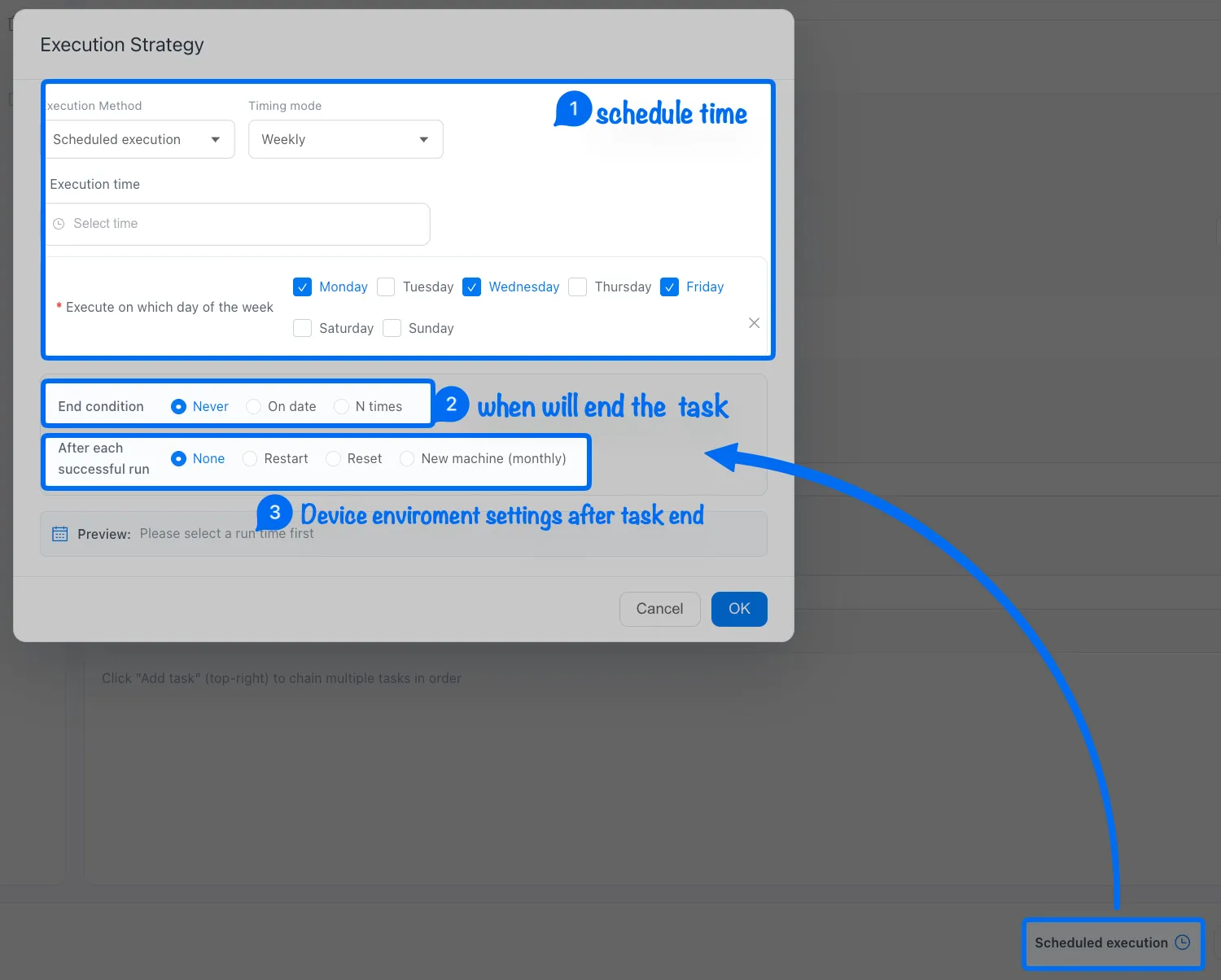
Note: ➌ None means keep the current device environment, restart the device after a task finished, or use Reset to clear the device environment data.
10. Once you've completed all the settings, just publish and track the running status in the Task Center.