
How to Use Edit TikTok Profile Template on VMOSCloud?
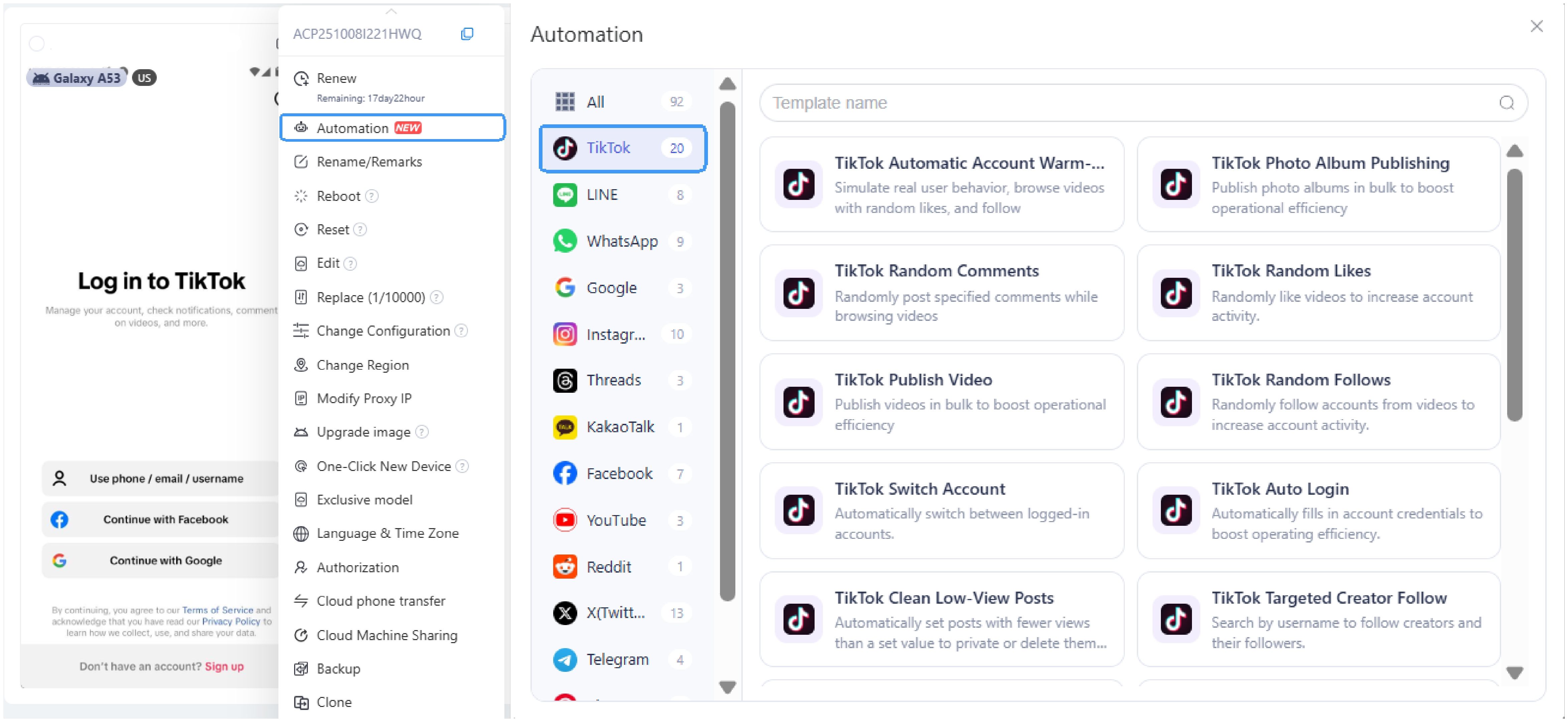
1. Navigate to Automation and find the required template: Edit TikTok Profile in Template Store .
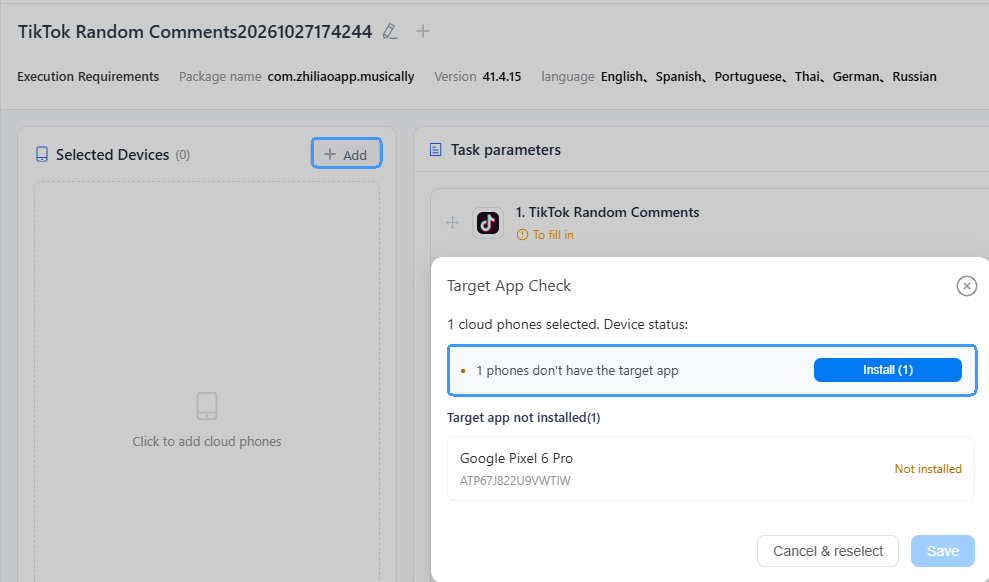
2. Simply click Install in the pop-up window to download TikTok on the selected devices.
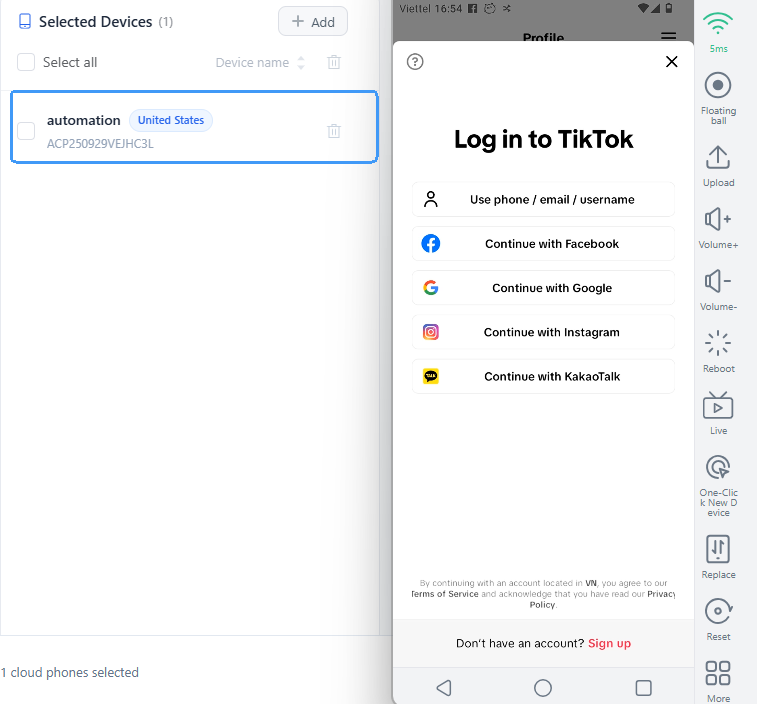
3. Click the device in the left panel to open it, then log in to your TikTok account.
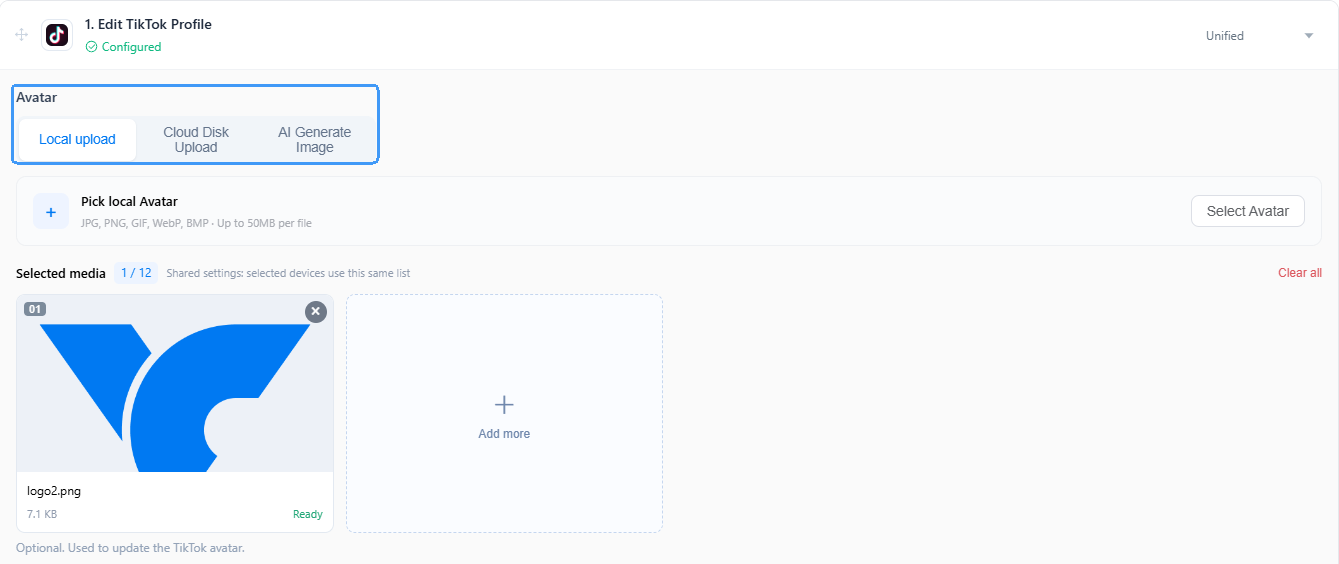
4. You can set your avatar using one of three methods: upload an image from your local device, select one from Cloud Disk (cloud storage fees apply), or generate an image with AI (AI credits required).
5. Next is to finish the personal settings of nickname, username and bio.
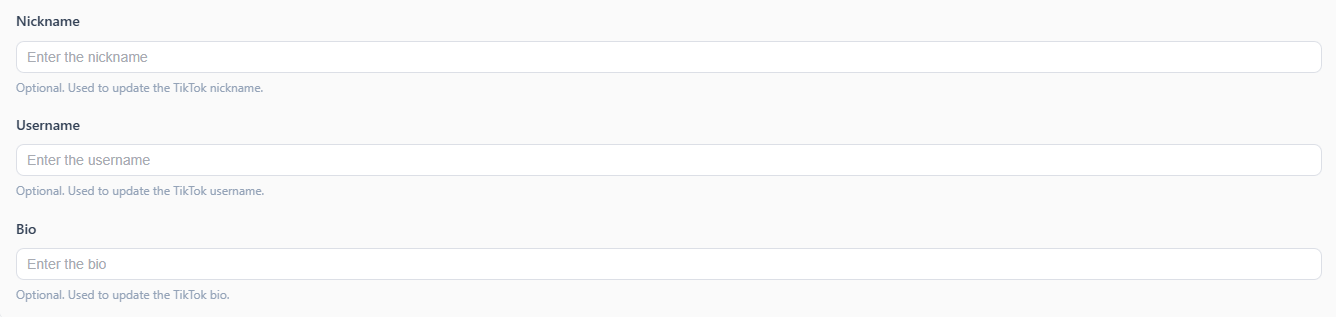
6. Set up different profiles for different devices:
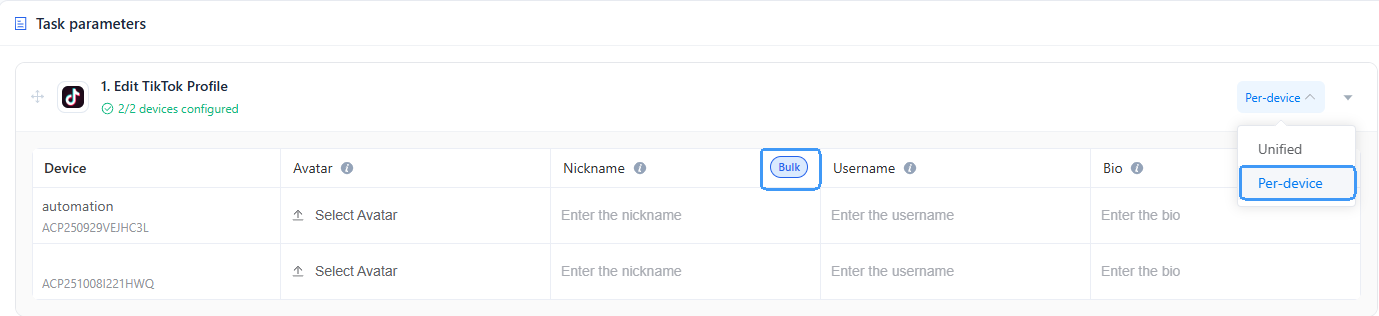
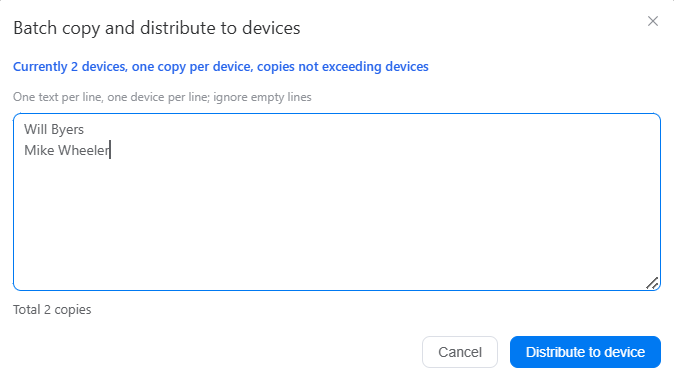
Switch to per-device, then fast to assign different avatar, nickname, username and bio with the Bulk feature. Add the profile information at once and use Distribute to device to finish changes.
7. Go scheduled execution if you need to run this task workflow at a specific time, or publish the task immediately and track the running status in the Task Center.
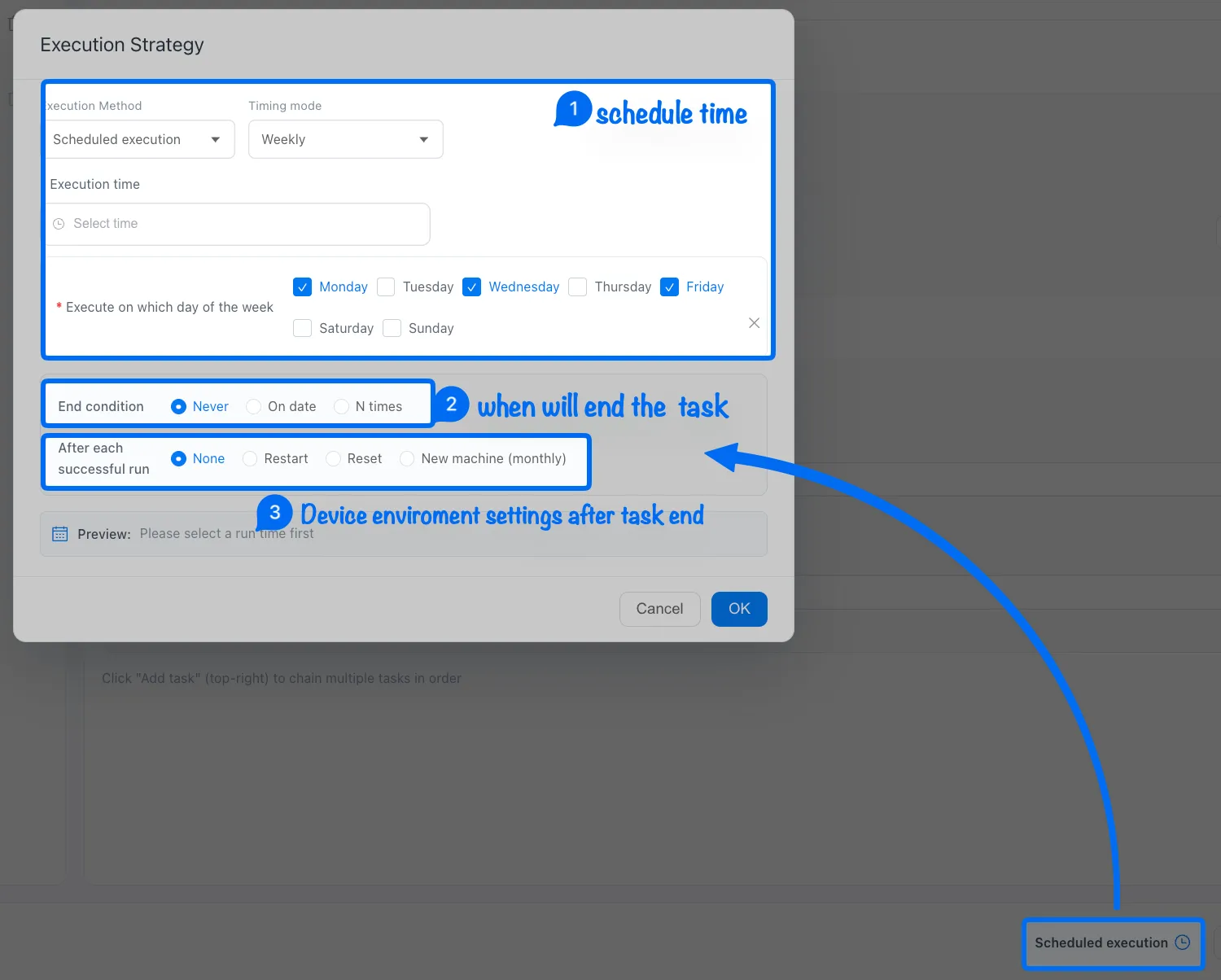
Note: ➌ None means keep the current device environment, restart the device after a task finished, or use Reset to clear the device environment data.