
How to Warm Up WhatsApp?
1. Everything you need to know before start
(1) Go to App Market-> Official app market, search WhatsApp to install version 2.26.16.73 ~ 2.26.24.80.
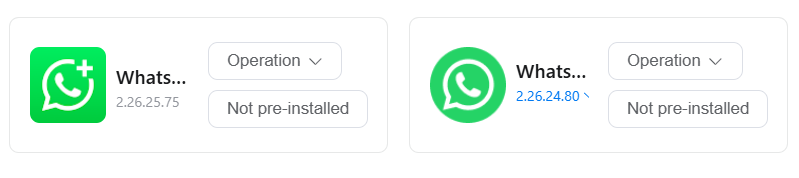
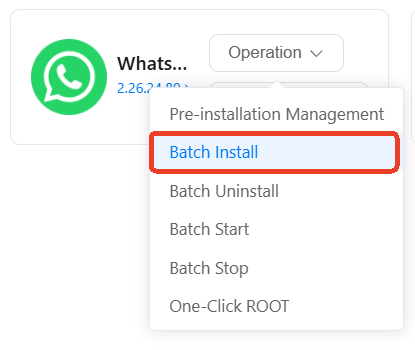
If you have multiple devices to scale, try Group devices->using batch install- > select one group of devices to install the app.
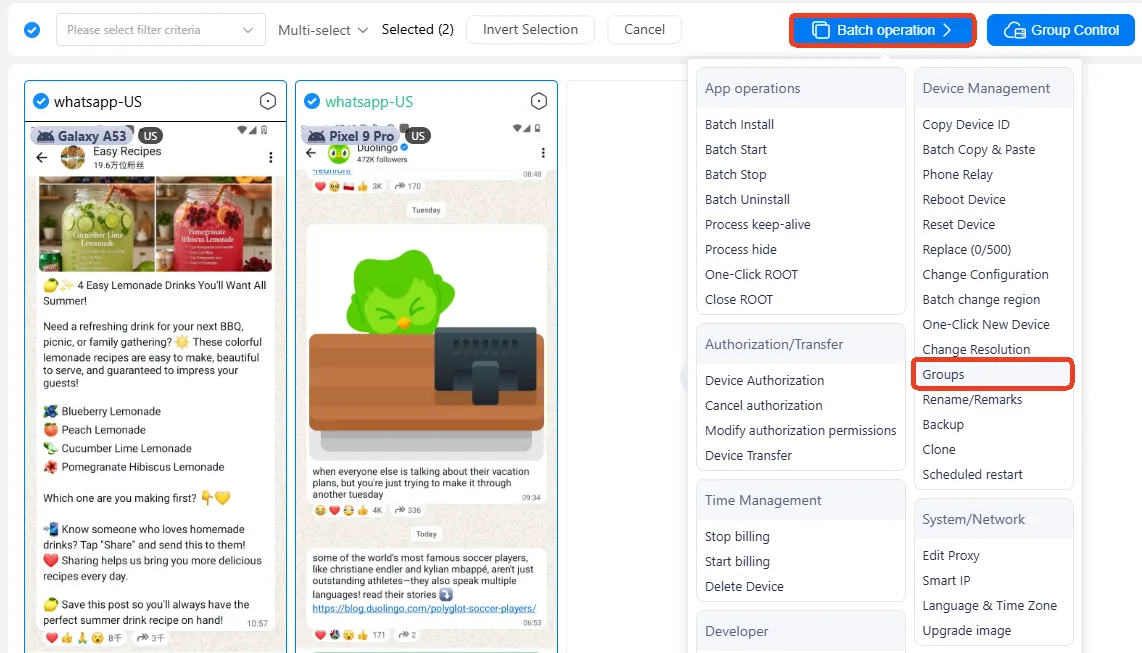
How to group devices:
Select devices->Batch operation-> Groups
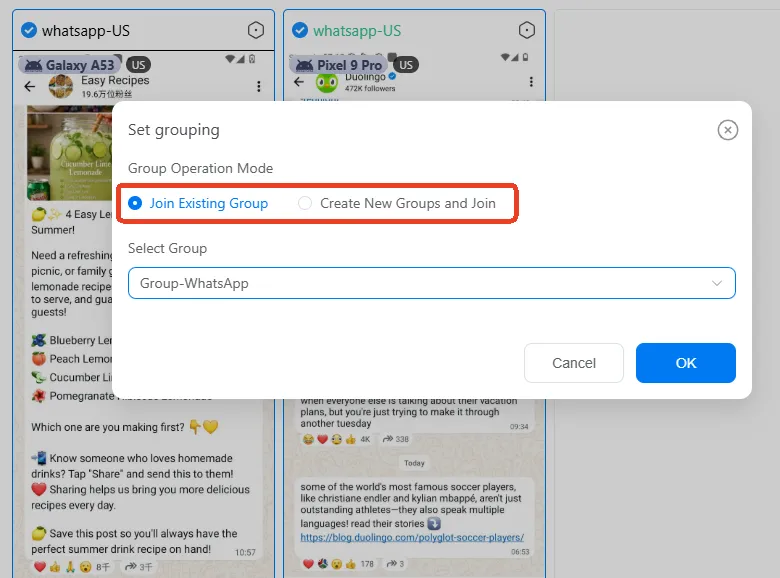
You can Join these devices into existing groups or create a totally new one.
(2) Log in to your WhatsApp account in the device (Each device only has one account).
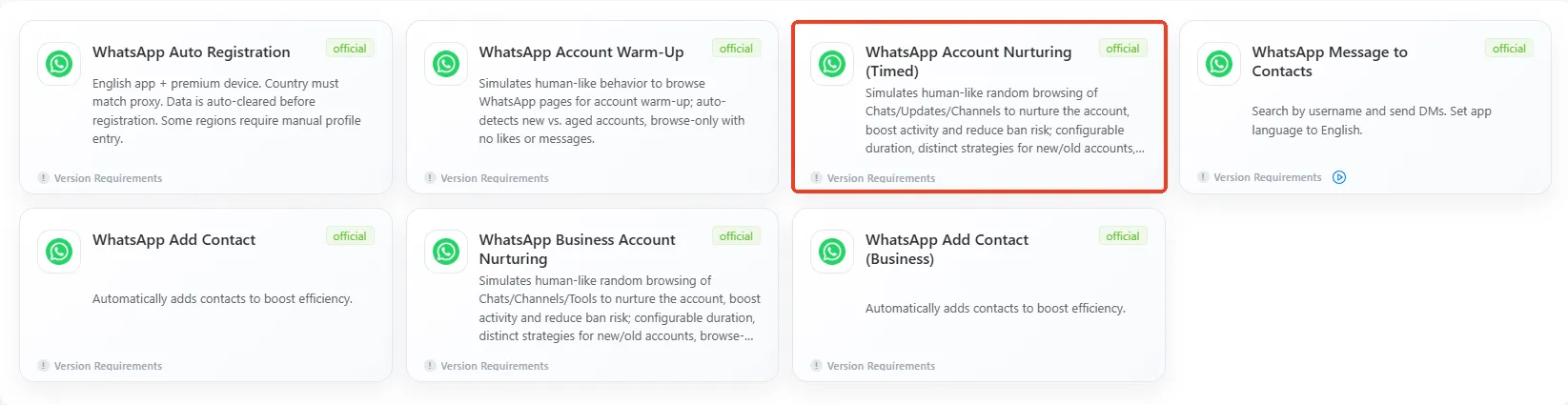
(3) Find Automation-> Template store in the left sidebar, and select -> WhatsApp Account Nurturing template.
2.How to set a warming up workflow on a cloud phone?
(1) Set Task name and Remark (not required).
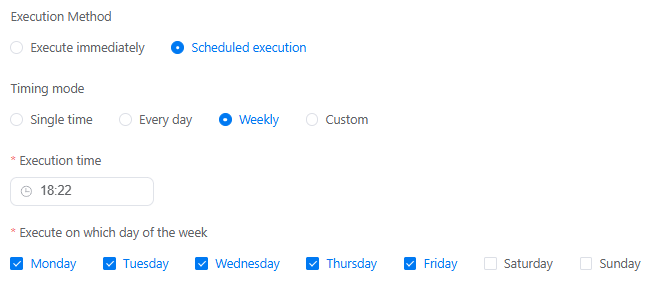
(2) Schedule the time to start your warming up: Execute immediately means start right now, or use Scheduled execution to set up a fixed time to start the task.
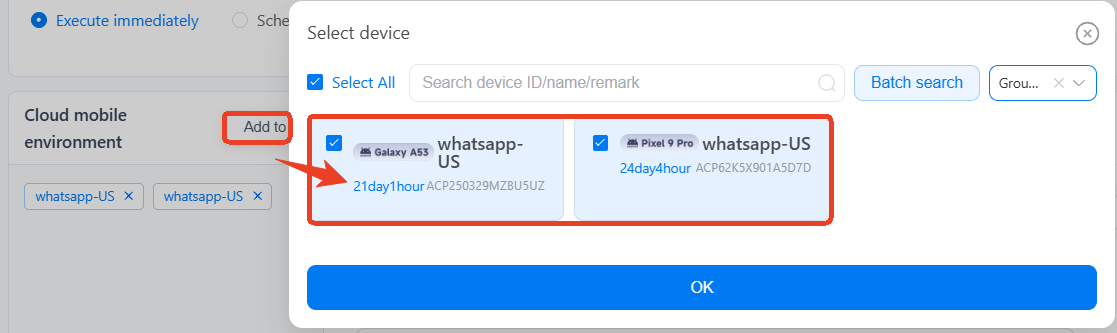
(3) Use Add to select the device that is already logged into WhatsApp.
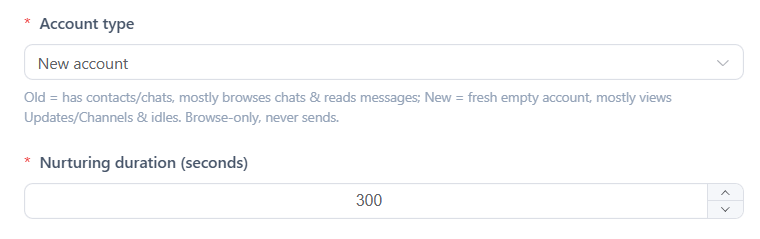
(4) Select new account if your WhatsApp is totally new and has no contacts. For aged accounts with existing chats, please select old account. Duration= 300 seconds (5 min), then the bot will start a totally different warming up path accordingly.
What kind of warming up will included (all randomly):
Scroll WhatsApp chat lists
Click chat to check messages randomly
Go Updates to randomly scroll and browse channels’ feeds randomly
Browse Call page
Check unread messages
Go settings
Remains idle
Once you've completed all the settings, Publish it.
3. How to warm up multiple WhatsApp profiles at scale?
Select multiple cloud phones first, and use Batch parameter settings to set as required. Publish this task after finishing.
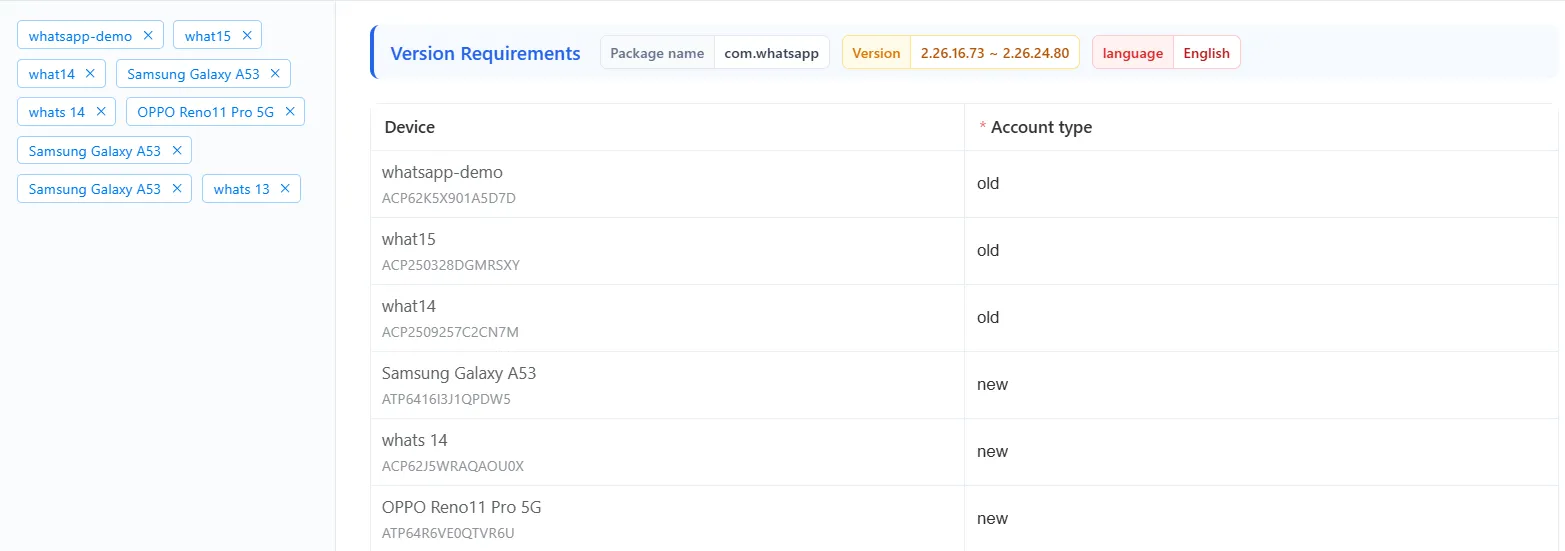
4. Common errors that will get you stuck on automated workflows
Error 1: Not meet the target app requirements
Error 2: target app not installed
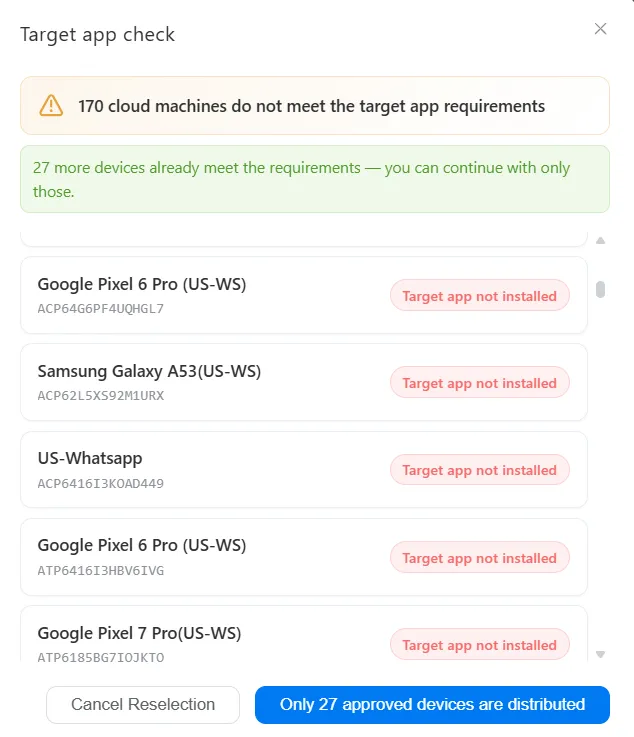
Solution: these two errors caused by the app in selected devices. Please go to App Market-> Official app market, install the correct WhatsApp version.
5. How to check if my task workflow runs well or not?
On the Mission log page, you'll see the status of every single task there as a list. Click Details to view the report and find out which step fails.