
How to Schedule Facebook Posts on VMOSCloud?
1. Go Automation-> Template store in the left sidebar, and find the ready-to-made template Facebook Post Content.
2. Click to Install facebook into the cloud devices. When download from the app market, check requirement #2 in the picture for version and language details. Then sign in your Facebook account in the selected devices.
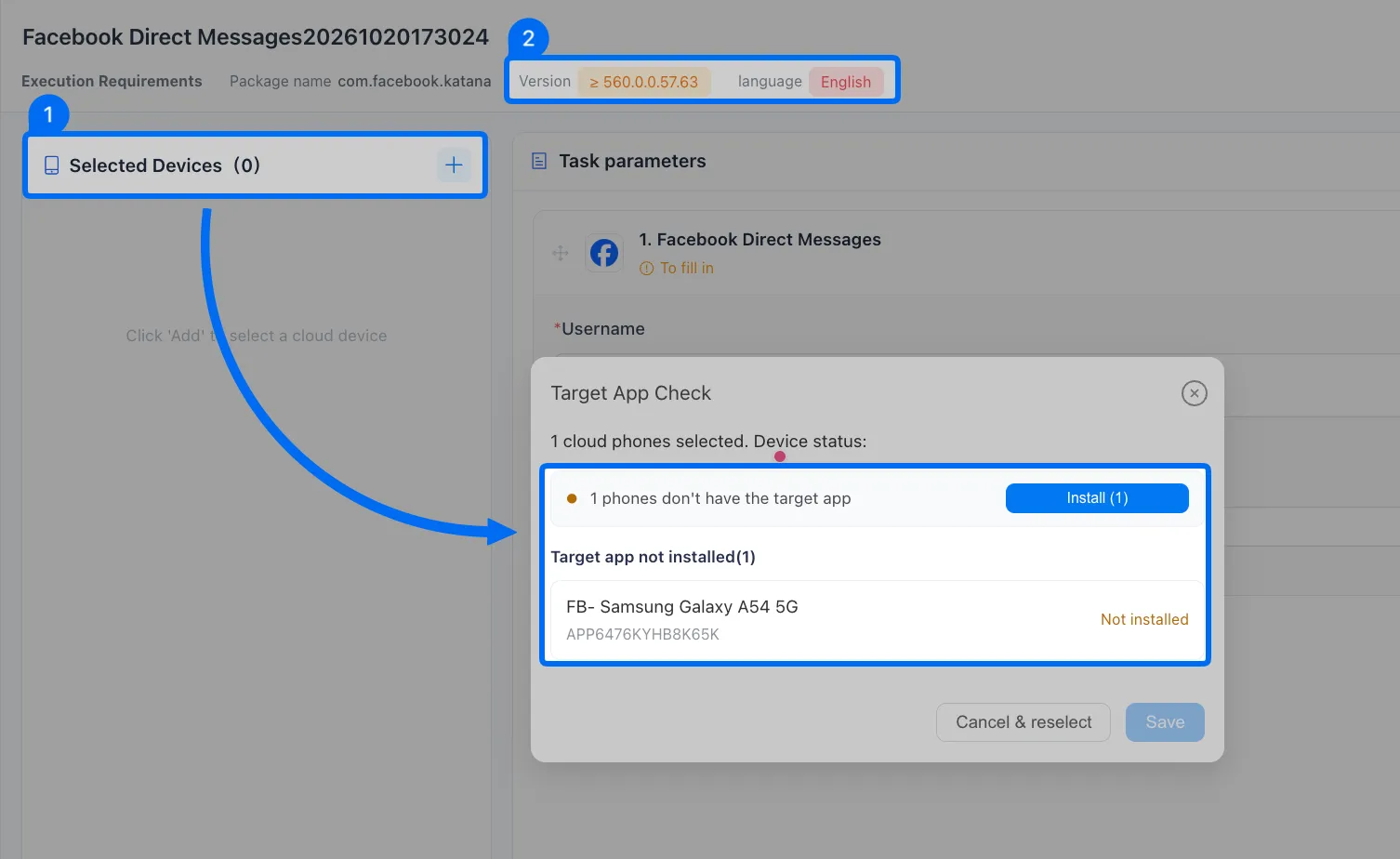
Note: If the current app version is no longer compatible with the template requirements, please update and this will not erase device data.
3. Upload post media from a local device or via VMOS cloud space (50MB max per file).

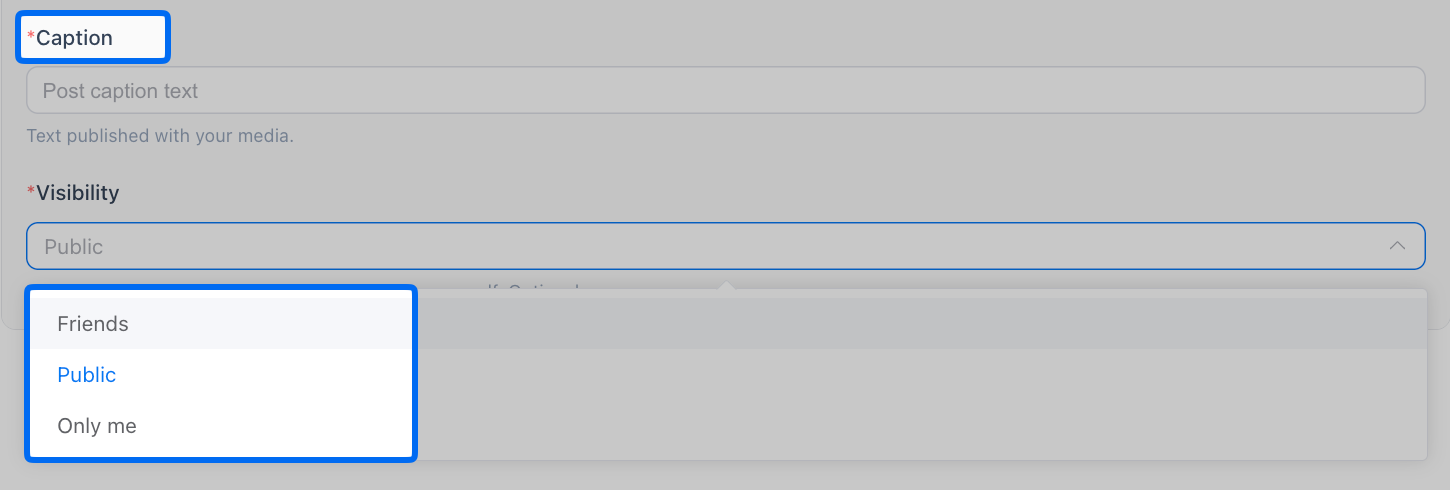
4. Input the post content in Caption, and choose who can see your post content in Visibility.
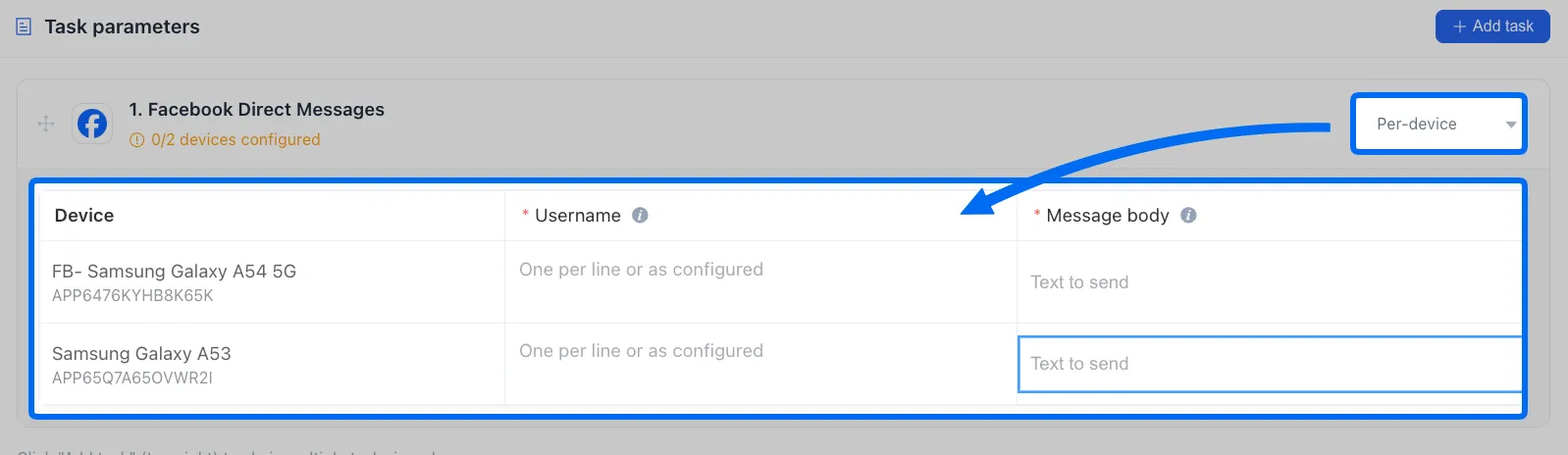
5. Use per-device to assign the different content posts in different devices.
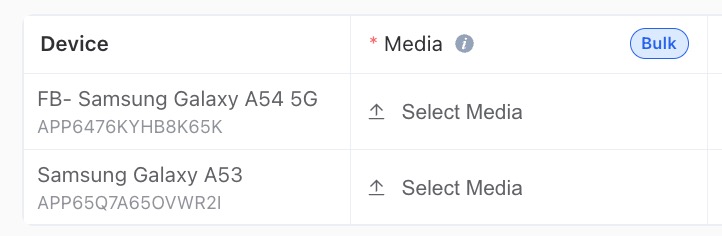
If you need to bulk upload multiple media files to the device, hover your mouse over the top-right corner and use the Bulk feature.
6. Scheduled the publish time of facebook posts on your devices as follows:
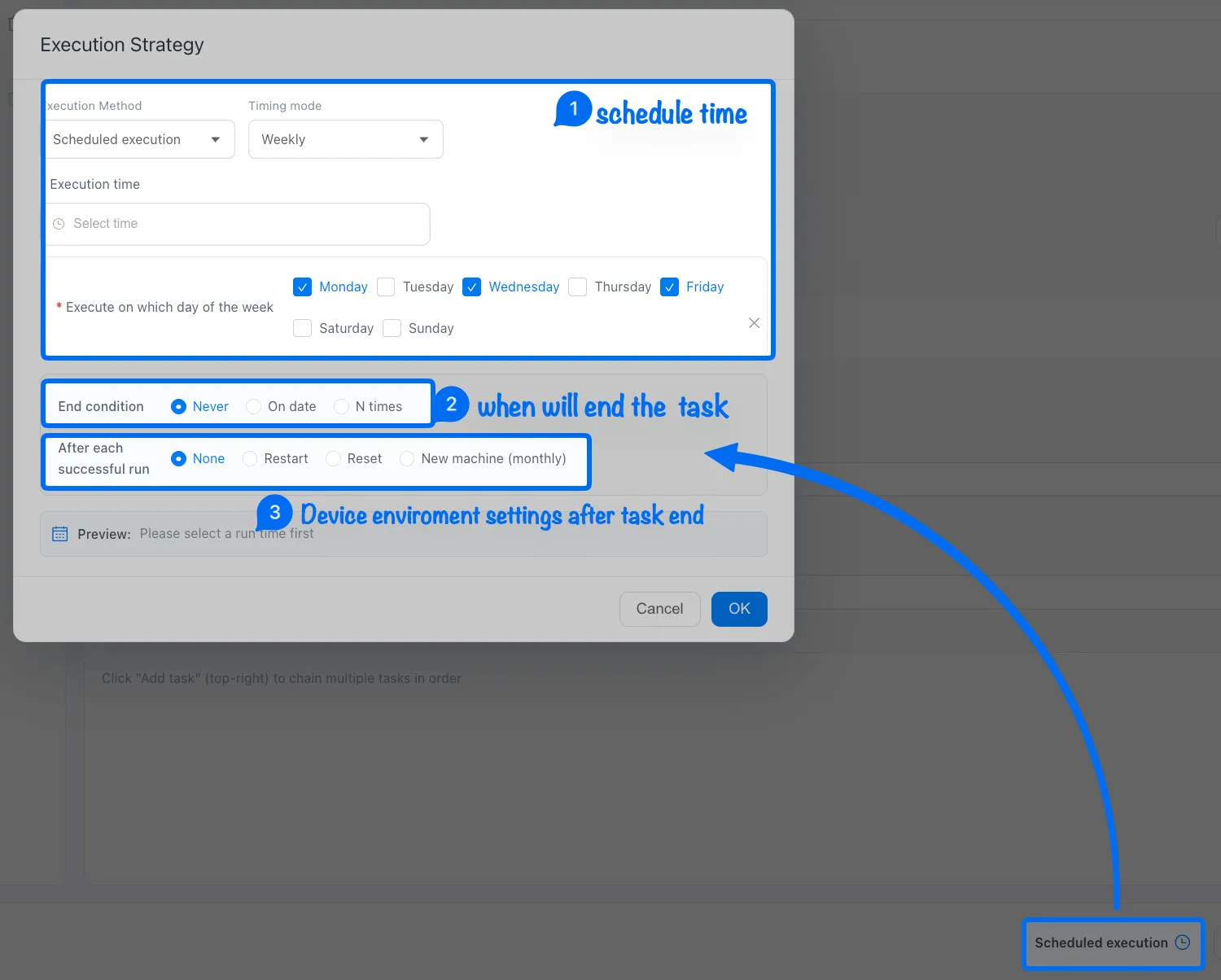
Note: ➌ None means keep the current device environment, restart the device after a task finished, or use Reset to clear the device environment data.