How to Schedule Facebook Messages Sending on VMOSCloud?
1. Go Automation-> Template store in the left sidebar, and find the ready-to-made template Facebook direct messages.
2. Click to Install facebook into the cloud devices. When download from the app market, check requirement #2 in the picture for version and language details.
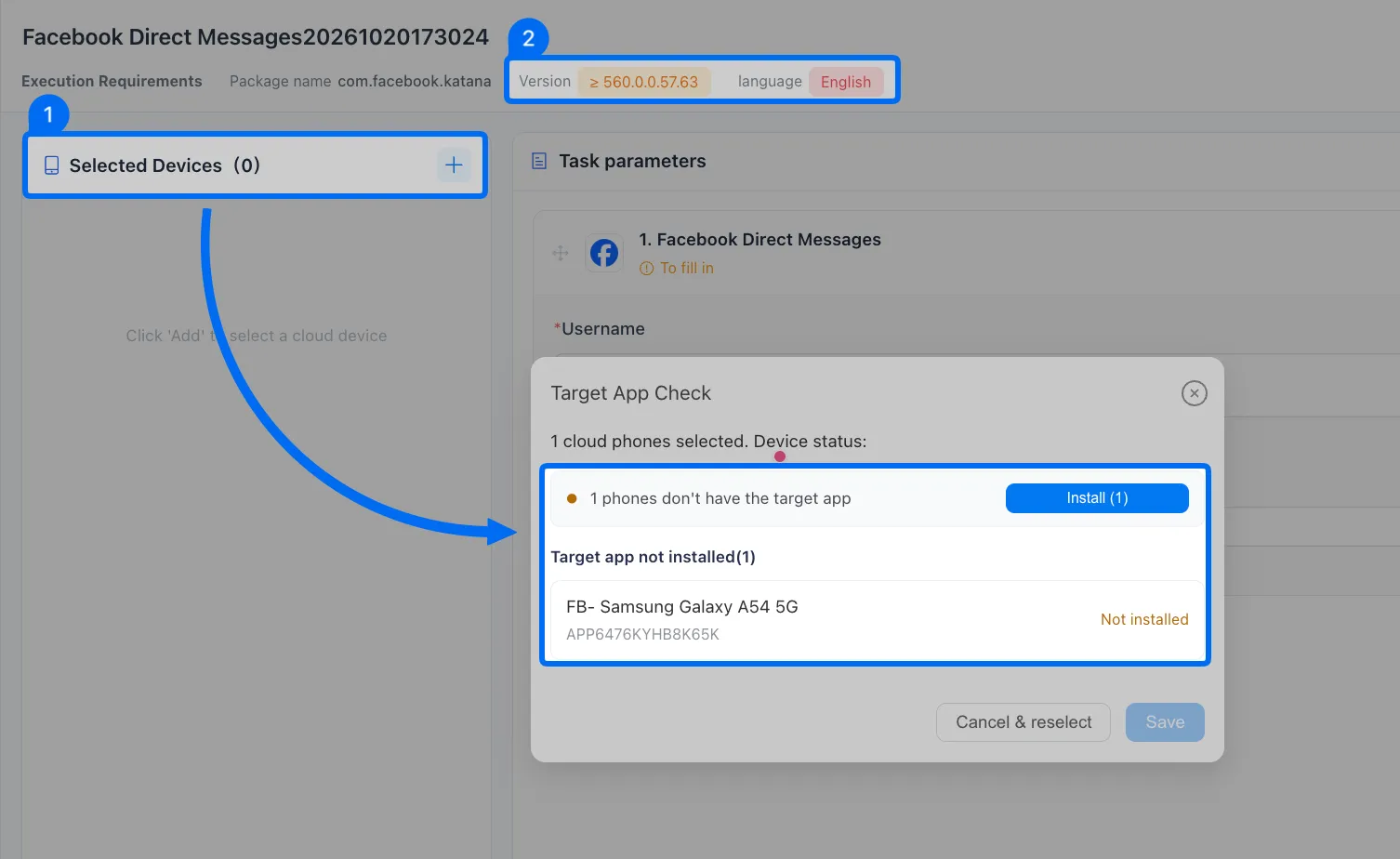
Note: If the current app version is no longer compatible with the template requirements, please update and this will not erase device data.
3. Before schedule, make sure the Facebook account is logged in the selected devices.
4. Set one message for multiple users: Paste target users' @username and set the message content. All users will receive the same content in this setting.
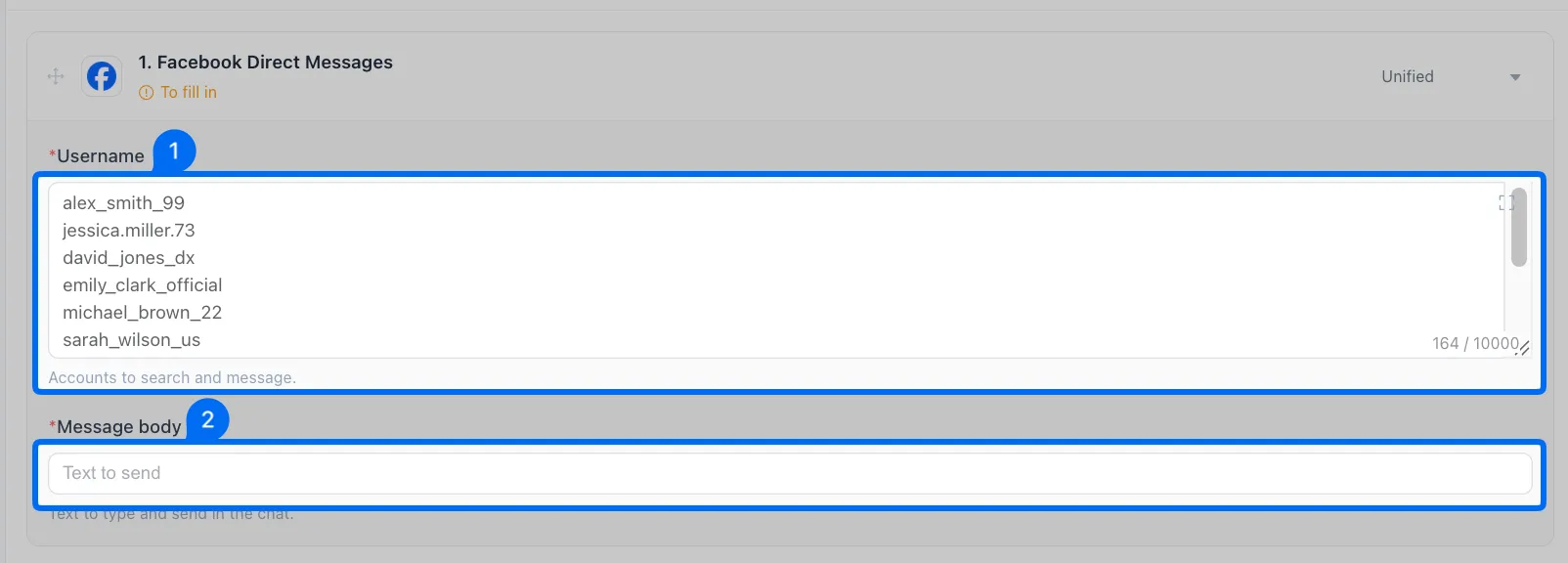
5. Set different messages for different users in different devices: use per-device to set different devices and send different messages in a batch.
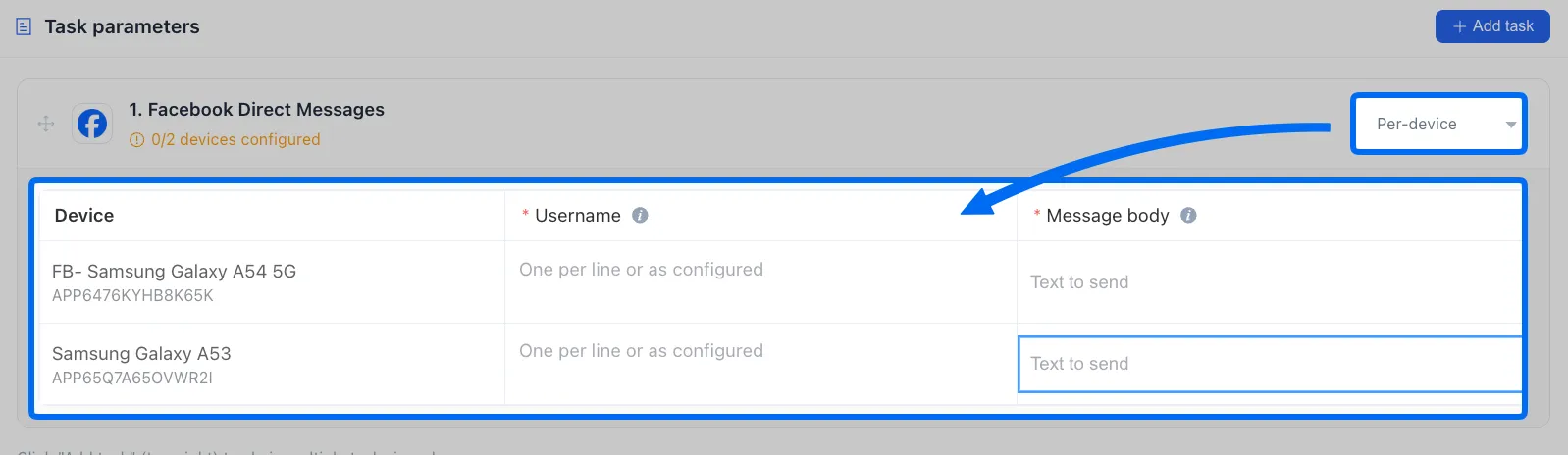
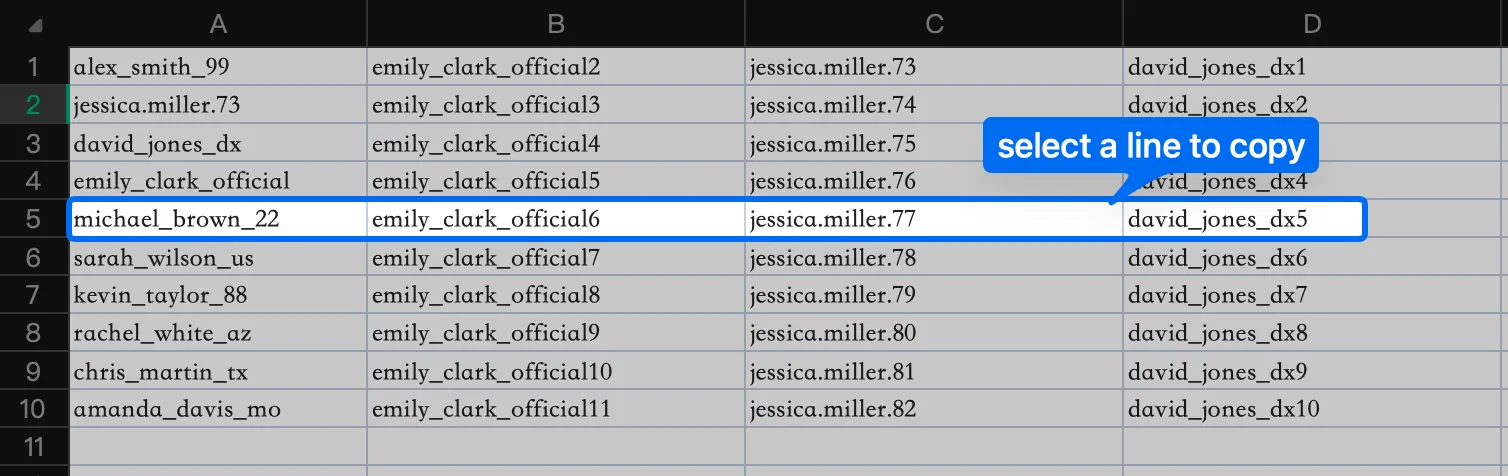
How to batch paste information in, take username for example: use an excel file to select one line of text to paste into the form.
6. Go scheduled execution if need to run this task workflow at a specific time, or directly start it and go check the tasklist.
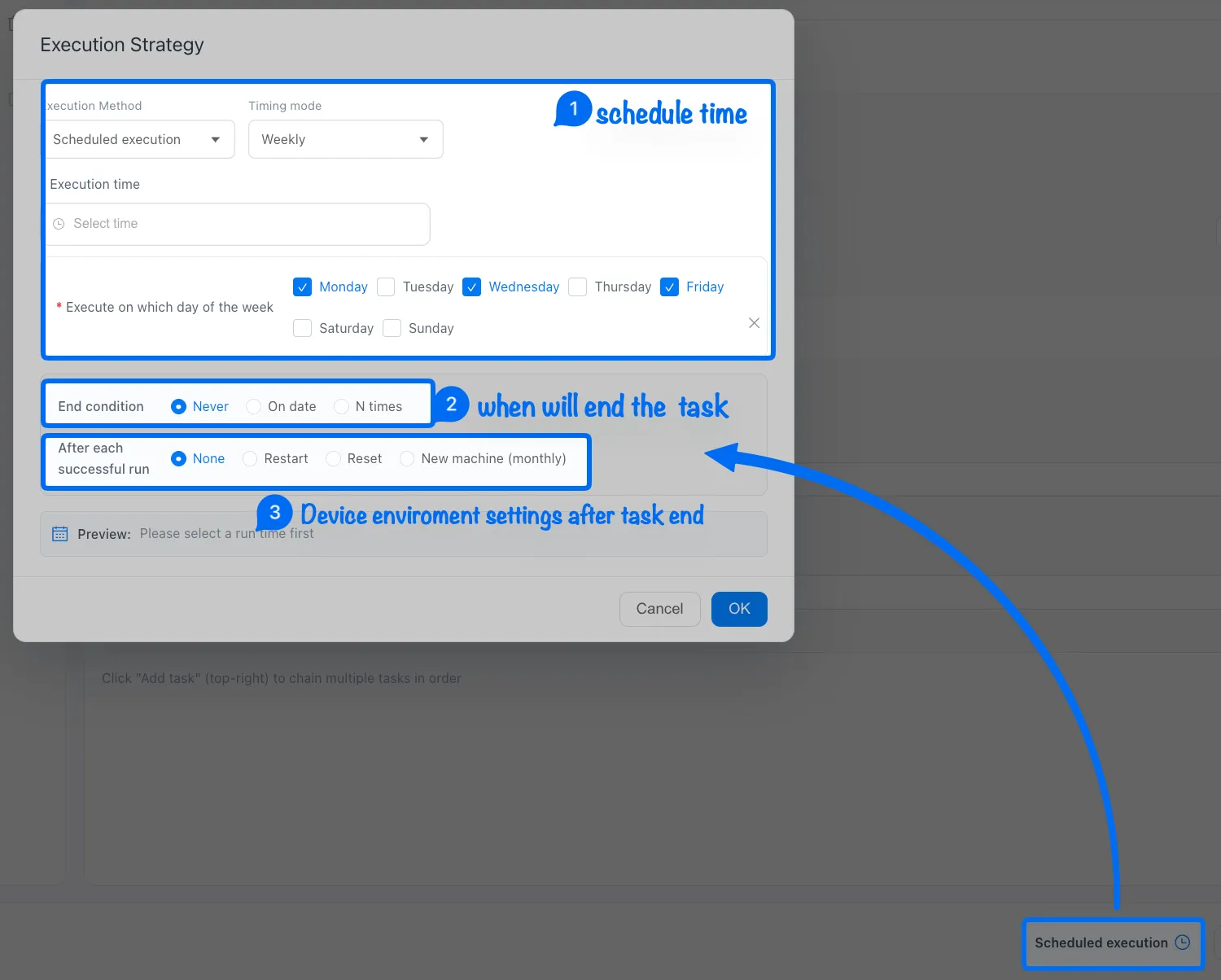
Note: ➌ None means keep the current device environment, restart the device after a task finished, or use Reset to clear the device environment data.