
How to Comments on TikTok Randomly?
1. What should you do before you start?
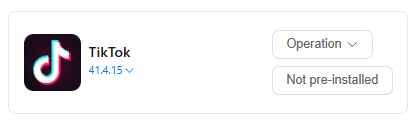
(1) Go to App Market-> Official app market, search TikTok to install version 41.4.15.
(2) Log in to your TikTok account in the cloud phone.
(3) Find Automation-> Template store in the left sidebar, and select -> TikTok random comments.
2.How to schedule time to randomly comments on a cloud phone?
(1) Set Task name and Remark (not required).
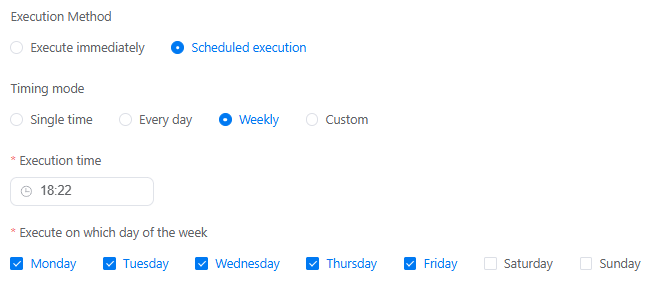
(2) Execute immediately can schedule time to run tasks right now, or use Scheduled execution to set up a recurring schedule on a specific time, day or week.
3. How to set a random comment workflow on TikTok?
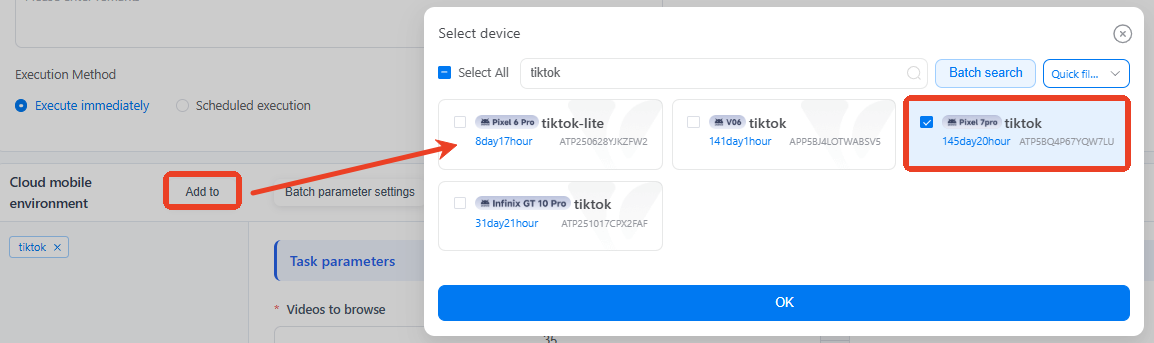
(1) Add to one device for this task.
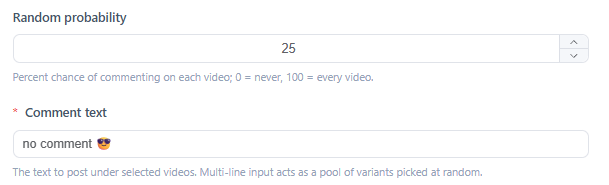
(2) Once set Random probability= 25, there will be a 25% to start random comments actions when scrolling the Feeds. Input the content you want to share on Comment text.
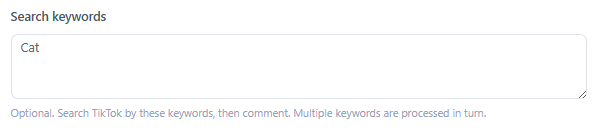
(3) If you want to search the specific video content for a comment, then use Search keywords. Or skip this.
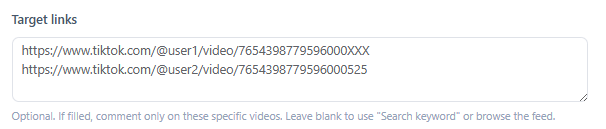
(4) If you need to comment under specific videos, consider using Target links, and make sure each line only inputs one video link. Or skip this.
(5) Once you've completed all the settings, just click Publish.
4. How to run this workflow on multiple devices at the same time?
Select multiple cloud phones first, and use Batch parameter settings to set different comments workflow for different devices.
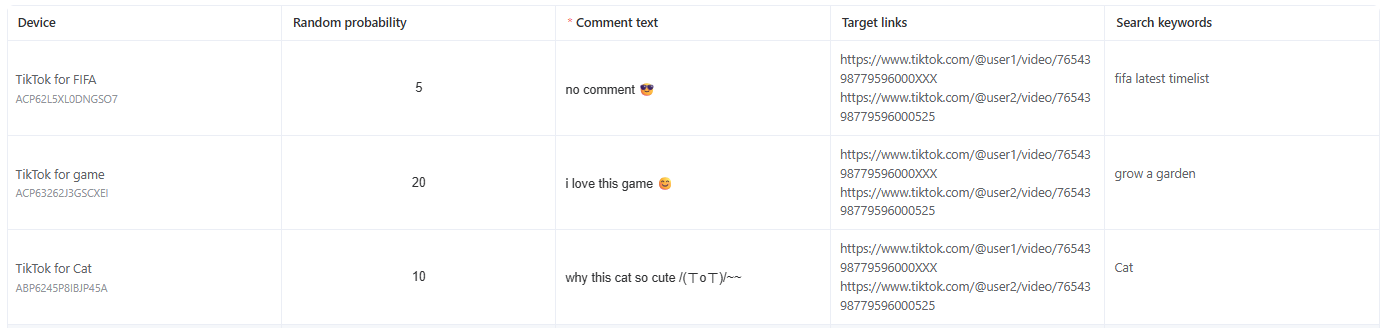
5. Common errors that will get you stuck on automated workflows
Error 1: Not meet the target app requirements
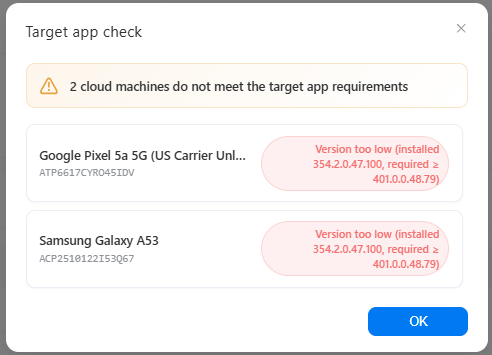
Error 2: target app not installed
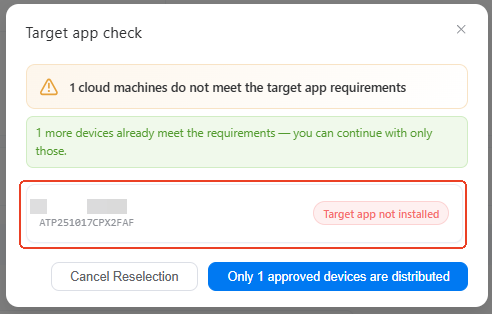
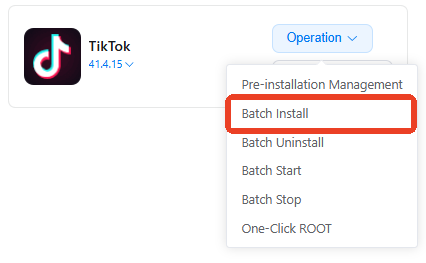
Solution: these two errors caused by the app in selected devices. Please go to App Market-> Official app market, install the correct TikTok version. If you have multiple devices with the same issue, try using batch install.
6. How to check if my task workflow runs well or not?
On the Mission log page, you'll see the status of every single task there as a list. Click Details to view the report and find out which step fails.

7. Can I build upon existing templates to customize my own workflow?
Definitely. Try using the custom template to build your own workflow. It will take you to the RPA workflow builder, where you can add, delete, or modify specific actions based on the existing setup.
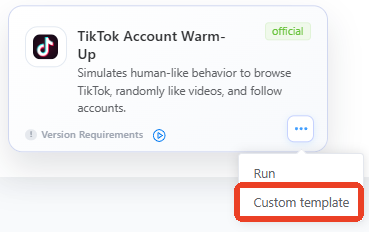
(example picture from vmoscloud)
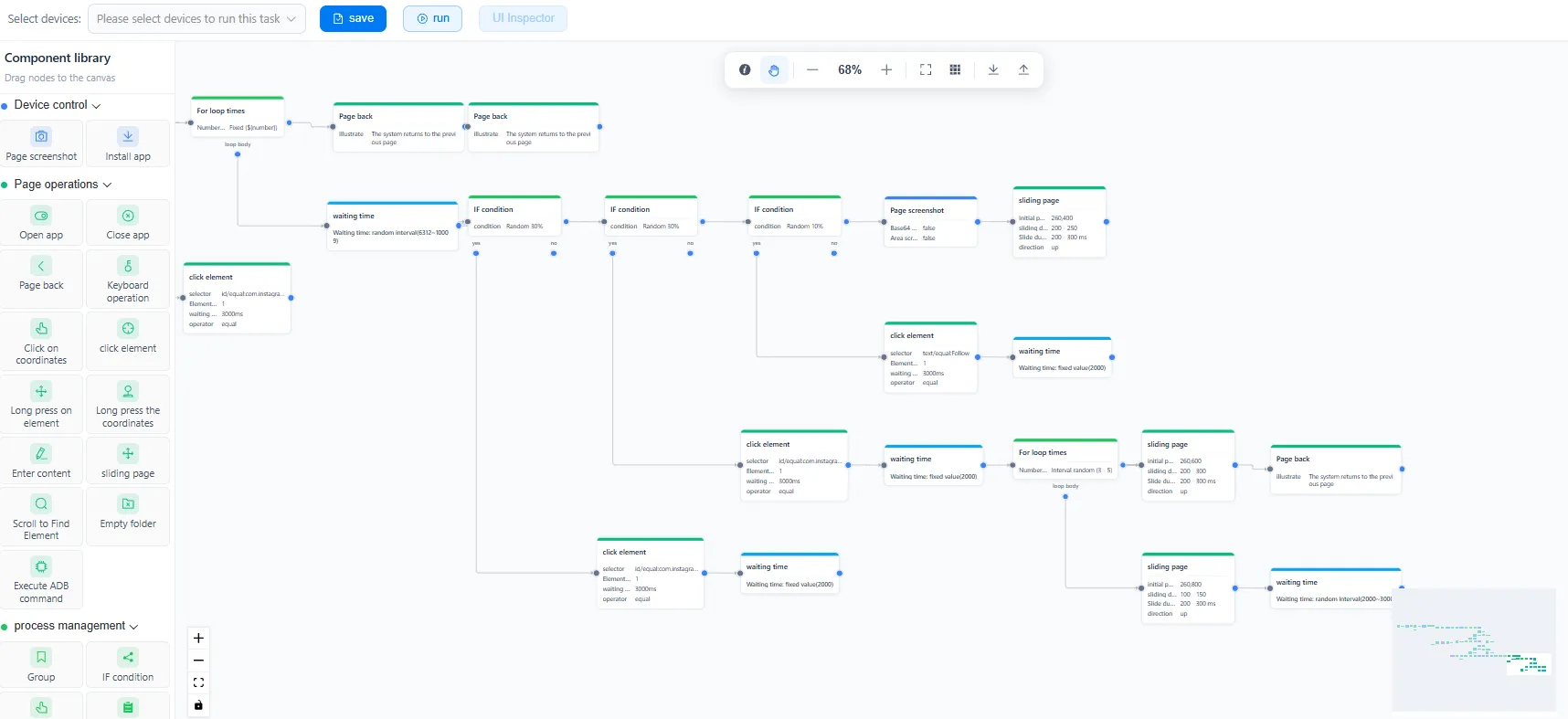
If you're just starting out in this field, click to see our beginners-level lesson: how to build RPA workflow step-by-step.