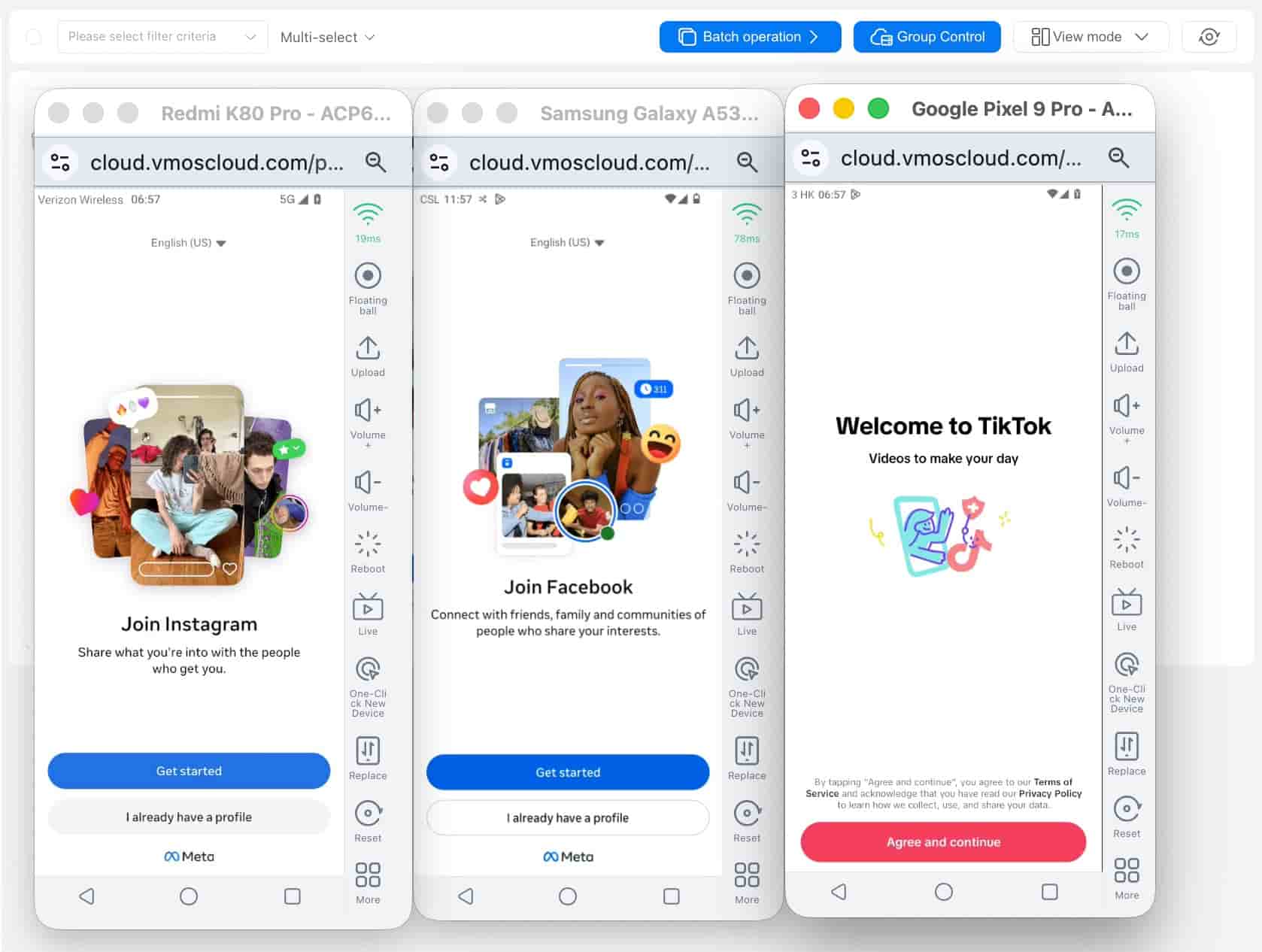
How to enable the multi-window feature on the VMOSCloud web version?
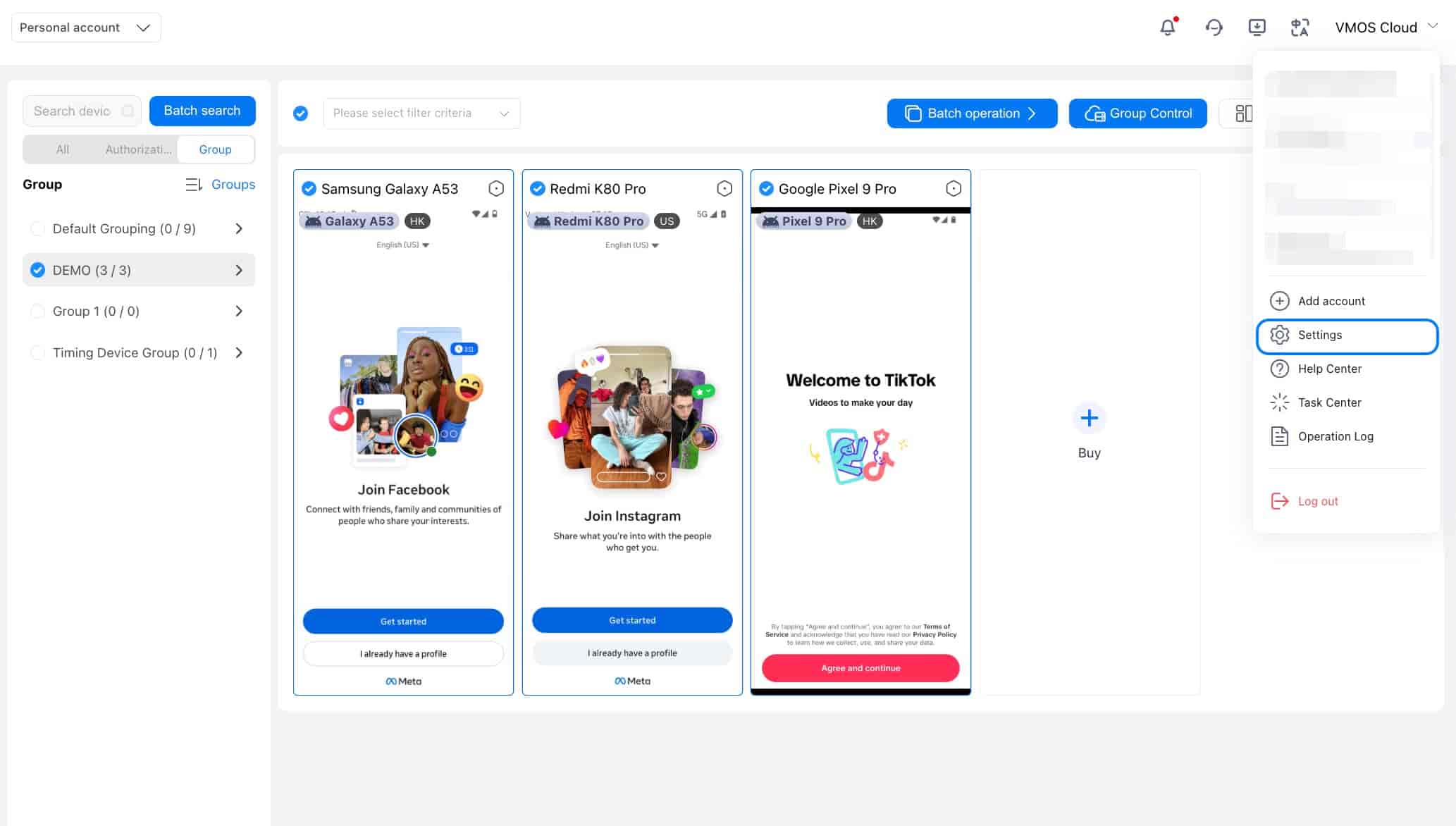
1. Go to > Settings in the top-right corner to enter the settings center.
2. Go > Window opening mode setting and select a window display mode, scroll to check the details below regarding preview effects to choose the mode that best suits your needs.
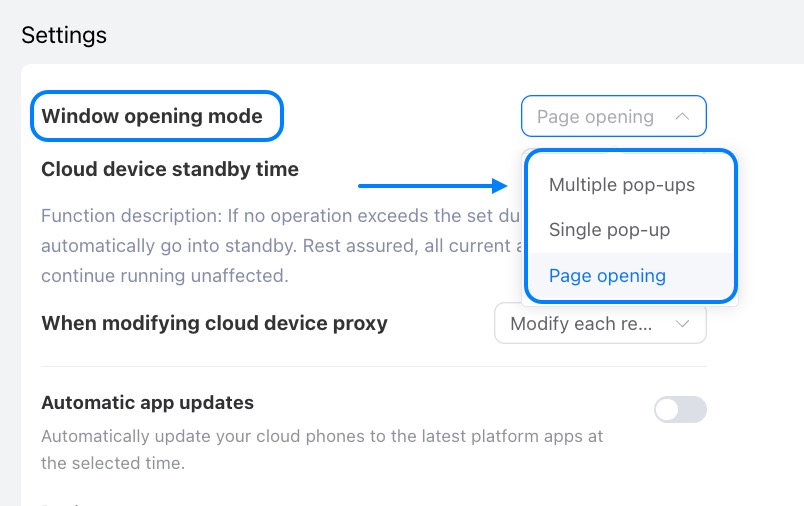
The default mode is Page Opening Mode
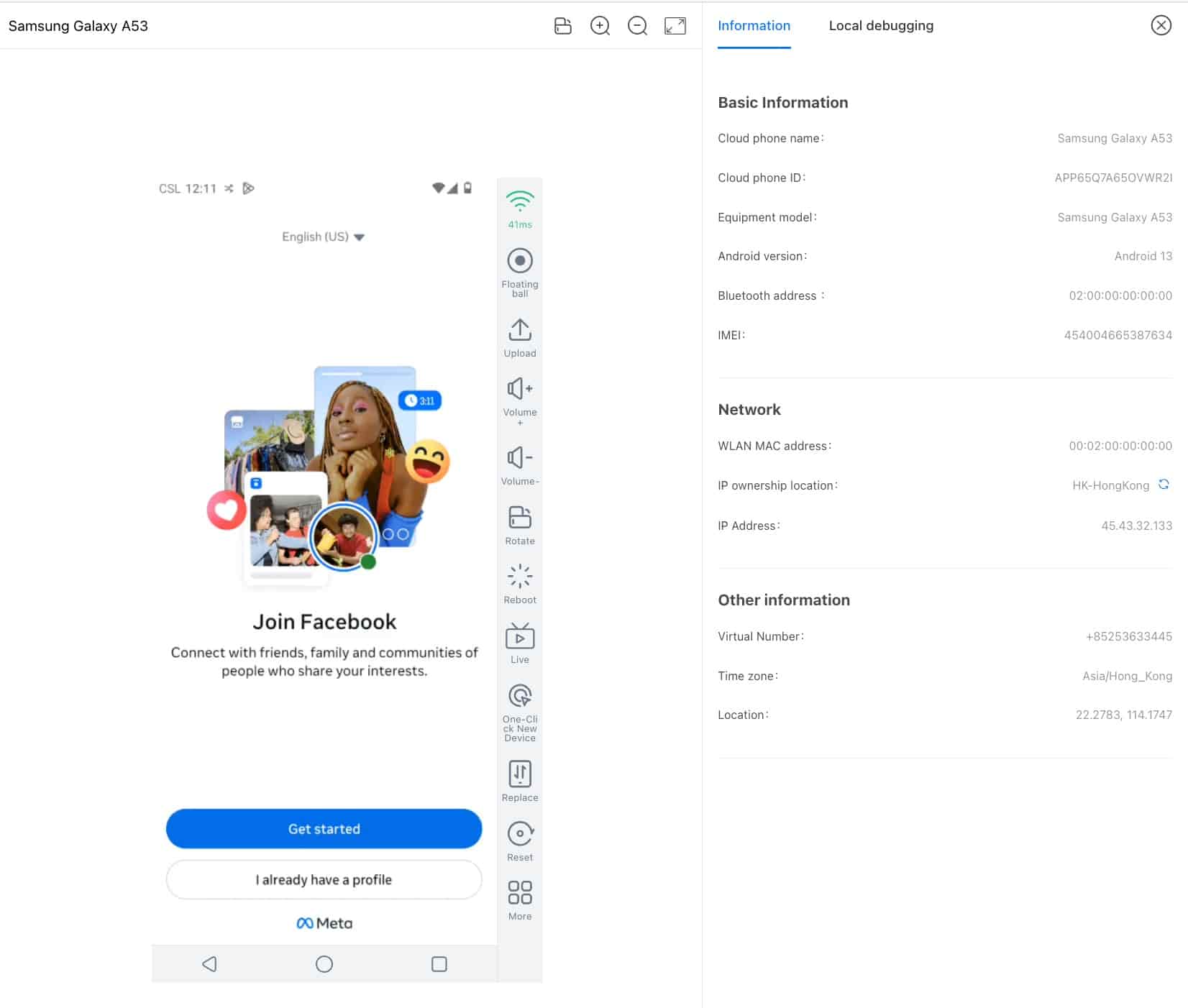
Single Pop-up Mode: No matter which different cloud phones you click, all will open in a single dedicated window. When opened, the selected device appears in an independent pop-up window (browser page) for individual viewing and operation.
Due to compatibility differences across browsers and operating systems, the user experience may vary:
Mac Users: Swipe up with three fingers on Trackpad to enter mission control, then select the new cloud phone window to bring it forward and move it freely.
Windows Users: The independent cloud phone window will pop up as a new browser page—click it to bring it forward and drag it as needed.
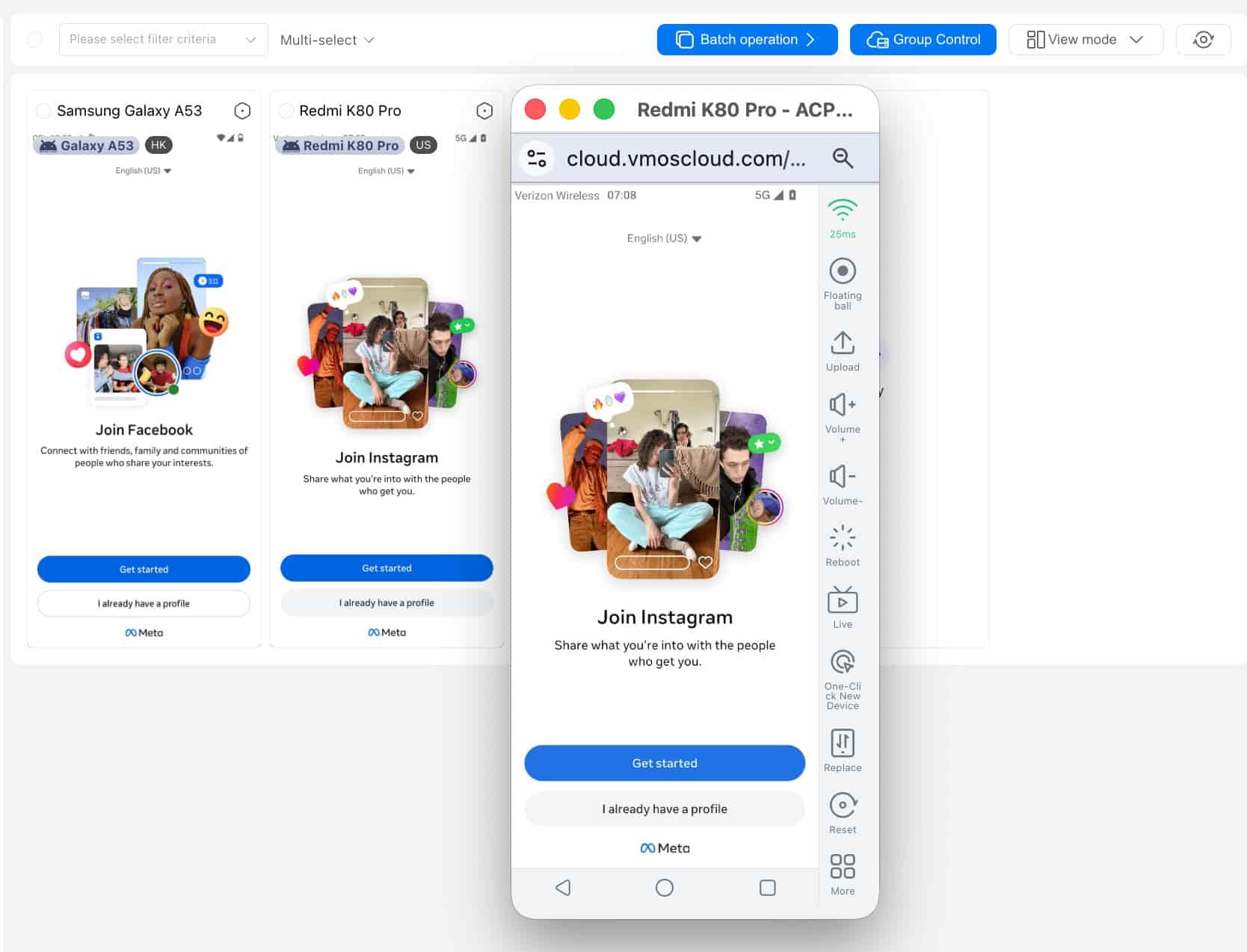
Multiple Pop-ups Mode: Open and run multiple independent cloud phone pop-up windows simultaneously over the product interface. Each window can be independent without mutual interference, allowing multiple devices to display and execute tasks at the same time, significantly reducing the manual efforts to switch back and forth between devices.
Ideal Use Scenarios:
Window A for device XXXXXXXX01
Window B for device XXXXXXXX02
Window C for device XXXXXXXX03