How to Set Up Proxy on Cloud Phone?
Bind a Single Proxy
1. Go to 「Proxy → Static IP, Dynamic IP, or Mobile IP」. After purchasing a proxy, you can find it under the corresponding category.
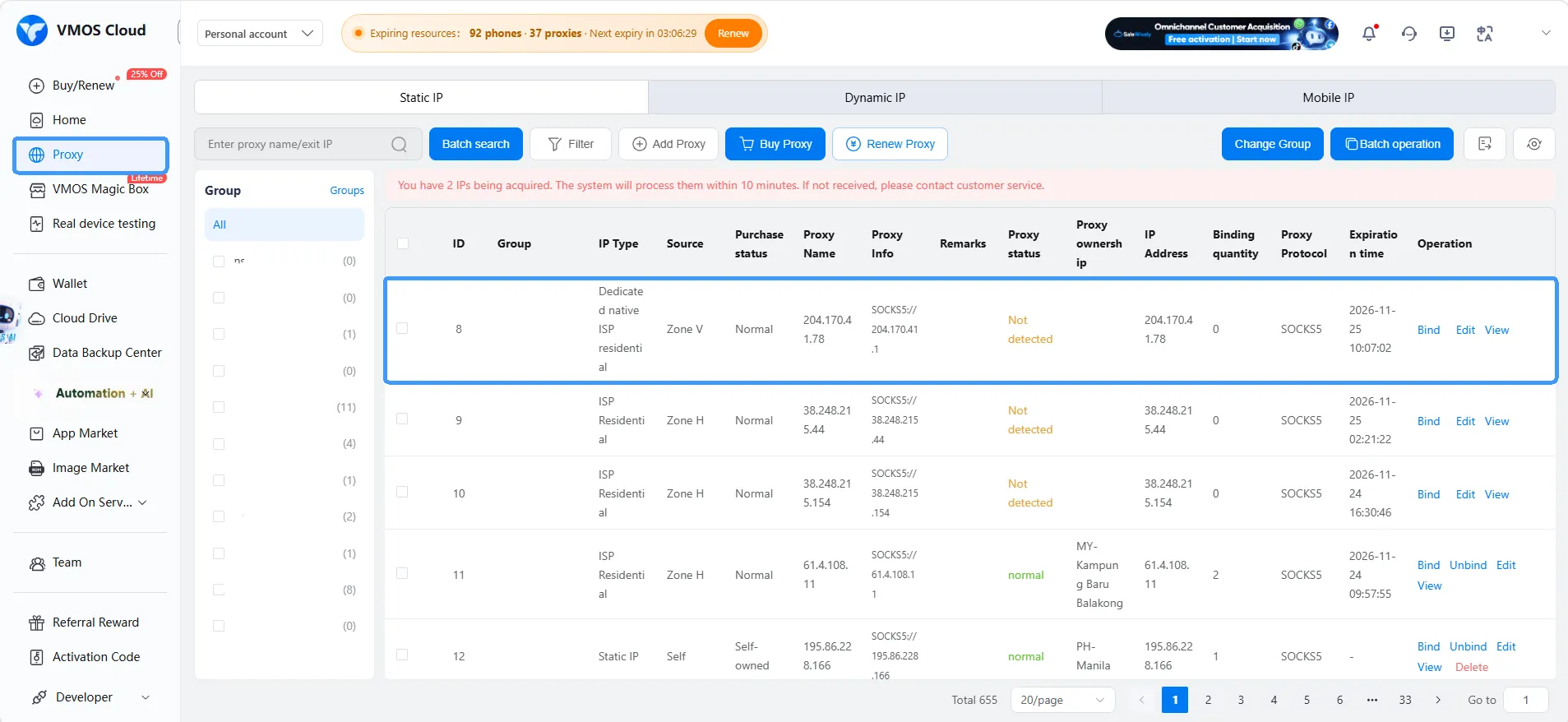
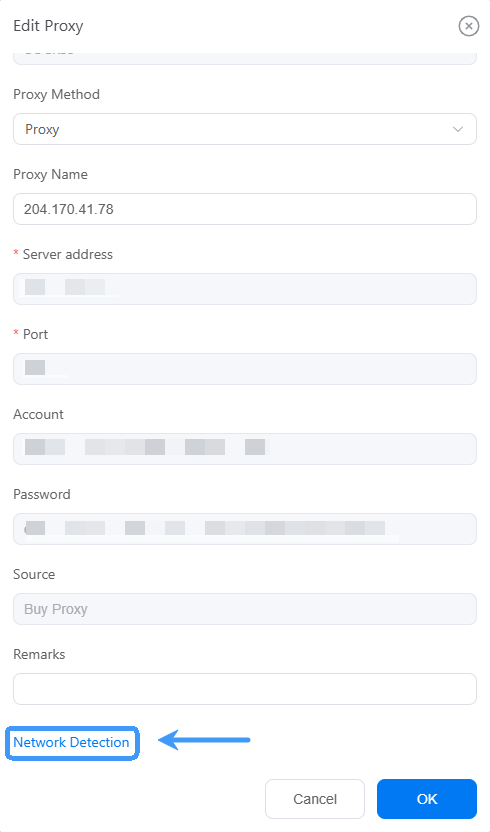
2. Click 「Edit → Network Detection」 to test the proxy connection.
3. Only proxies that pass the network check and show Normal status can be used. Click 「Bind」 to assign the proxy to a cloud phone. For proxies with a failed check or abnormal status, try running the network detection again. If the issue persists after multiple attempts, contact customer support for assistance.

Bulk Proxy Binding (Without Group)
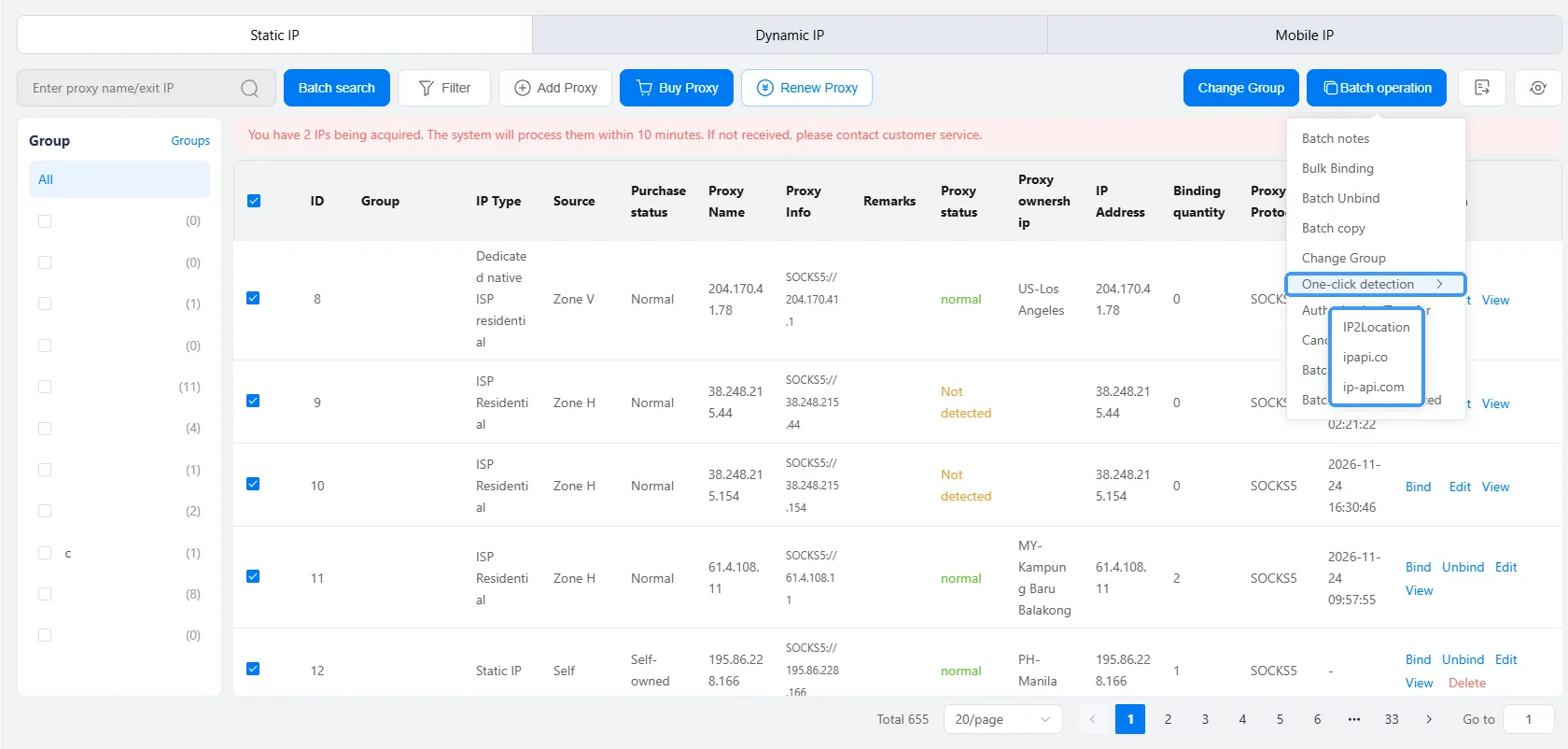
1. Go to 「Batch operation → One-click detection」 and select any available proxy testing provider.
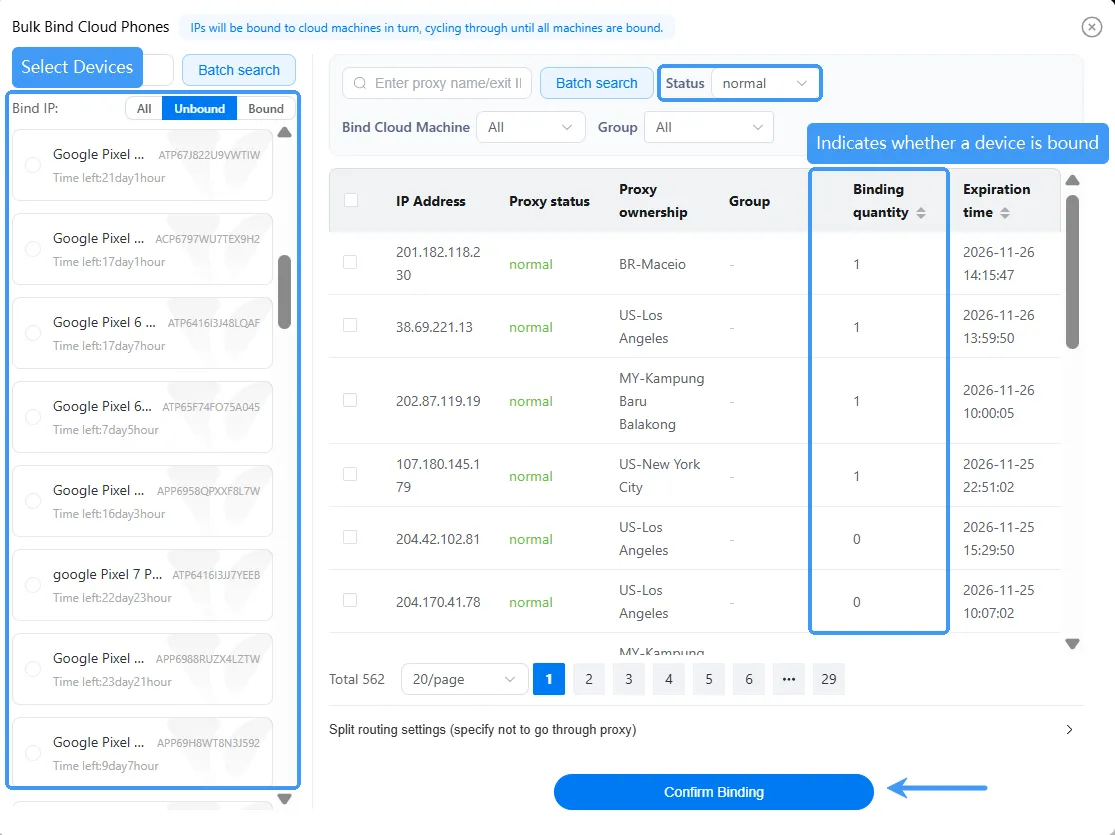
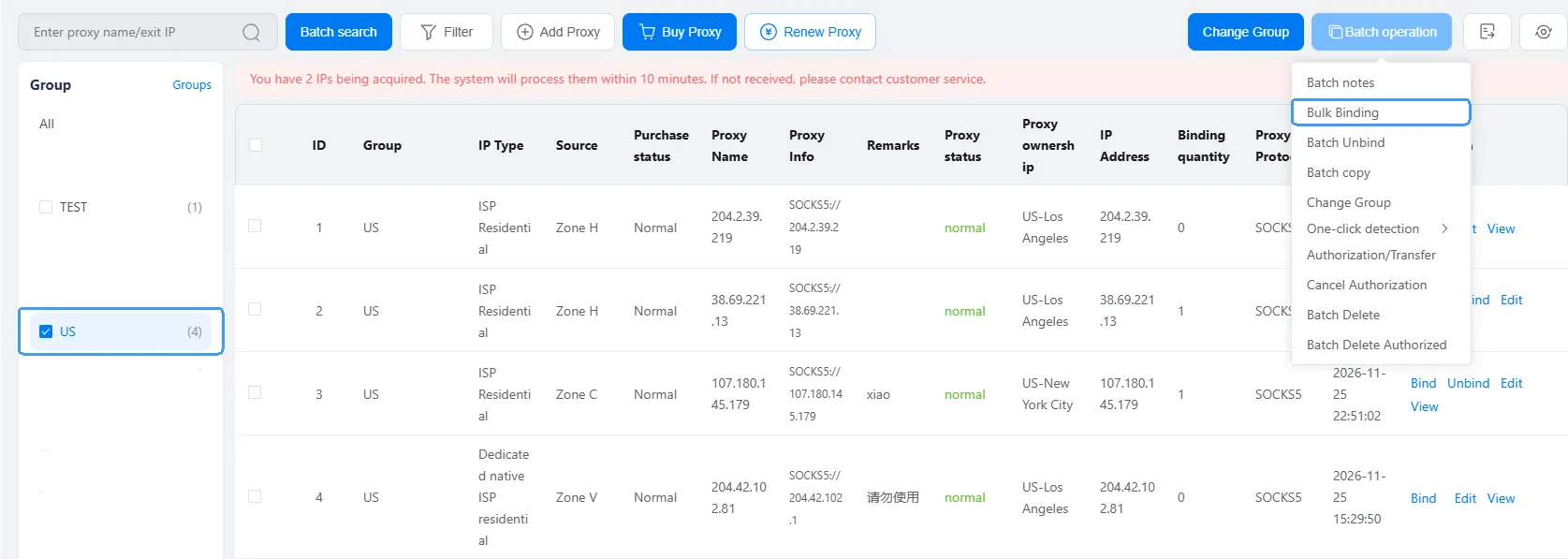
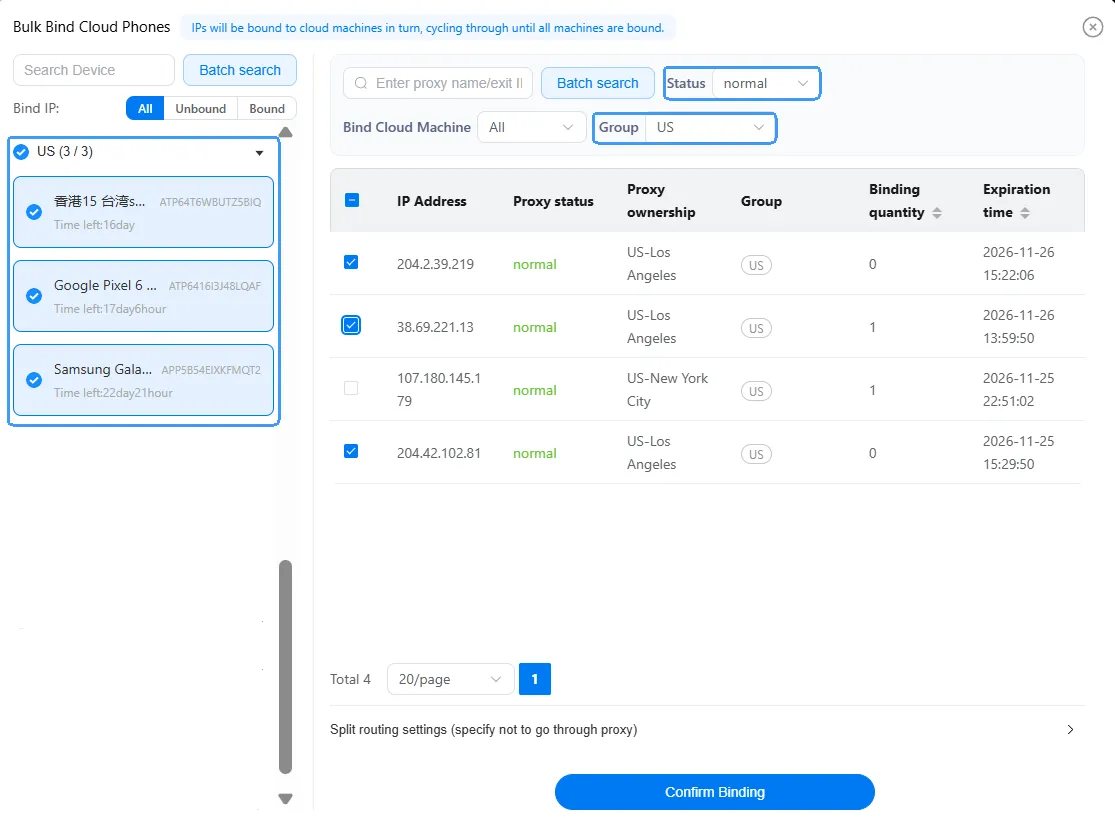
2. Bulk proxy testing may take some time. Once it's complete, go to 「Batch operation → Bulk binding」 and follow the steps shown in the screenshot. Select the cloud phones you want to assign proxies to in the left panel, then filter and select proxies with a 「Normal status」 in the right. Click 「Confirm Binding」 to proceed.
Note: Bulk binding does not allow you to assign a specific proxy to a specific cloud phone.
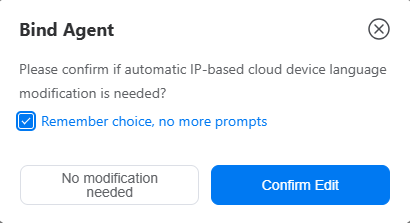
3. To align the cloud phone's language with the proxy's region, select「Confirm Edit」 when prompted.
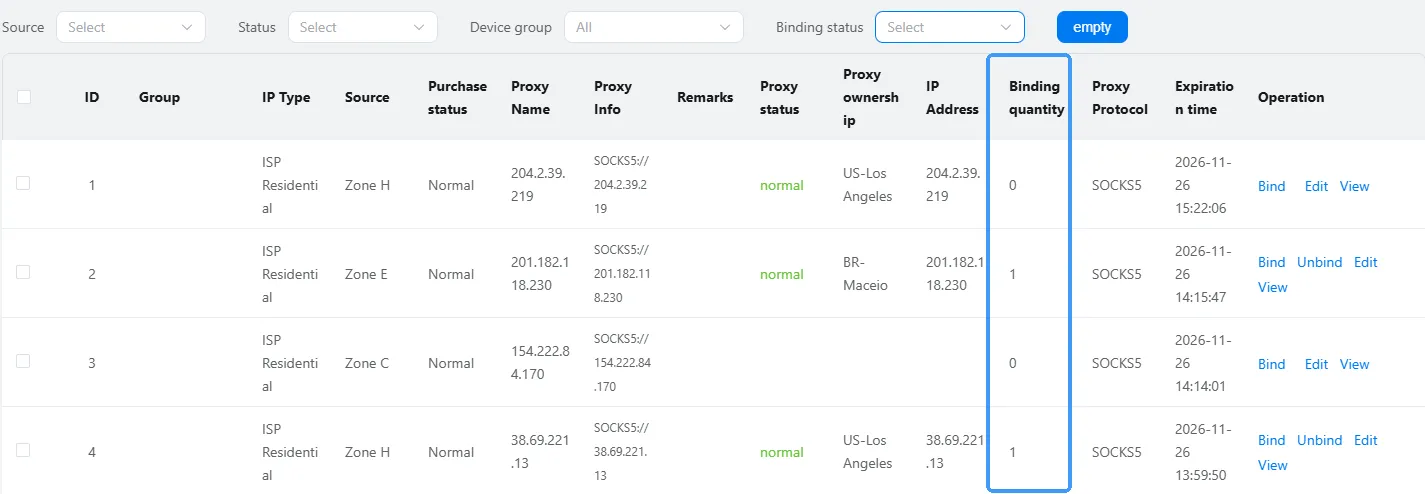
4. The binding process may take some time, depending on the number of proxies being bound. Once complete, refresh the page and check the 「Binding quantity」 column to verify the results: 1 means the proxy is bound to one cloud phone, 0 means it is not bound to any cloud phone, and > 1 means the proxy is bound to multiple devices.
Bulk Proxy Binding (Grouped)
1. Proxy grouping: Go to 「Quick Group → New Group」, enter a group name and click Confirm to create the group.

2. Once the group is created, it will appear in the left sidebar. In the 「All」 view, select the proxies to be grouped, then click 「Change Group → Group → Confirm」to assign them to the group. For example, US proxies can be assigned to a group named US.
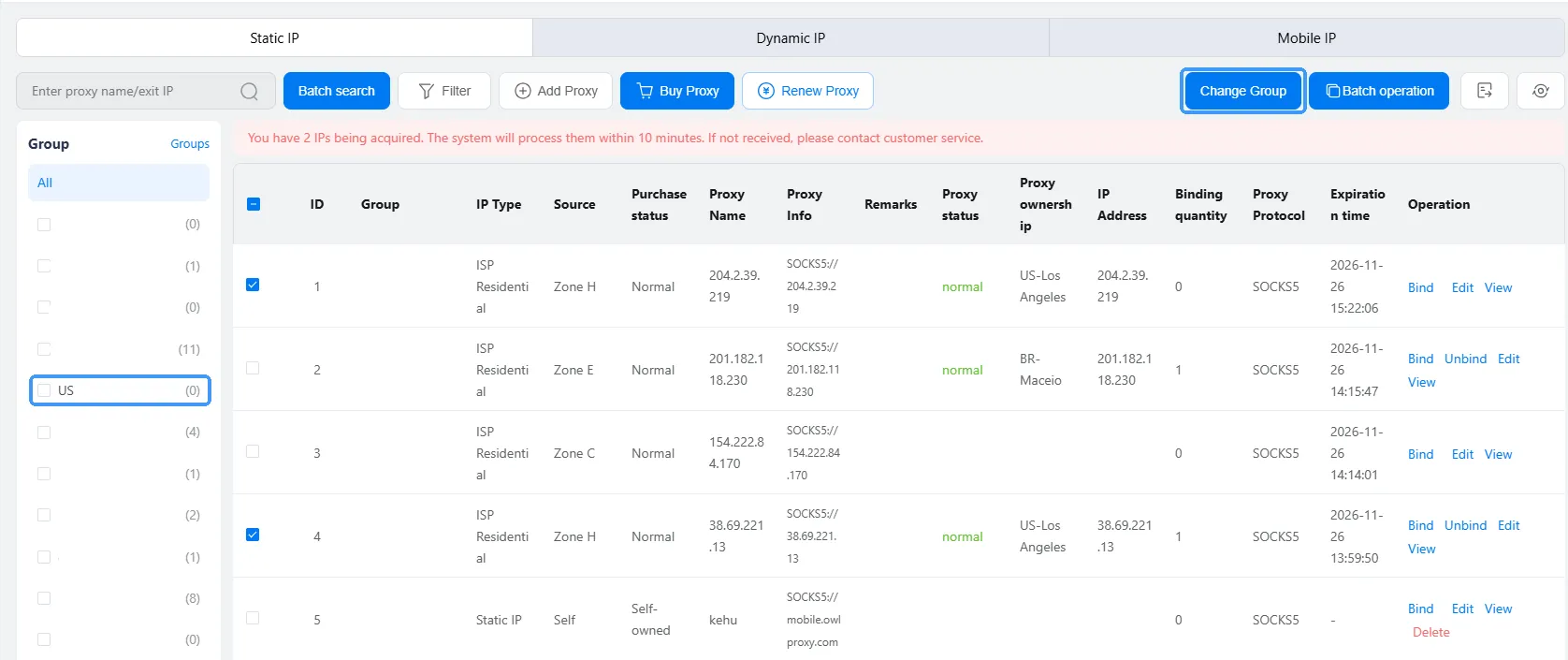
3. Device grouping: Select the cloud phones to be grouped, then go to 「Batch operation → Groups → Create New Groups and Join → Confirm」 to create the group and add the selected devices. For example, cloud phones that need US proxies can be placed in the same group.
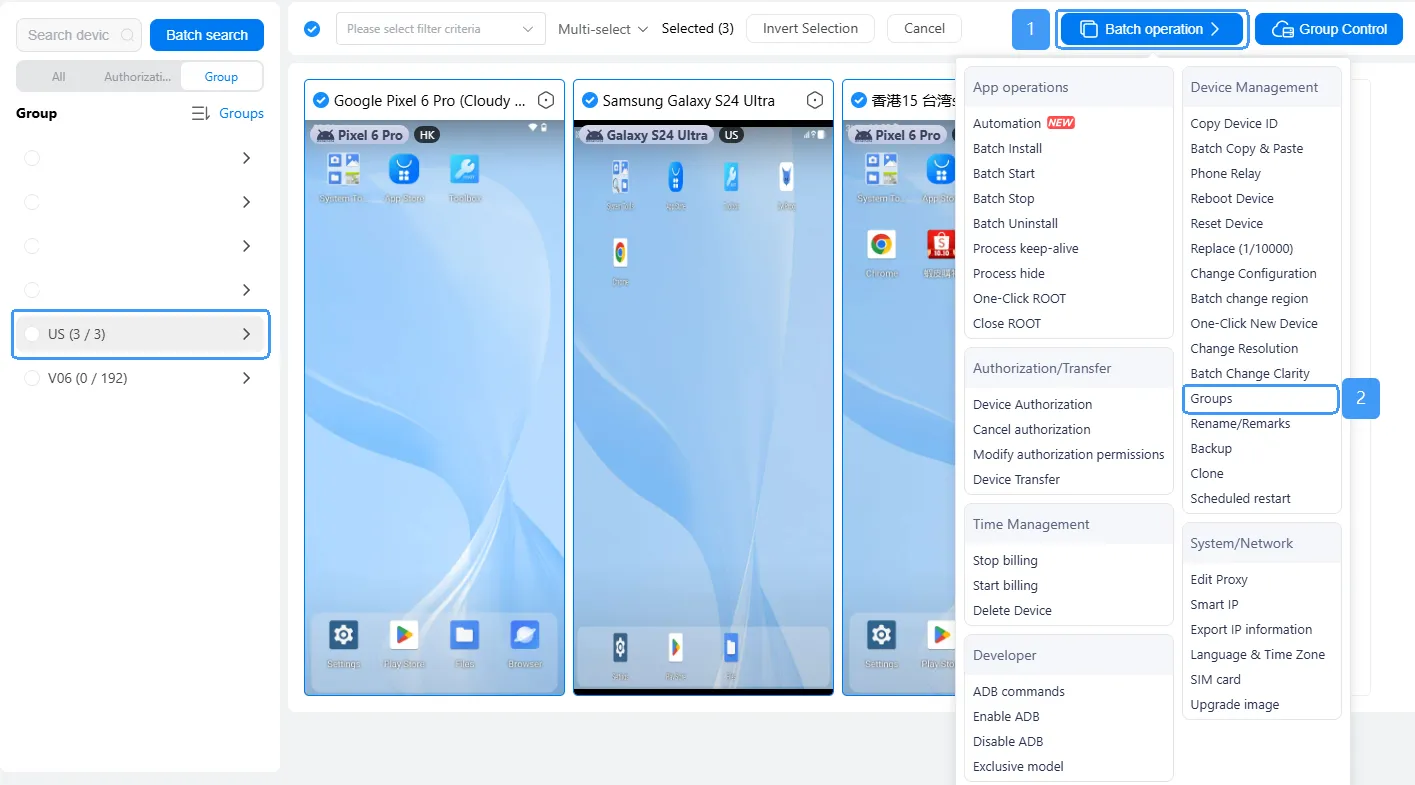
4. Once the network check is complete, select the proxy group and go to 「Bulk Binding」. Follow the settings shown in the screenshot: find the device group in the left panel, then filter for proxies with 「Normal Status」 in 「corresponding proxy group」 on the right. Select the desired proxies and click 「Confirm Binding」 to complete the process.
Set Apps to Bypass the Proxy
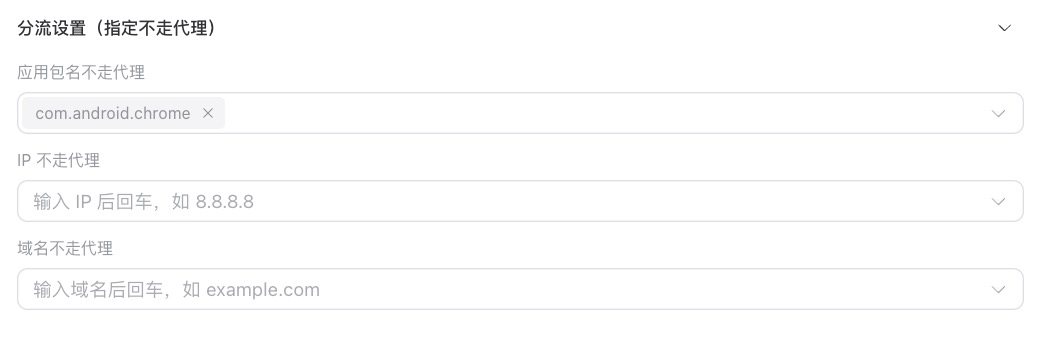
When binding a proxy, enter the app's package name under 「Traffic Routing Settings」. The specified app will use the cloud phone's default IP address (e.g., Hong Kong IP) instead of the proxy IP.
Bulk Import Third-Party Proxies to VMOS Cloud
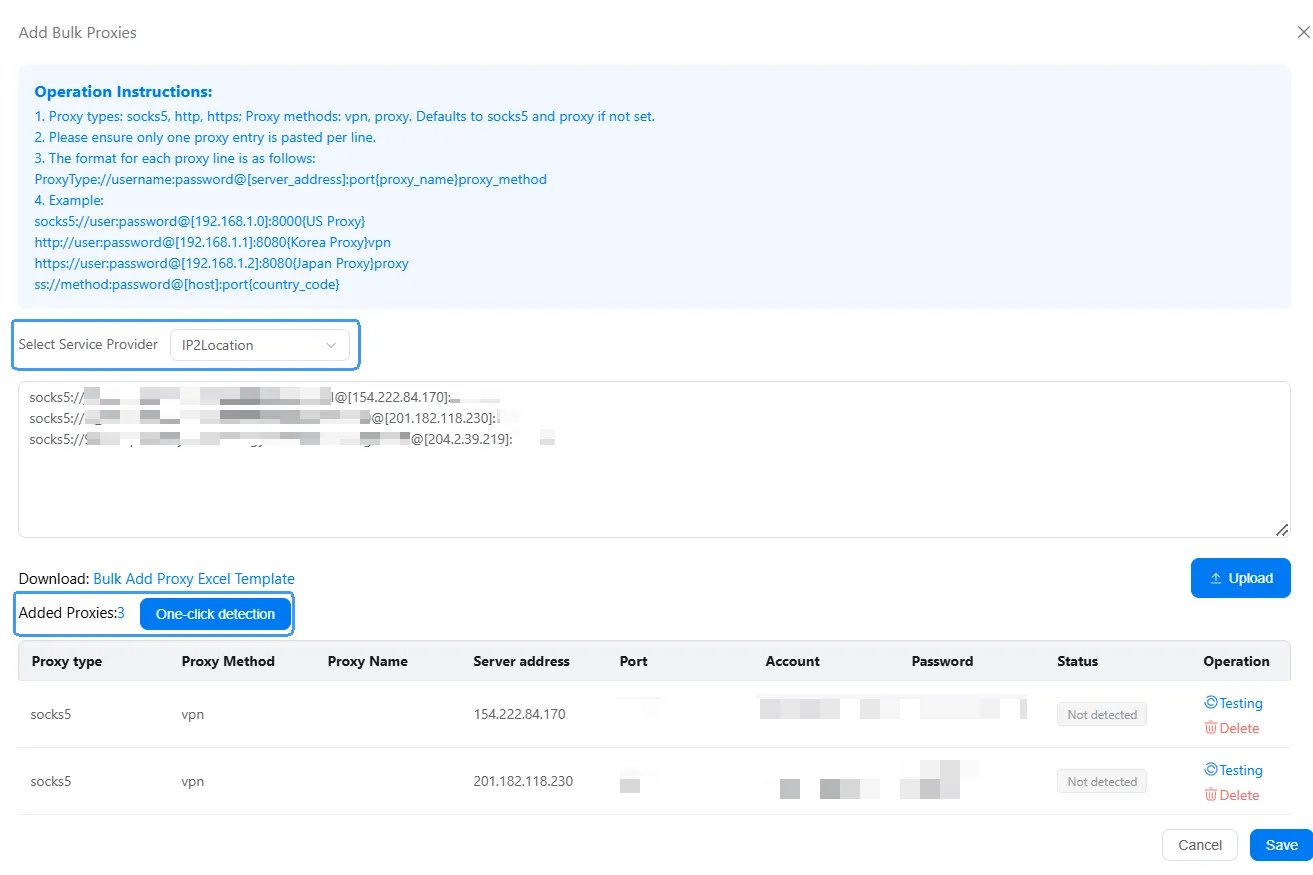
Go to「Add Proxy → Add Bulk Proxies」 and select a proxy testing provider. Paste the proxy details directly or download the template and fill in the required information. Once ready, click 「One-click detection and Upload」 the proxies.