How to Use Instagram Video Reels Template on VMOS Cloud?
1. Go Automation-> Template store in the left sidebar, and find Instagram Reels Video Publishing template.
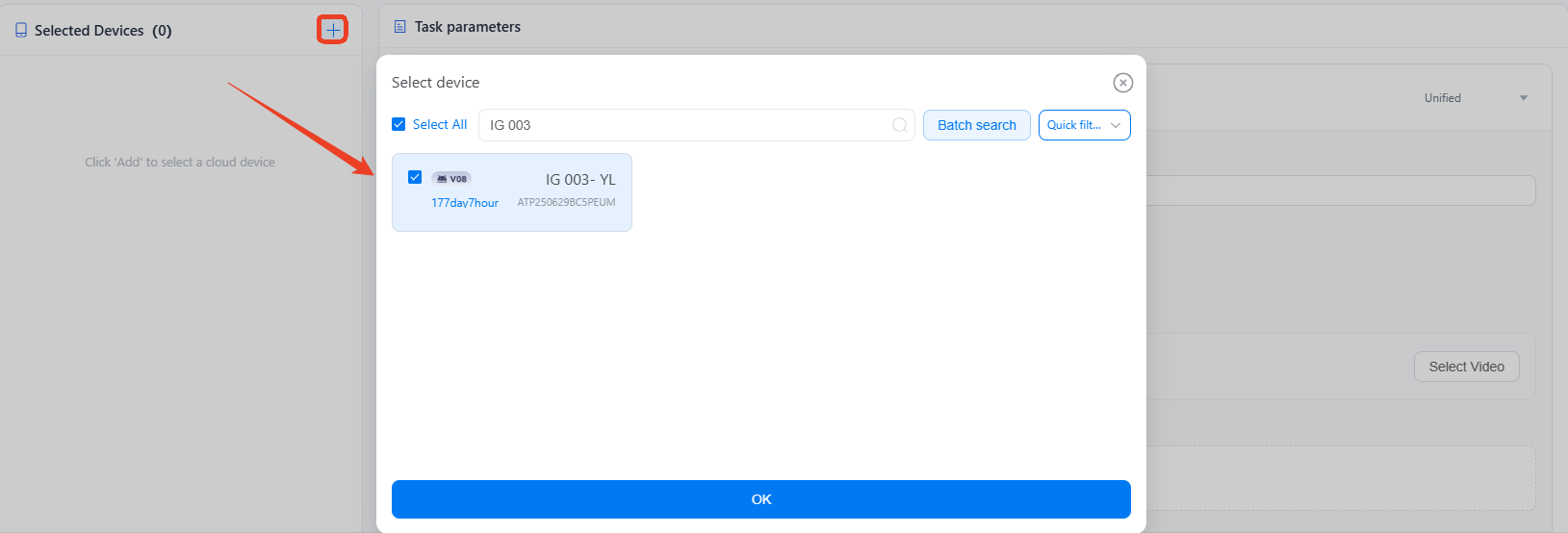
2. Select one or more devices with Instagram logged in on the left panel.
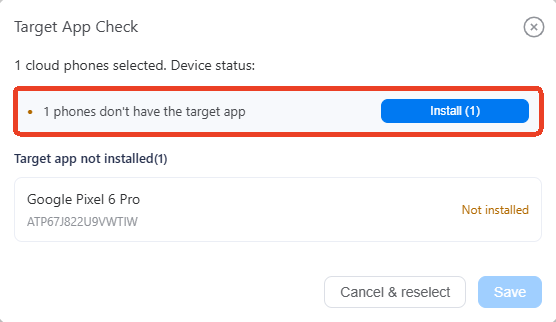
3. Click to Install correct Instagram version if device not have yet, which may take a few minutes. English version only.
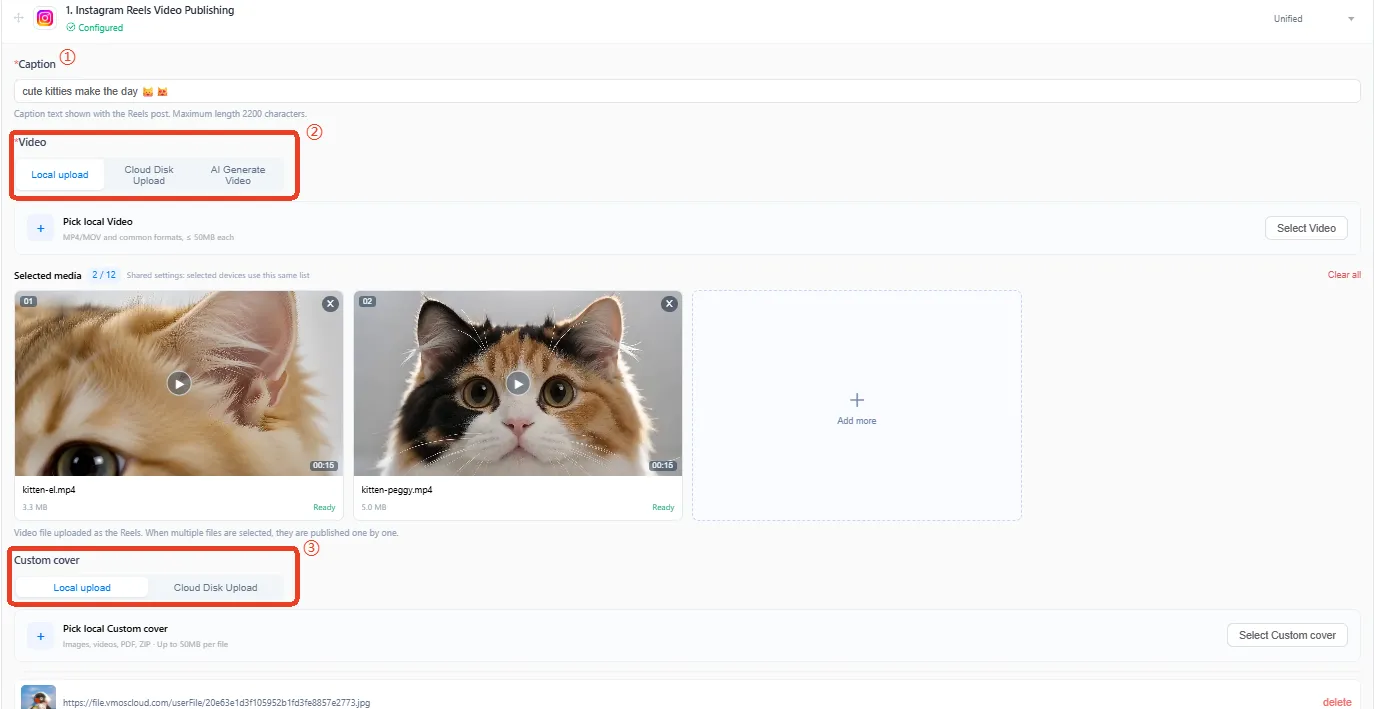
4. Enter the text you want to display with your Reel in the Caption field.
5. Select a video upload method: Local Upload (recommended), Cloud Disk Upload (cloud storage fees apply), or AI Generate Video (AI credits required) and customize the cover with images from your local device or cloud disk.
6. Enter an Instagram Reel URL in the Remix audio URL field to reuse its audio, then adjust the Remix volume and Original audio volume as needed. Leave the URL blank to keep the uploaded video's original audio.
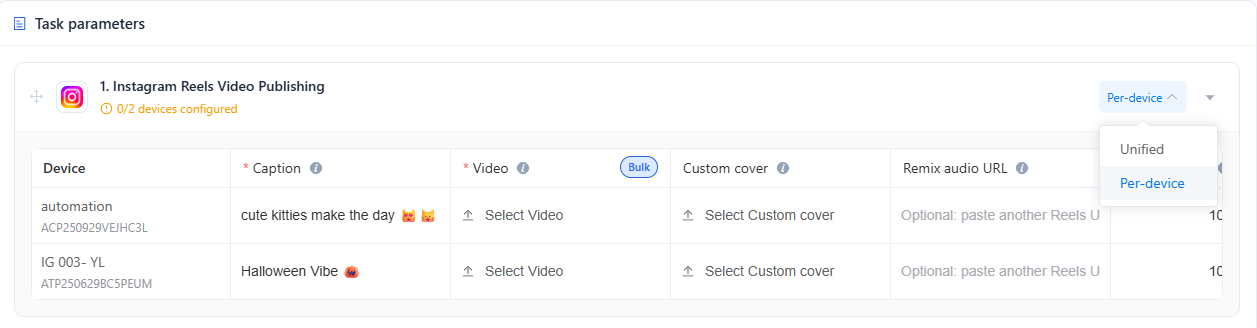
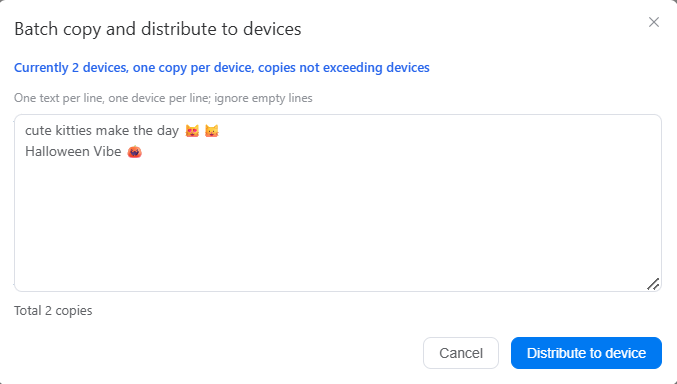
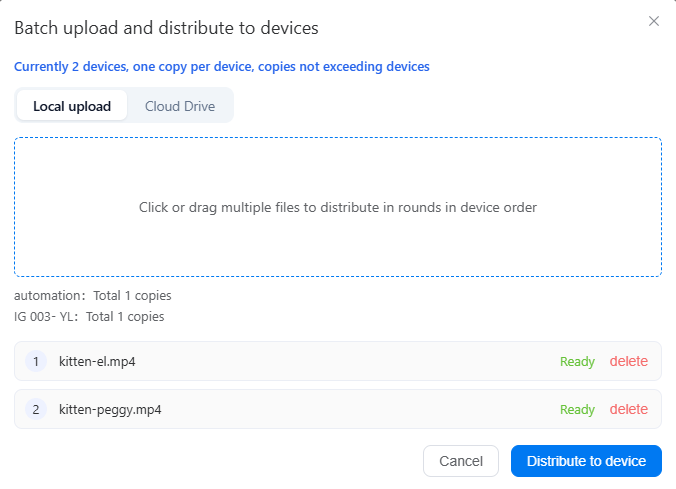
7. To publish different Reels across multiple accounts, switch to Per-device mode to configure content for each device, or use Bulk feature to quickly distribute captions and videos.
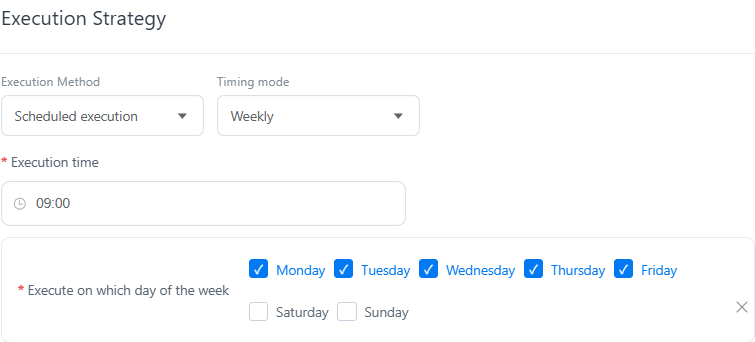
8. Customize the Execution Strategy to schedule tasks for a specific time. To run the task immediately, click Publish and check details in the Task Center.