How to Set Instagram Messages to Send at Scheduled on VMOSCloud?
1. Go Automation-> Template store in the left sidebar, and find Instagram direct messages template.
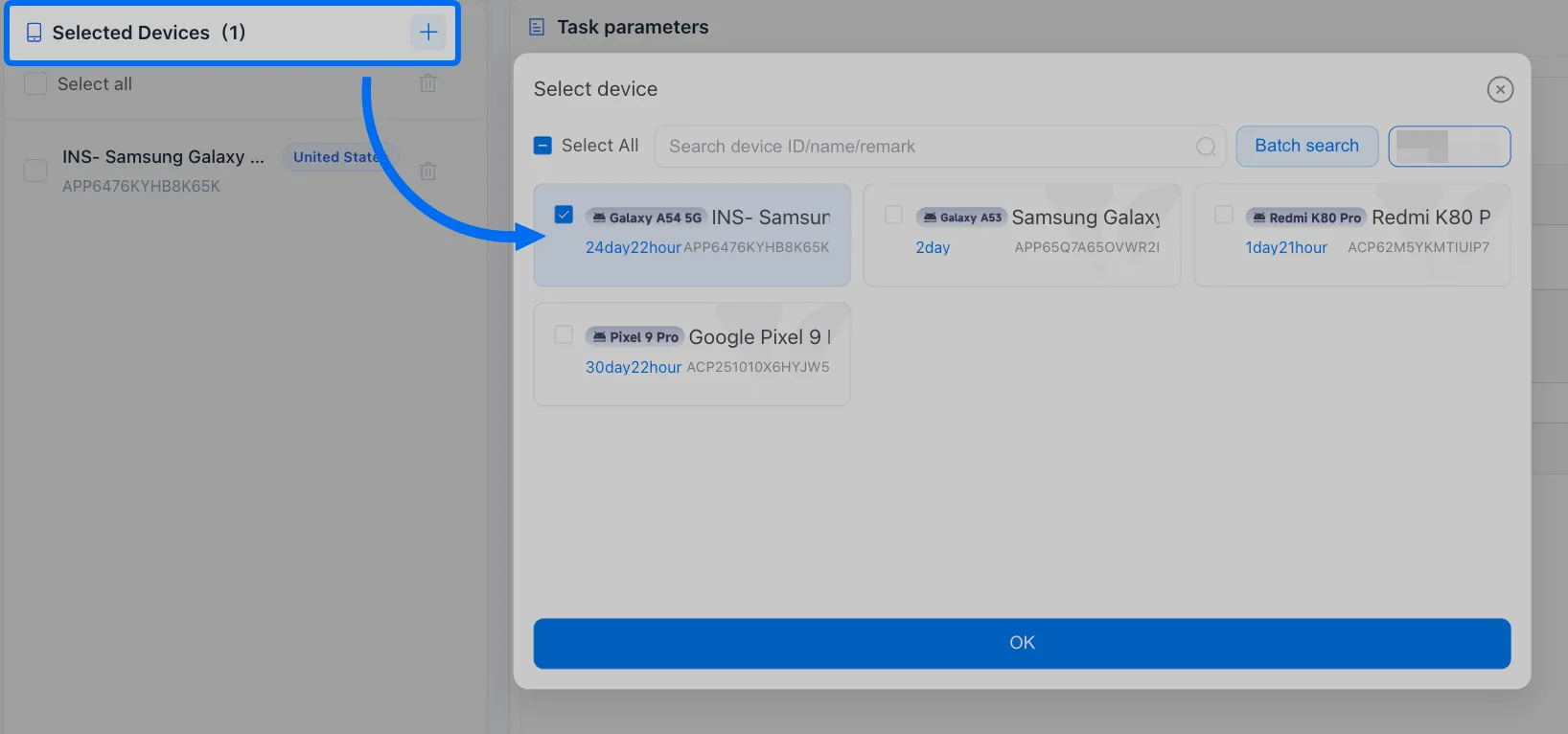
2. Select one or more devices with Instagram logged in on the left panel.
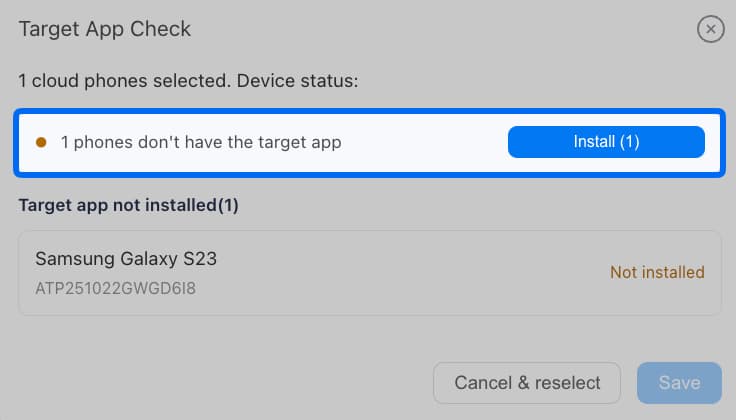
3. Click to Install correct Instagram version if device not have yet, which may take a few minutes. English version only.
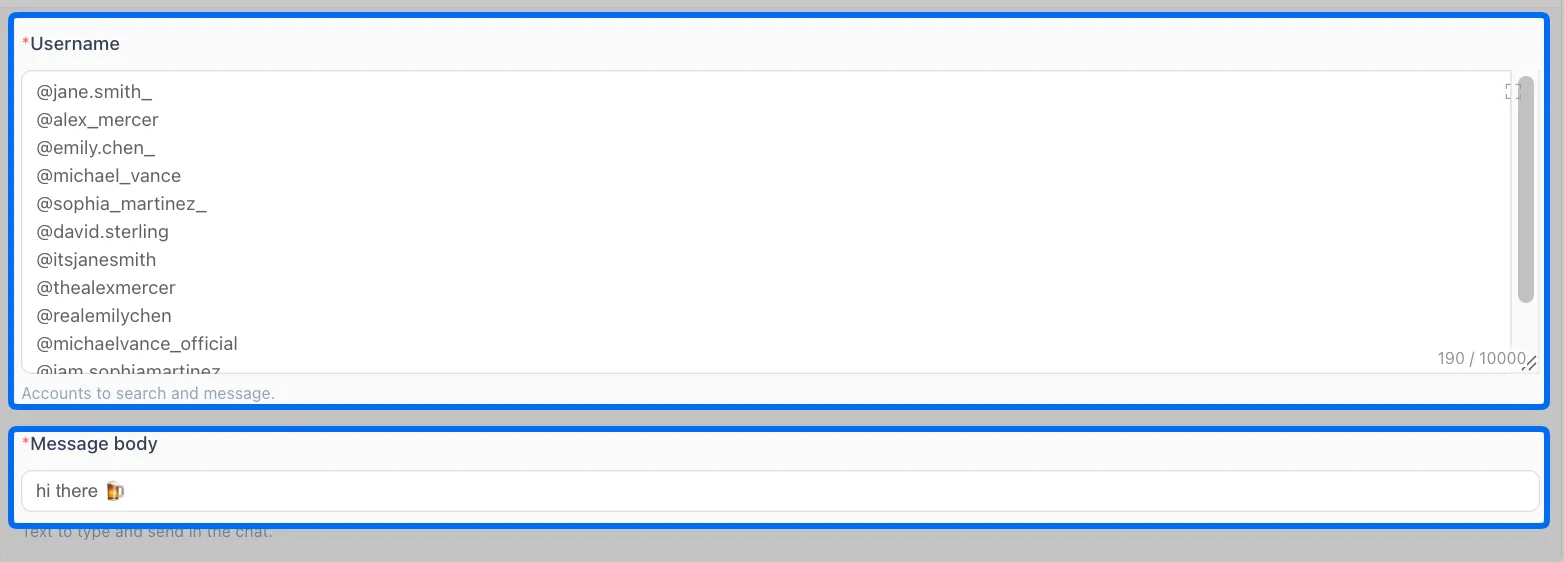
4. Paste target users' @username and set the message content. All users will receive the same content in this setting.
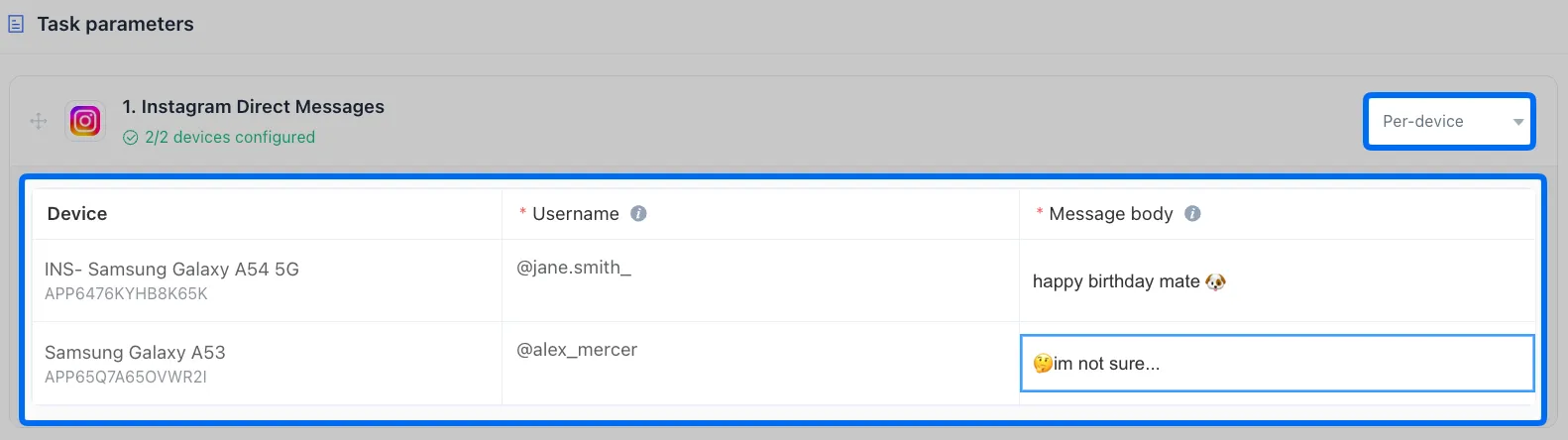
Or use per-device to set different devices and send different messages in a batch.
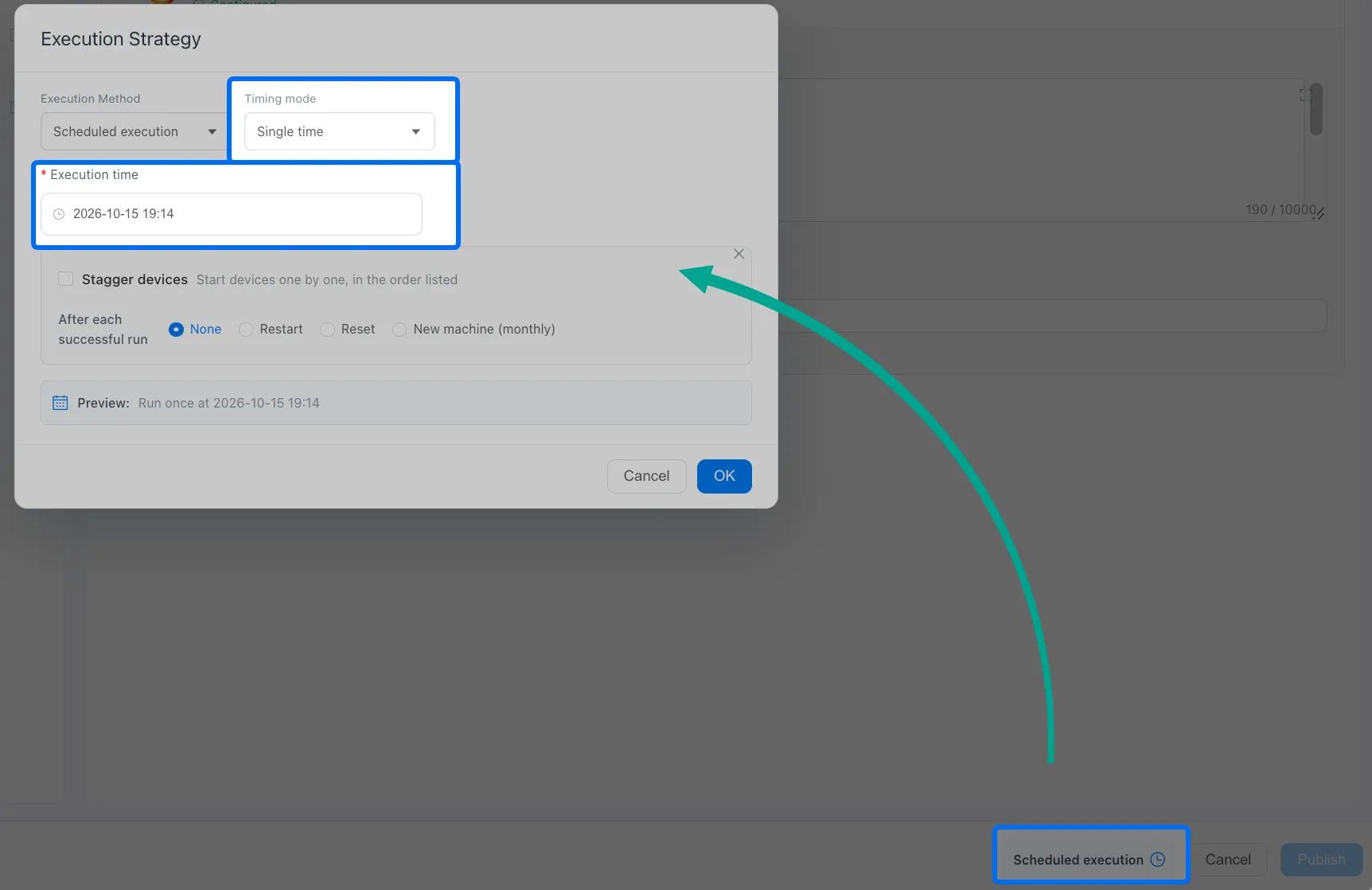
5. Go scheduled execution if need to run this task workflow at a specific time, or directly start it and go check the tasklist.