
How to publish a carousel post on Instagram?
1.Find Automation-> Template store in the left sidebar, and select Instagram from the dropdown menu.
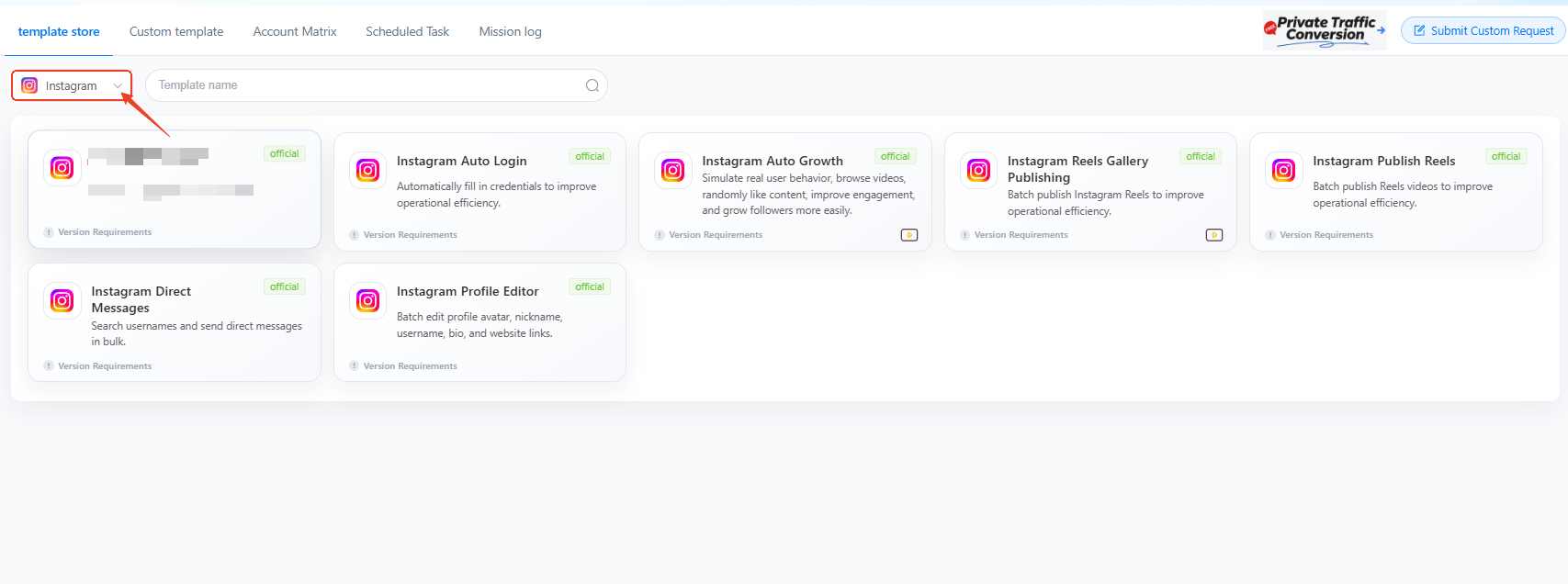
2.Use Instagram reels gallery publishing, then complete the required fields step-by-step:
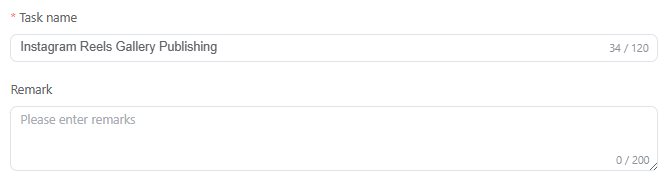
Finish Task name and Remark (not required).
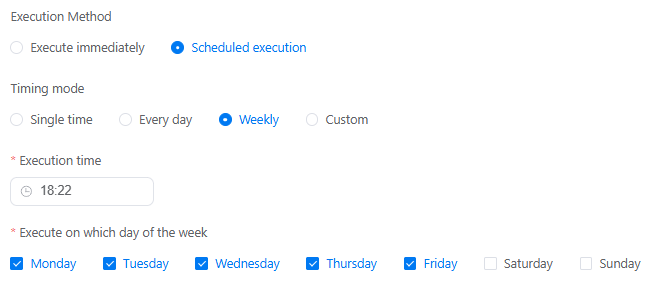
Run tasks instantly as a one-off job(Execute immediately), or set up a recurring schedule on a specific time, day or week(Scheduled execution).
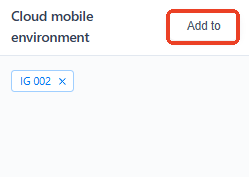
Using Add to to connect at least one device to initiate the task.
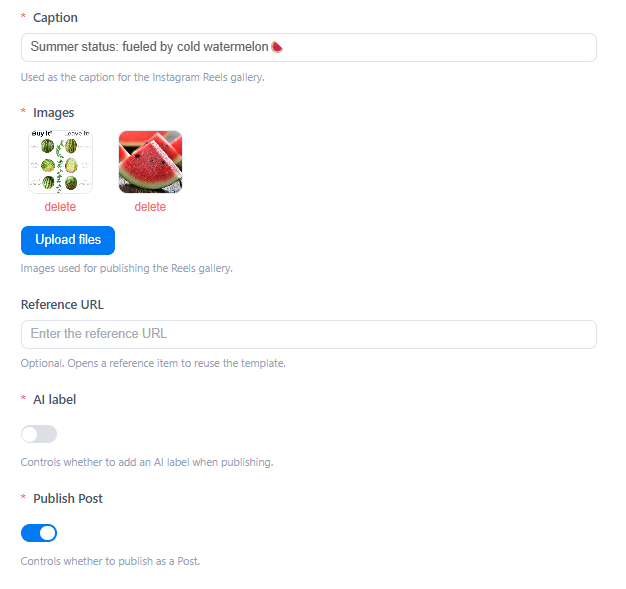
Put the post's description in Caption.
Upload files can add multiple pictures for your post.
Turn on the Publish post.
To comply with community guidelines, please turn on the AI-generated content label if your content was created using AI tools.
3. How to publish different Instagram posts on different devices?
Add multiple cloud phones, and use Batch parameter settings to set different reels content for different devices.

4. What if get stuck on errors?
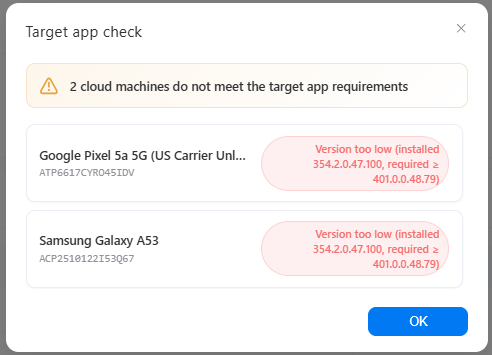
Error 1: Not meet the target app requirements
Error 2: target app not installed
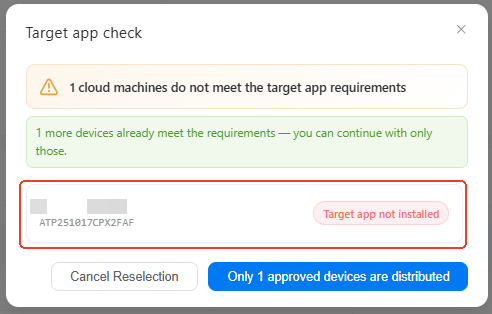
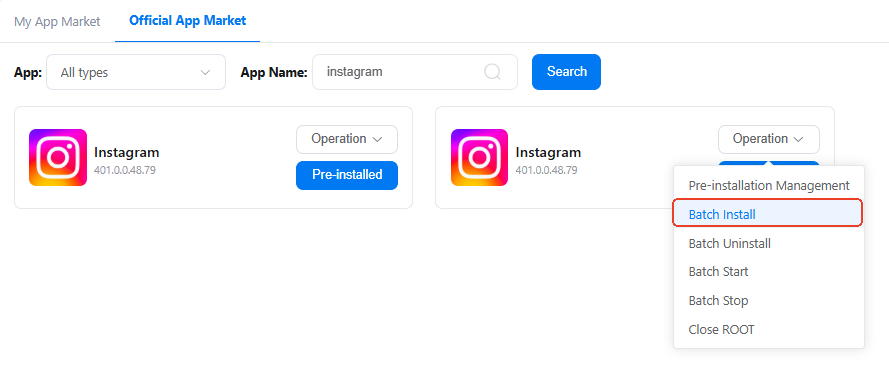
Solution: these two errors caused by the app in selected cloud phones. Please go App Market-> Official app market, search Instagram and Install to update it. If you have multiple devices with the same issue, try using batch install.
5. How to check if my task workflow runs well or not?
On the Mission log page, you'll see the status of every single task there as a list. Click Details to view the report and find out which step is blocking the workflow.

6. Can I build upon existing workflow templates to customize my own workflow?
You absolutely can.
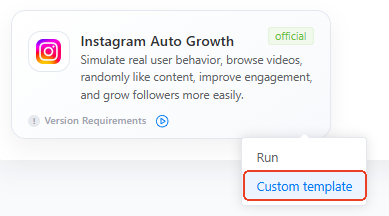
Find Custom template, it will take you to the RPA workflow builder, where you can add, delete, or modify specific actions based on the existing setup.
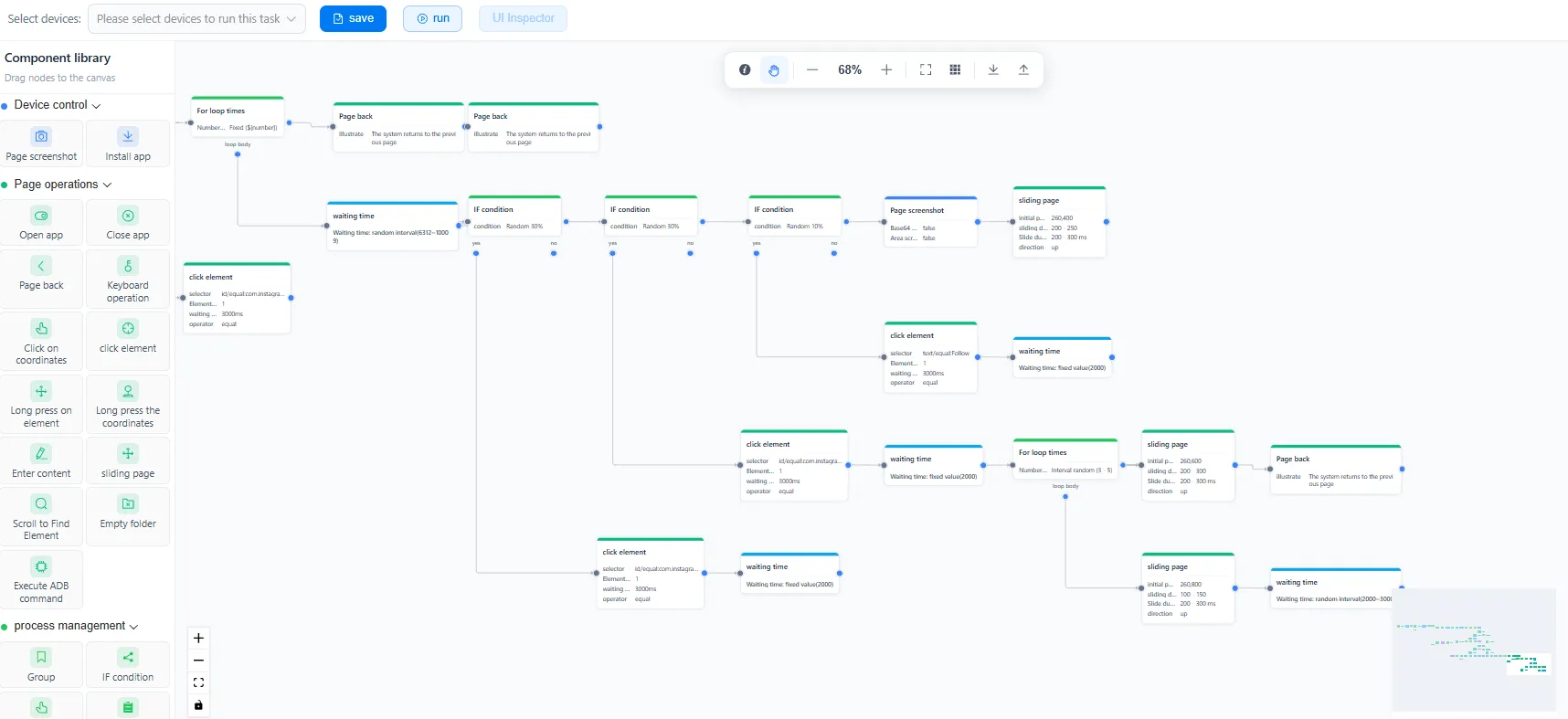
If you're just starting out in this field, click to see how to build RPA workflow step-by-step here.