
You can break the loop with these steps:
Use a stable network and a clean device, making sure your app or browser is up-to-date
Clear cache and session data, or reinstall the X app
Add backup verification methods (SMS or authenticator apps), or rebind your hardware security key
For multi-account or cross-region logins, maintaining a stable device environment and fixed IP can reduce loops
If the problem persists, contact X Support with error logs, timestamps, and device information.
To prevent future 2FA Loop, always run accounts in isolated environments, maintain consistent IPs, regularly update 2FA methods and backup codes, and enable login alerts to detect unusual activity.
If you've ever tried to log into platform X only to be stuck in an endless cycle of Two-Factor Authentication (2FA) prompts—entering codes, getting re-directed, and repeating the process without success—you’re not alone. This infuriating loop isn't just a minor glitch, it can block access to critical accounts, disrupt workflows, and erode trust in the platform. In this guide, we'll explain what the 2FA loop means, why it happens and most importantly, how to fix it for good—including advanced strategies for account creation and management that prevent future loops.
Safe Your Account Login on VMOS Cloud
What Does the 2FA Loop Mean on X?
A 2FA loop typically occurs when the platform repeatedly requests a verification code via SMS, authenticator apps or tokens without finalizing the login or registration process. That's to say, you're unable to complete the login process for an online account because the 2FA prompts cycles. Imagine this: you enter the 6-digit code from the authenticator app, hit "Submit," and instead of accessing your account, you're sent back to the 2FA screen again—sometimes with a vague error like "Verification failed" or "Try again." This loop can persist for minutes or hours, even if you're using the correct codes. It's a security mechanism gone haywire, often triggered by the platform's attempt to verify your identity but failing to cross-validate signals properly on device, location and IP.
How to check if you're stuck in a 2FA loop? Below are some possible key signs of a 2FA loop:
Repeated prompts for the same 2FA method even after entering a valid one.
Switching from SMS to an authenticator app doesn't end the loop, and still back you to the 2FA method screen.
The platform shows no progress toward account access, with no error messages beyond generic "try again" alerts.
Possible Reasons Make You Stuck in 2FA Loop on X Login
To fix the loop, you need to understand its root causes. The 2FA system of X relies on multiple signals to confirm your identity: your device's unique fingerprint, IP address, location, and the consistency of your login patterns. When these signals conflict or fail to align, the system will get stuck in a verification loop. Here are the most common triggers listed.
1.Domain transfer makes the passkey incompatibility
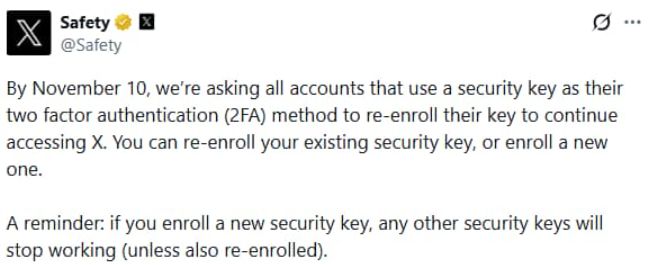
Indeed, the passkey migration to x.com leaves many X users stuck in login loops. Previously, 2FA using hardware security keys was bound to the twitter.com domain. Due to the domain change, these keys cannot be automatically migrated. It needs users to make a rebind on x.com. If you use the security key as a 2FA method, please re-enroll all before Nov 11th, 2025, otherwise the account may be locked or enter an infinite 2FA login loop. For your information, we list the steps to Re-Enroll your security key for 2FA on X.
Go to Settings: tap personal profile icon-> settings and privacy-> security and account access-> security >2FA.
Access Security Keys: scroll to security key section-> tap manage security keys.
Delete Old Keys: select existing keys->Delete->confirm with password.
Add New Keys: add security key-> enter password-> verify email code if prompted.
Enroll Key: click start > Insert key (USB) or connect via Bluetooth/NFC-> touch key button when prompted.
Finish: name the key if desired-> save->relogin to confirm.
2.Rebinding function error from system bug
Many users are encountering an error message like "You must re-register your YubiKey" when they're attempting to rebind their security key, but are unable to complete the process. Even with correct input, they cannot log in to settings to reset. This creates an upset cycle of "re-registration required → unable to log in → continued registration required." Some users have even reported that they have to perform this action despite never having used YubiKey before.
3.Lack of backup methods
If one account is only bound to a passkey and no other 2FA methods are set up, such as an authenticator app, SMS and backup codes, there is no way to restore login after the hardware key expires or migration fails. Especially when you change devices or lose your phone, the traditional 2FA channels may fail to sync to a new device.
4. Multiple-signals conflicts
As we said before, the 2FA system of X will verify you are real from multiple signals to secure your account. Therefore you will face a 2FA login loop if your signals are unable to stay the same as before, we listed the possible signals error that may cause a loop.
Fingerprint dismatch: Every device has a unique fingerprint based on device ID, installed apps and browser settings. If you're using a shared device or a device where multiple X accounts have been logged in, the platform may struggle to associate your current login with a single, trusted device. This confusion can trap you in a 2FA loop as the system fails to match your login attempt to a known, secure device profile.
Fluctuating IP: Change your IP frequently. If your IP address shifts mid-login—say, you switch from Wi-Fi to mobile data while entering the 2FA code—X may flag the session as suspicious. It then demands repeated verification to confirm you're the same user, creating a loop.
App or browser cache issues: Stored cookies, old session tokens in the X app or browser can corrupt the verification process. For example, if the app still holds a reference to an expired session, it may keep requesting 2FA codes to "re-verify" an already invalid session. This is why sometimes clearing cache often resolves minor loops.
Geographic limited: X may restrict access from certain regions for compliance or security reasons. If you're logging in from a restricted area (even accidentally via a VPN), it may overcompensate by demanding endless 2FA codes to verify your legitimacy. This is a common pain point for travelers or businesses operating across borders.
2026 Solutions: How to Break the 2FA Loop on X?
The truth is the 2FA loop is now without a clear path to resolve it, while the good news is: the 2FA loop may be fixable with the right steps. Below, we'll break down some possible solutions so that you can regain access to your account and prevent future loops.
Step 1: Rule Out Basic Issues
Start with the simplest fixes before diving into complex troubleshooting:
Step 2: Clear Cached Data and Session Cookies
Corrupted cache or cookies are frequent culprits. Here’s how to reset them:
For the X App: Go to Settings > Apps > X > Storage > Clear Cache. On iOS, uninstall and reinstall the app (this clears all cached data).
For Browsers: In Chrome, press Ctrl+Shift+Delete (Windows) or Cmd+Shift+Delete (Mac), select "Cached images and files," and clear data from the past hour. Repeat for Firefox/Safari.
After clearing, restart your device and try logging in again. Many users report the loop breaking after this step, as it removes conflicting session data.
Step 3: Update or Reconfigure 2FA Methods
If the loop persists, the issue may be with your current 2FA method. Try these adjustments:
Add a Backup Method: Log into X via a trusted device, go to Security Settings, and add a second 2FA method. This gives the platform an alternative verification path, breaking the loop.
Disable and Re-Enable 2FA: Temporarily turn off 2FA (using backup recovery codes), then re-enable it. This resets the verification settings and often resolves conflicts in the system.
Check for Expired Tokens: If using hardware tokens (e.g., YubiKey), ensure they’re not expired or disconnected. Re-pair the token if needed.
Step 4: Use an Isolated Device Environment (Cloud Phone)
For users facing recurring loops—especially during account creation or cross-border access—cloud phone offers a robust solution. Cloud phone (like VMOS Cloud) simulate physical devices in the cloud, providing a stable, isolated environment with a dedicated IP address. Here's how they help:
Fixed Device Fingerprint: Each cloud phone has a unique parameter, eliminating conflicts from shared or multi-account devices.
Stable IP Address: Cloud phones use static IPs, avoiding the dynamic IP issues that trigger 2FA loops during login.
Geographic Flexibility: You can select different country servers for your cloud phone, to break the geographic restrictions for global account management or brand marketing in restricted regions.
Step 5: Contact X Support with Detailed Logs
If all else fails, reach out to X's support team. Provide them with:
The exact error messages (if any) during the loop
Timestamps of when the loop started
Details of your device, browser, and network (e.g., "iPhone 15, iOS 17.2, home Wi-Fi with IP 192.168.1.1")
Screenshots of the loop (if possible)
Support teams often have tools to manually reset your session or adjust security flags, breaking the loop instantly.
Preventing Future 2FA Loops: Pro Tips for 2026
Once you're back in your account, take these steps to avoid repeating the loop:
Run X accounts in isolated device environment: Avoid logging into X on shared devices. If you must, clear data after each session.
Stick to static IPs: For critical accounts, use a fixed home or business IP. If traveling, use a trusted VPN with static IP options.
Regularly update 2FA methods: Rotate backup codes, update authenticator apps, and test all 2FA methods quarterly to ensure they work.
Monitor account activity: Enable login alerts in X’s settings. Unusual activity can trigger loops, so catching issues early prevents escalation.